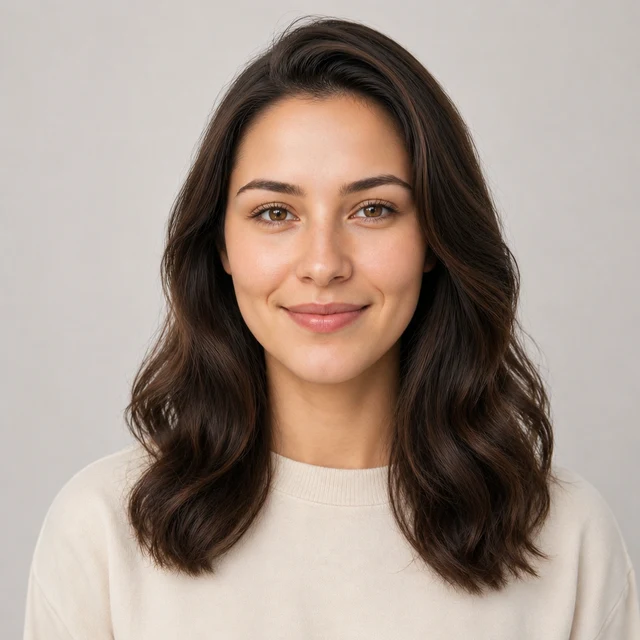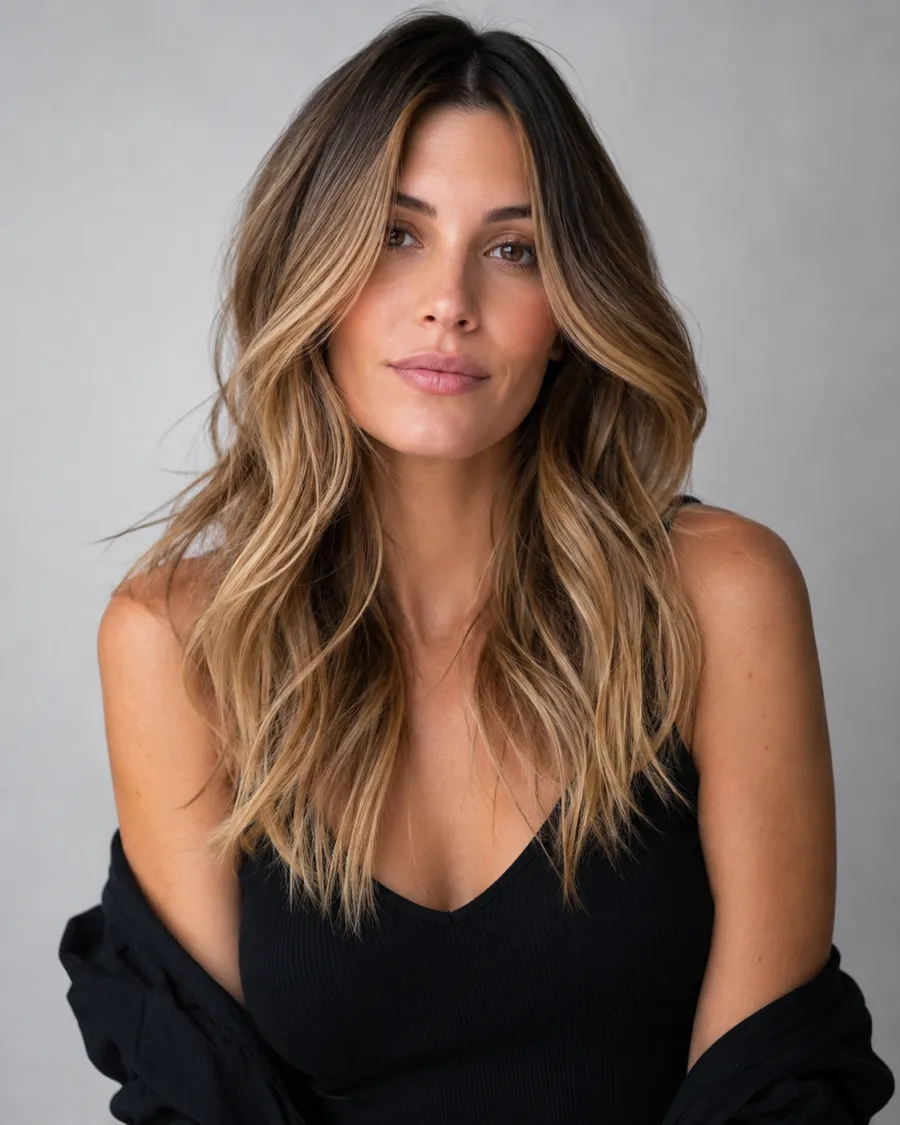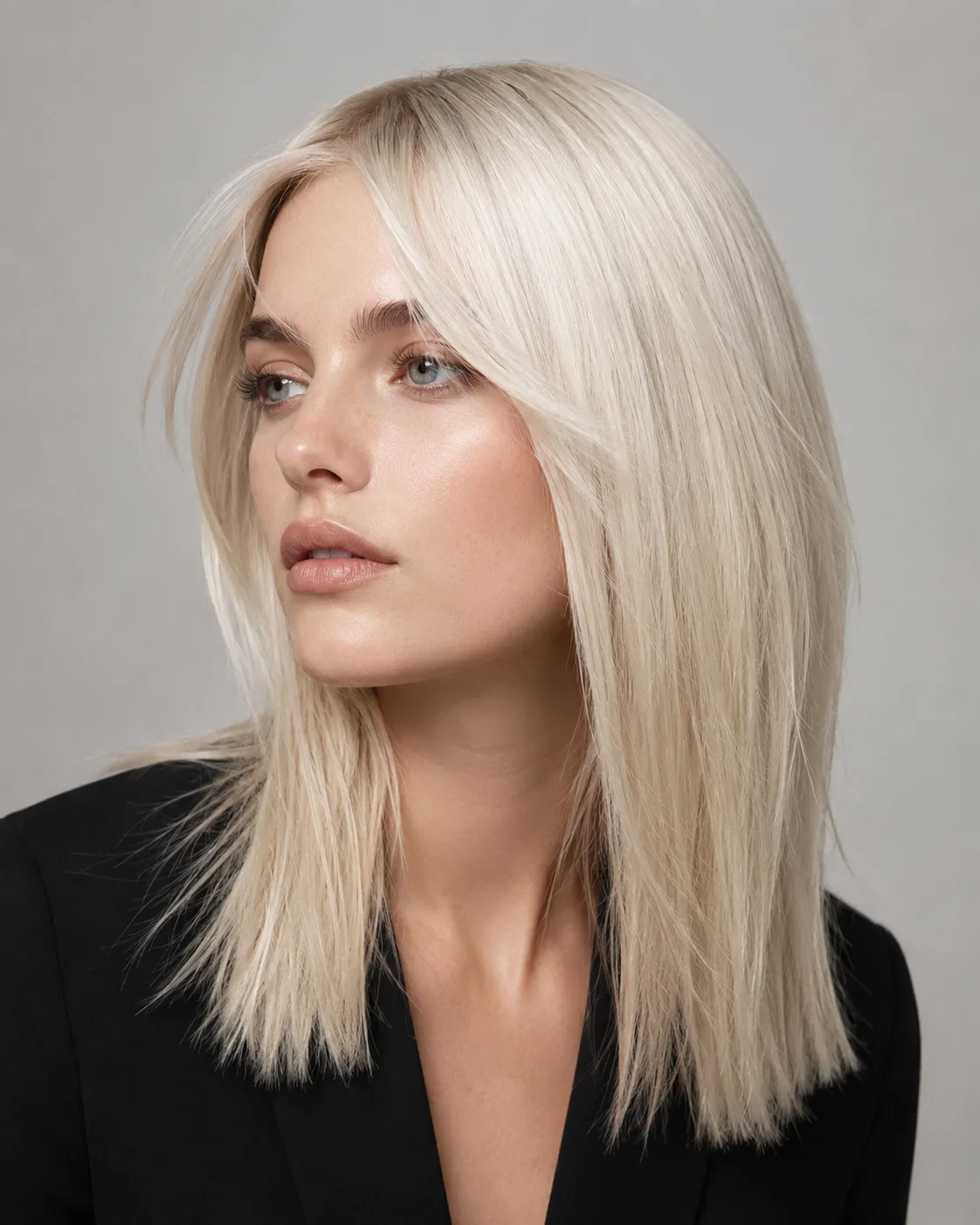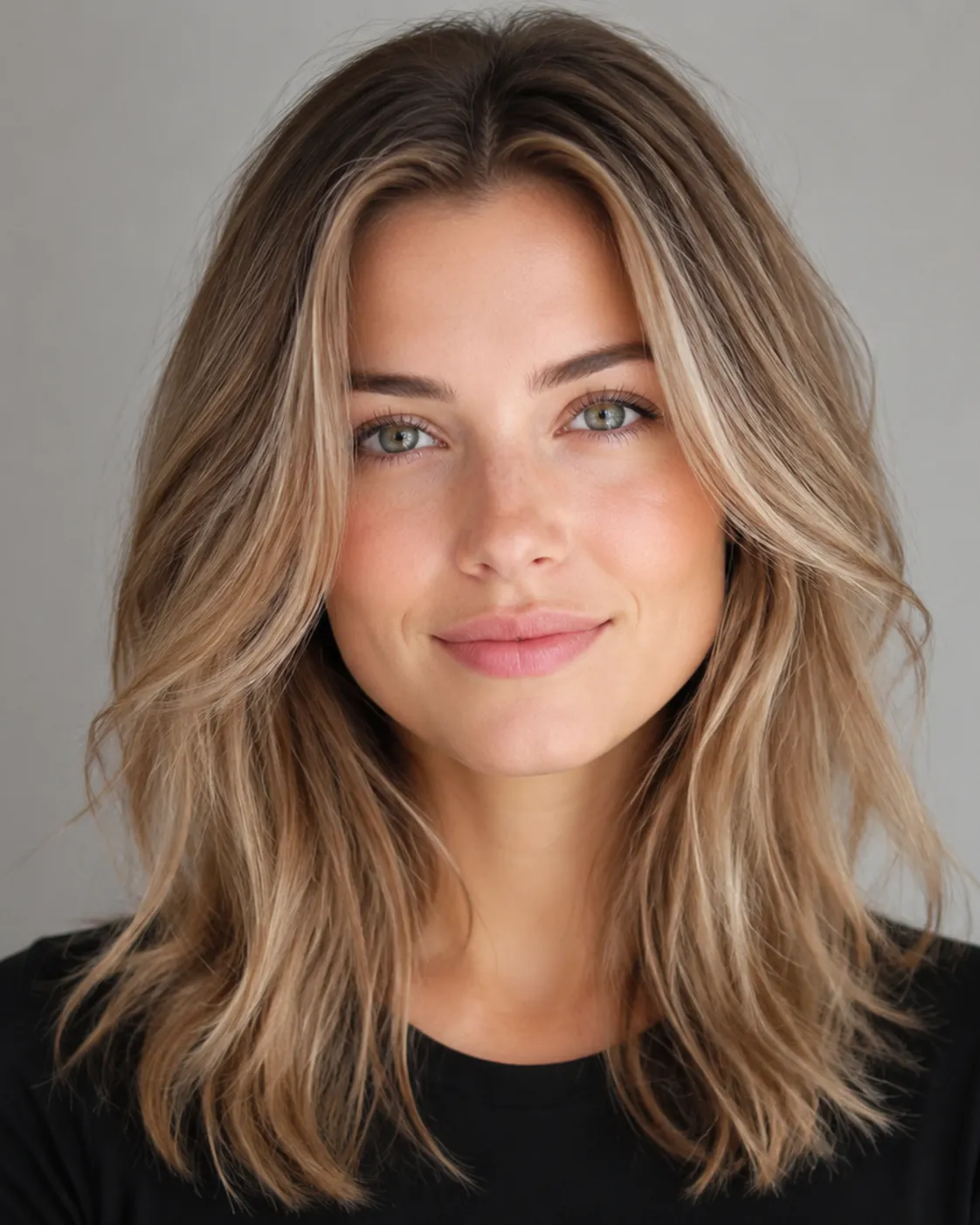
See blue on your own photo first

Blue Hair Filter

Upload one photo and preview deep sapphire, navy, bright electric, soft pastel baby blue, or teal-blue on your own hair — no bleach, no dye, no guessing.

Blue is a cool, statement color that reads completely differently from saturated electric to muted denim — so seeing it on your own hair matters more than most shades. AIChangeHair recolors only the hair to blue while keeping your face, skin tone, lighting, and background exactly as they are.

Compare a bold electric blue against a barely-there pastel baby blue on the same portrait before you commit to bleaching.✨ A brand-new report every time — a different hairstyle and color on every single generation.Edit hair · Try styles · Generate hair report
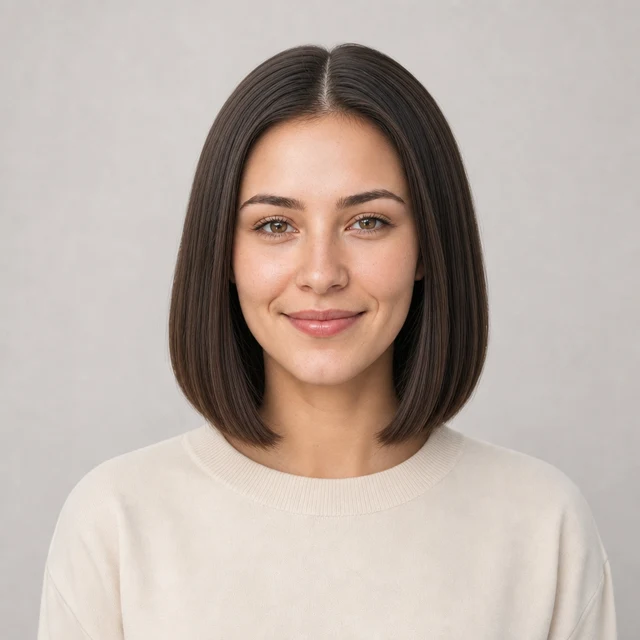
Upload a clear portraitTap to upload
1Task
2Input method
60 styles
3Quality
AI blue hair preview

Try blue on your own photo, from electric to pastel

This blue hair filter is a free way to see yourself with blue hair before you dye it. Blue runs a huge range — inky navy and sapphire on the deep end, electric and teal-blue in the middle, pastel baby blue on the soft end — and each one sits against your skin differently. Upload one portrait and the AI recolors your hair while keeping your face, skin tone, and background unchanged, so you judge blue on you, not on a stock model.

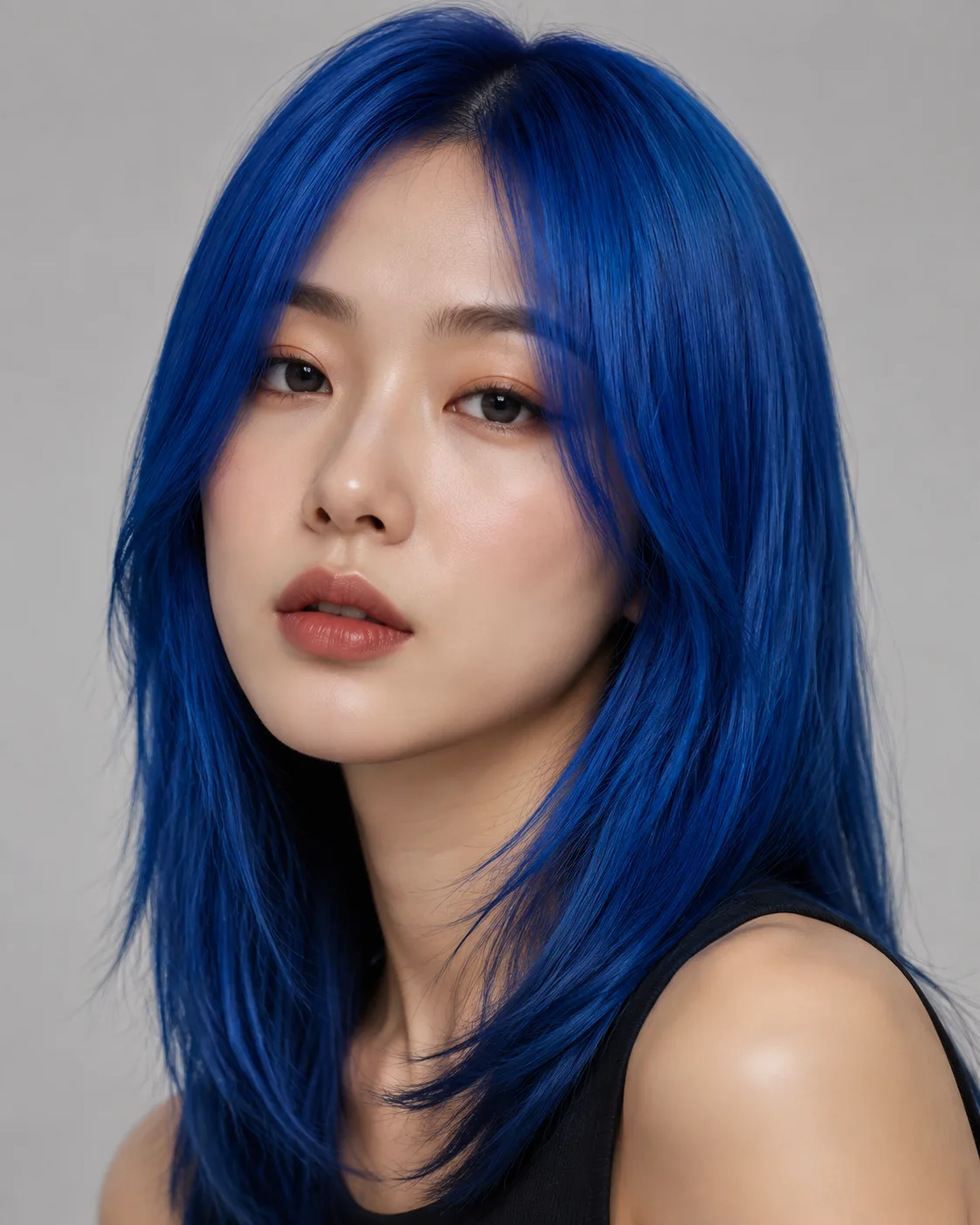
Blue hair filter preview with vivid electric blue hair
Electric Blue
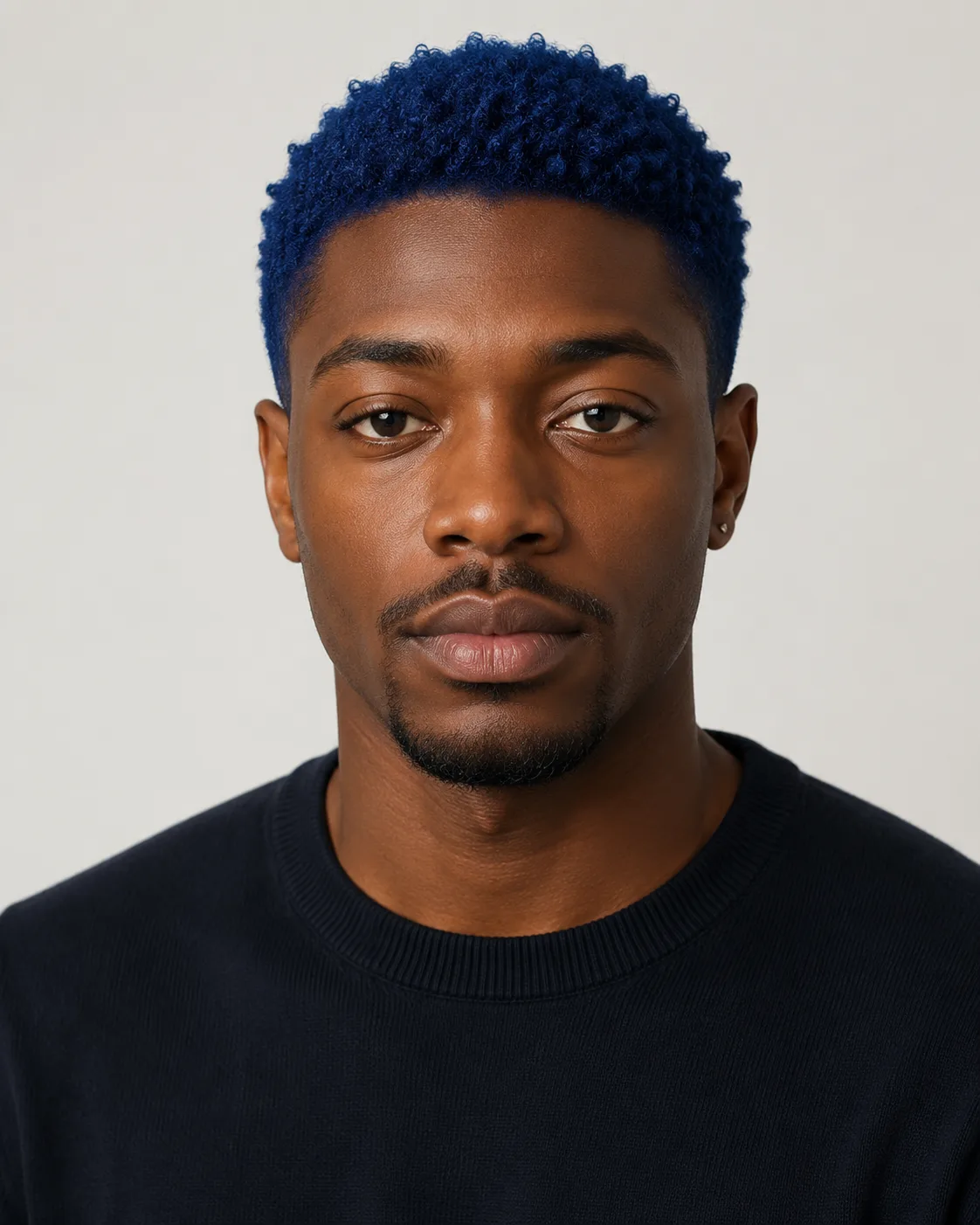
Blue hair filter preview with deep navy blue hair
Navy Blue
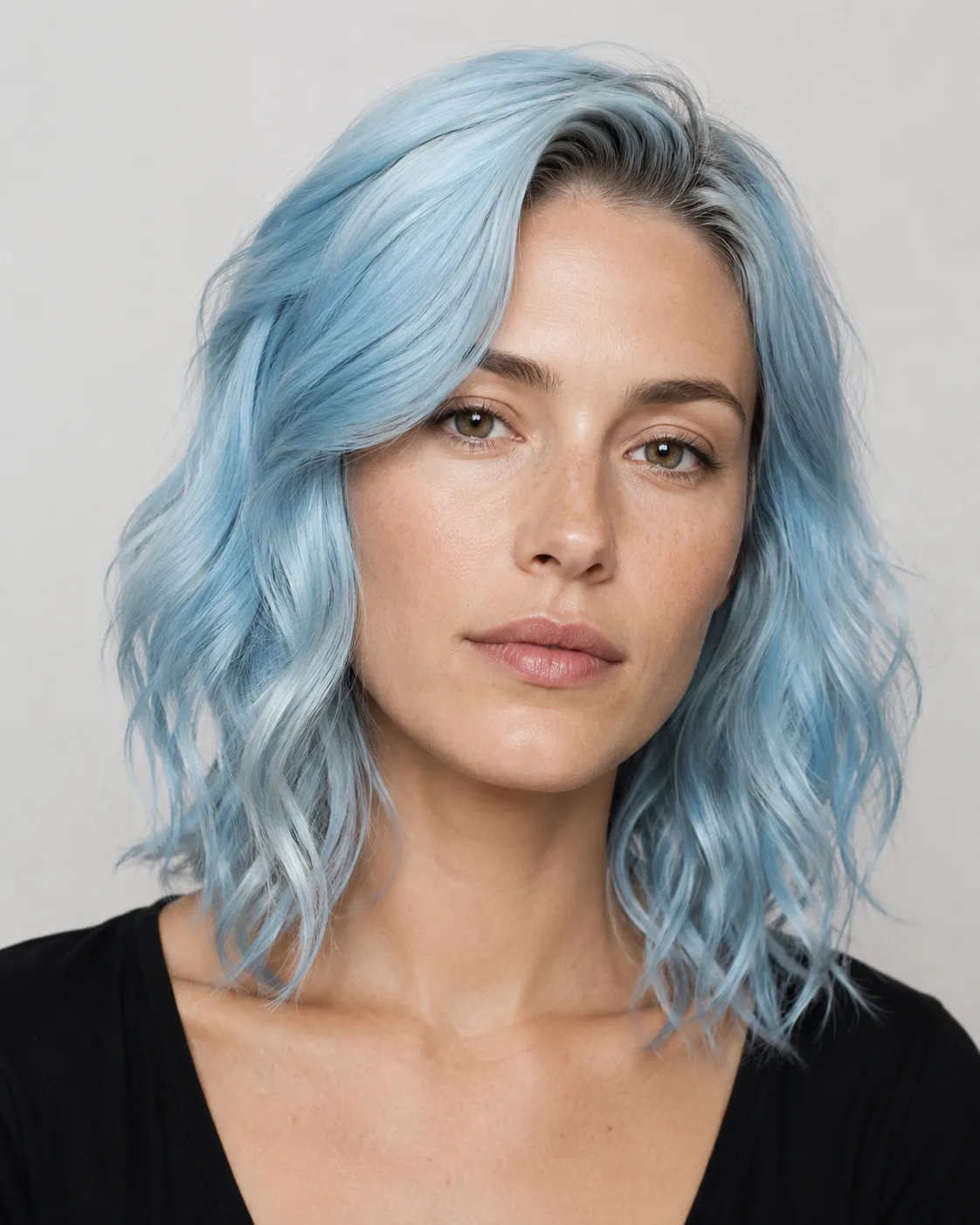
Blue hair filter preview with soft pastel baby blue hair
Pastel Baby Blue
One photo, the full spectrum of blue

Preview deep sapphire and navy that work over dark hair, vivid electric blue and teal-blue for a saturated statement, or an airy pastel baby blue that usually needs a lighter base — and keep your haircut exactly as it is while only the color changes.

Bold or soft blue

Preview saturated electric, sapphire, and navy on the bold side, or pastel baby blue and a dusty teal-blue on the soft side, to see which depth of blue actually suits you.

Cool-tone check

Blue is a cool color, so it plays against your skin tone differently than warm shades. The preview renders it against your real complexion and lighting instead of a generic studio model.

See it over dark hair

Deep navy, sapphire, and teal-blue sit naturally over dark hair, while pastel baby blue usually reads as if your hair were lifted lighter first — the filter shows you both so there are no surprises at the salon.

Keep your haircut

The filter changes only the color, so your current length, layers, and texture stay exactly as they are in blue.

Custom promptDescribe your hair change
Make my hair a glossy copper bob with soft curtain bangs, natural volume, and a photo-real salon finish.
One input is enoughGenerate from description
Custom blue shade

Describe the exact blue you want

Write one idea and generate from description. A short prompt like deep sapphire blue, midnight navy, electric cobalt, pastel baby blue, or a smoky teal-blue is enough. AIChangeHair keeps the request focused on the hair color while preserving your face, clothing, lighting, and background — so you can chase one precise shade of blue instead of a generic preset.

Bob hairstyle preview
Bob
Pixie Cut hairstyle preview
Pixie Cut
Soft Waves hairstyle preview
Soft Waves
Blue on any hairstyle

Add blue to a bob, waves, or a pixie

Keep your current cut, or combine the blue color with a hairstyle preset — a bob, soft waves, or a pixie — to preview a full blue restyle from the same portrait. An electric blue pixie and a navy lob read very differently, so it helps to see the color on the shape you are actually considering.

How to Try Blue Hair on Your Photo

01

Upload Your Portrait

Upload a clear, well-lit portrait with your hair fully visible. Even, natural light shows the truest blue against your skin tone — skip hats, sunglasses, and heavy shadows.

02

Pick a Blue Shade

Land on the blue preset, then describe a specific tone like sapphire, navy, electric blue, pastel baby blue, or teal-blue. Keep a single color to preview blue on your current haircut.

03

Generate and Compare

Get the blue preview in about a minute, compare it side by side with your original, then download it or try the next shade — say electric one round and navy the next.

Try AIChangeHair Now
Pricing

Start free. Upgrade when you need more.

Free daily credits to start. Go Monthly, or save 53% with the Yearly plan - high quality, custom prompt edits, 180 hairstyle presets, AI hair reports, and high-volume use.

Starter

$0/ forever

Try hair color, hairstyle, prompts, and reports with no commitment.

  • 20 free credits on signup + 10 every day you claim
  • = 1 1K edit per daily claim
  • 1K edits cost 10 credits · 2K cost 16 · 4K cost 24
  • Custom text prompts, color palette, 180 hairstyle presets, and AI hair reports

Monthly

$14.99/ month

For regular hair color, hairstyle, and profile-refresh workflows.

  • 800 credits every month
  • = 80 1K edits, 50 2K, 33 4K, or 50 AI hair reports
  • All three resolutions — 1K, 2K, and 4K — available
  • All color palettes, 180 hairstyle presets, custom prompts, and AI hair reports
  • Cancel anytime
Best value · 53% off first year

Yearly

$6.99/ month

$83.88 your first year · renews $179.88/yr

Best value — the lowest price per credit, billed once a year.

  • Everything in Monthly, for 53% less per month
  • 14,400 credits up front — 50% more than a year of monthly
  • = 1,440 1K edits a year (about 120 every month)
  • Just $6.99/mo, billed $83.88 your first year
  • All color palettes, 180 hairstyle presets, custom prompts, and reports

$83.88 for the first year (about $6.99/mo). Renews at $179.88/year — still 50% more credits than monthly. Cancel anytime.

One-time credit packs

Buy credits without a subscription

Top up whenever you need to. Credits are added instantly and never expire, with no recurring charge.

Starter pack

$9.90one-time

300 credits

≈ 12–30 edits

Popular

Value pack

$19.90one-time

650 credits

≈ 27–65 edits

Bulk pack

$39.90one-time

1,400 credits

≈ 58–140 edits

Prices in USD. Cancel monthly and yearly plans anytime. Questions? Talk to us.

Blue Hair Filter: Common Questions

1. What shades of blue can I preview with the blue hair filter?

A full range: deep sapphire and midnight navy on the dark end, vivid electric blue and dusty teal-blue in the middle, and an airy pastel baby blue on the soft end. You can pick a preset or type a precise shade like cobalt or denim blue and the editor matches that tone.

2. Will the blue look natural on my photo?

Yes — the blue hair filter recolors only your hair and keeps your face, skin tone, lighting, and background untouched, so the result looks like a real photo of you rather than a pasted-on color. Cooler, deeper blues like navy and sapphire tend to read most realistically; vivid electric blue looks intentionally bold.

3. Does blue work on dark hair, or do I need to be blonde?

In the preview, deep navy, sapphire, and teal-blue sit convincingly over dark hair. A bright pastel baby blue is rendered as if your hair were lightened first, which mirrors real life — pastel and electric blues usually need a lighter base, while dark blues can go over darker hair. The filter shows you exactly how each behaves on your starting color.

4. Does the blue hair filter keep my face and background?

It does. Only the hair is recolored to blue. Your facial features, skin tone, expression, the lighting, and everything behind you stay exactly as they were in your original photo, so you are judging the color on the real you.

5. Is the blue hair filter free to use?

You can try the blue hair filter and preview a blue shade on your own photo to see how it looks. Generating and comparing shades like sapphire, electric, and pastel baby blue lets you decide before spending anything on bleach, dye, or a salon visit.

6. What kind of photo works best for previewing blue?

A front-facing, well-lit portrait with your full hairline and ends visible. Even, neutral light gives the most accurate blue, because harsh shadows can flatten a vivid electric blue or hide the depth of a navy. One clear photo is all you need to start.