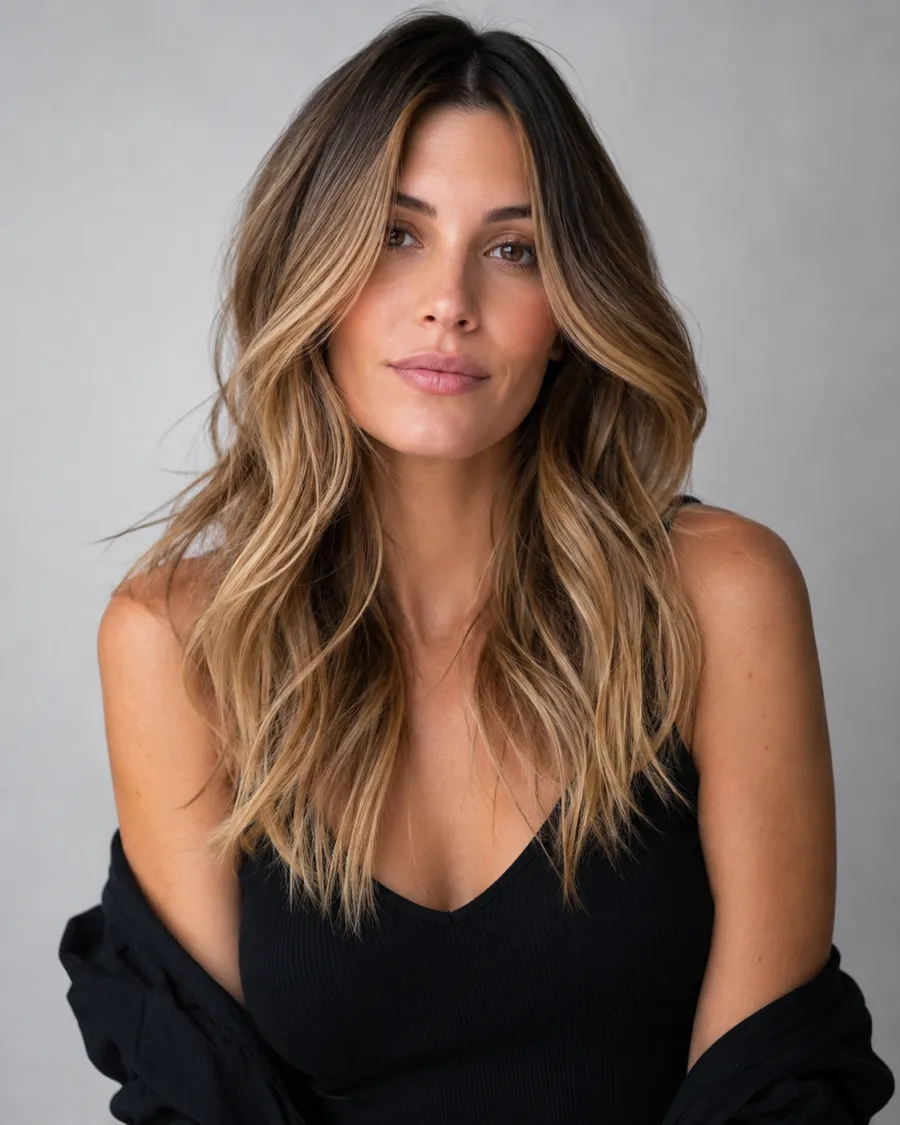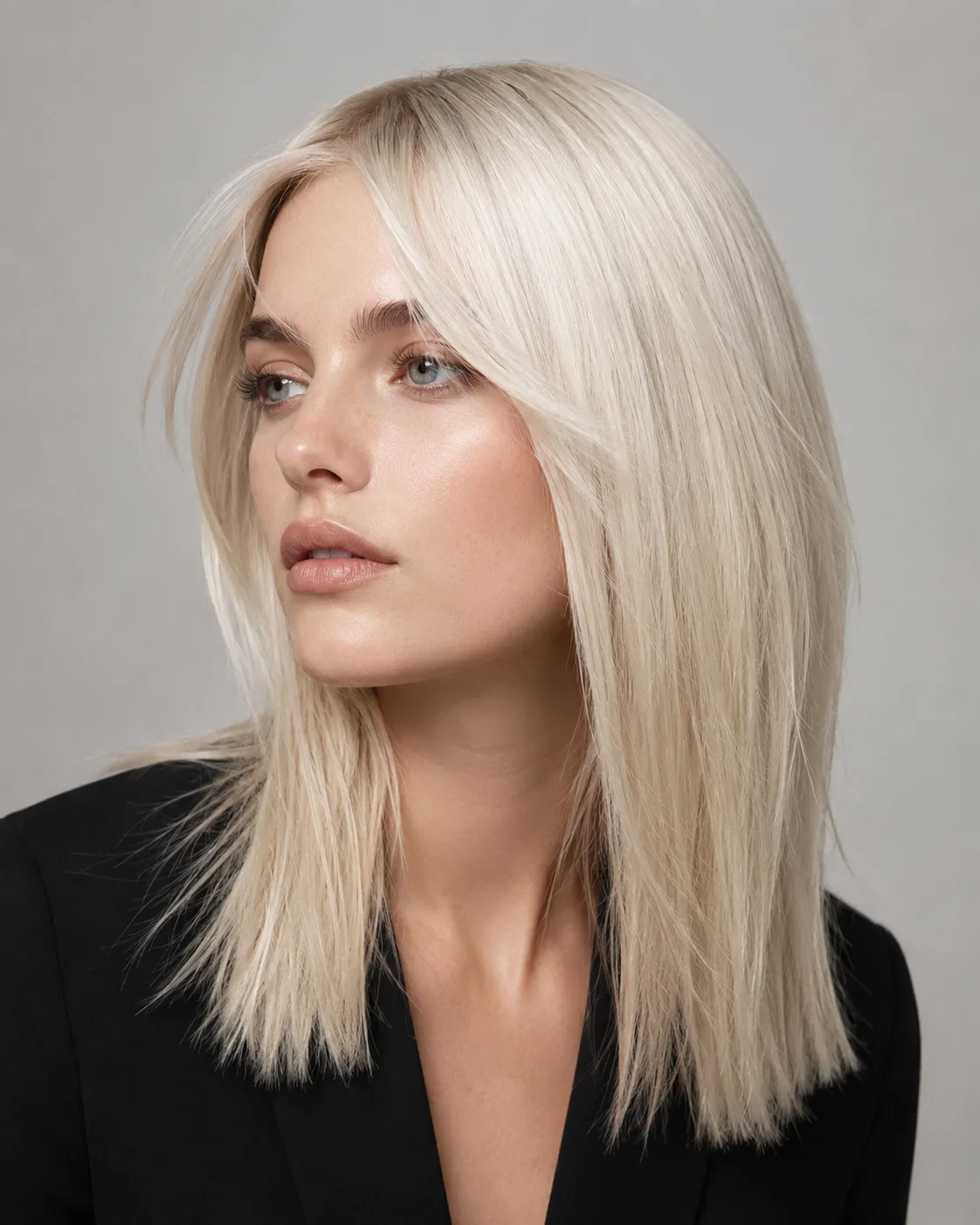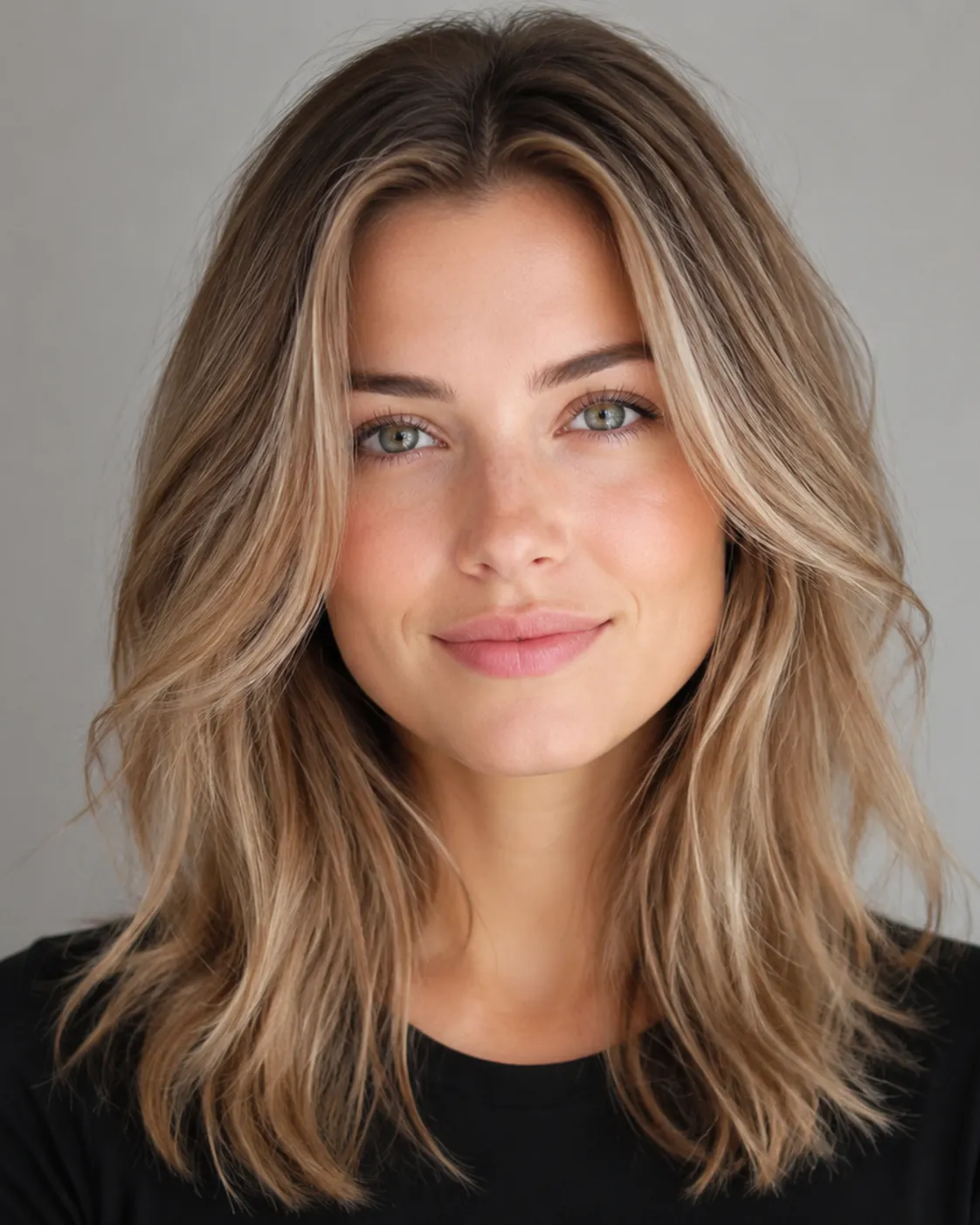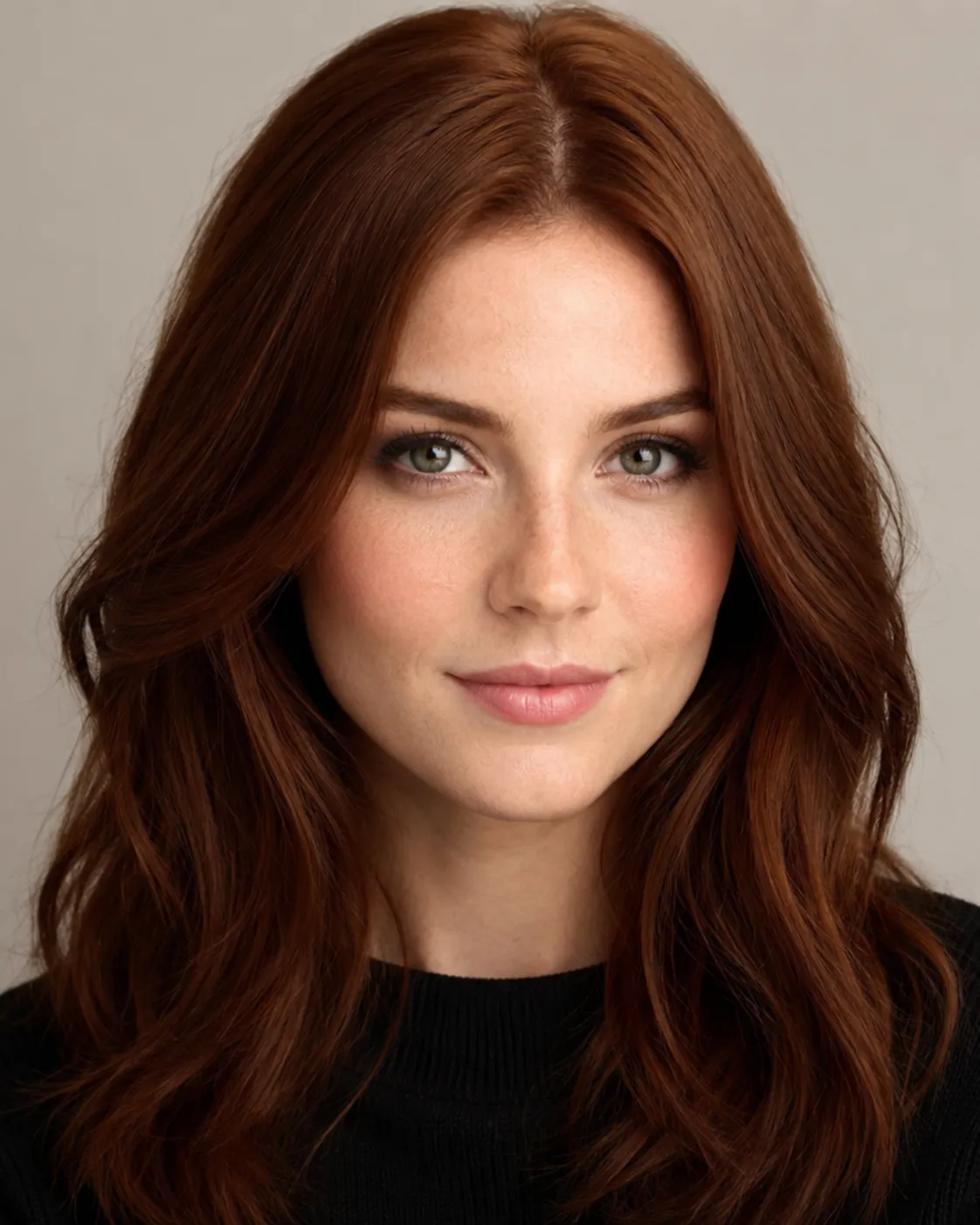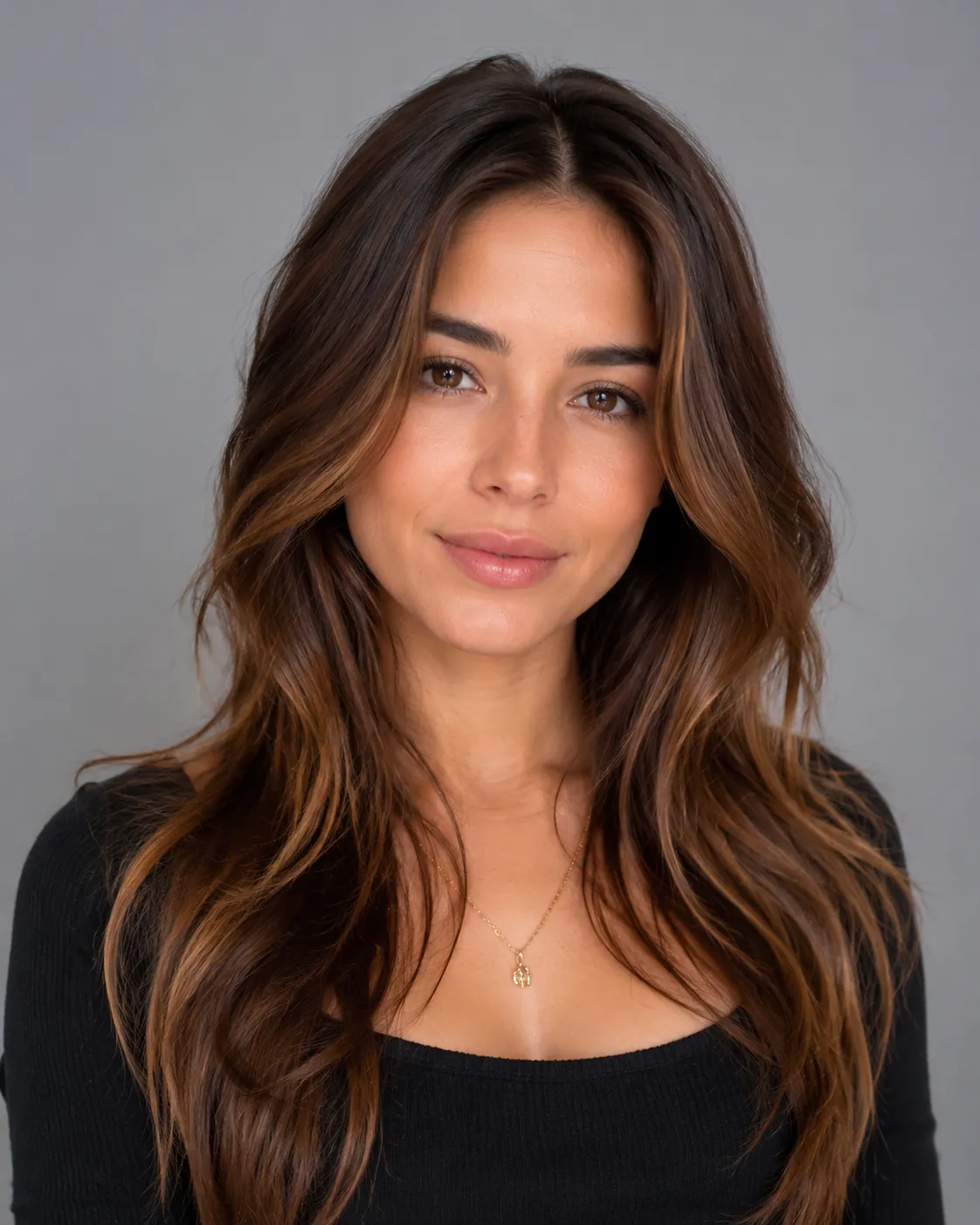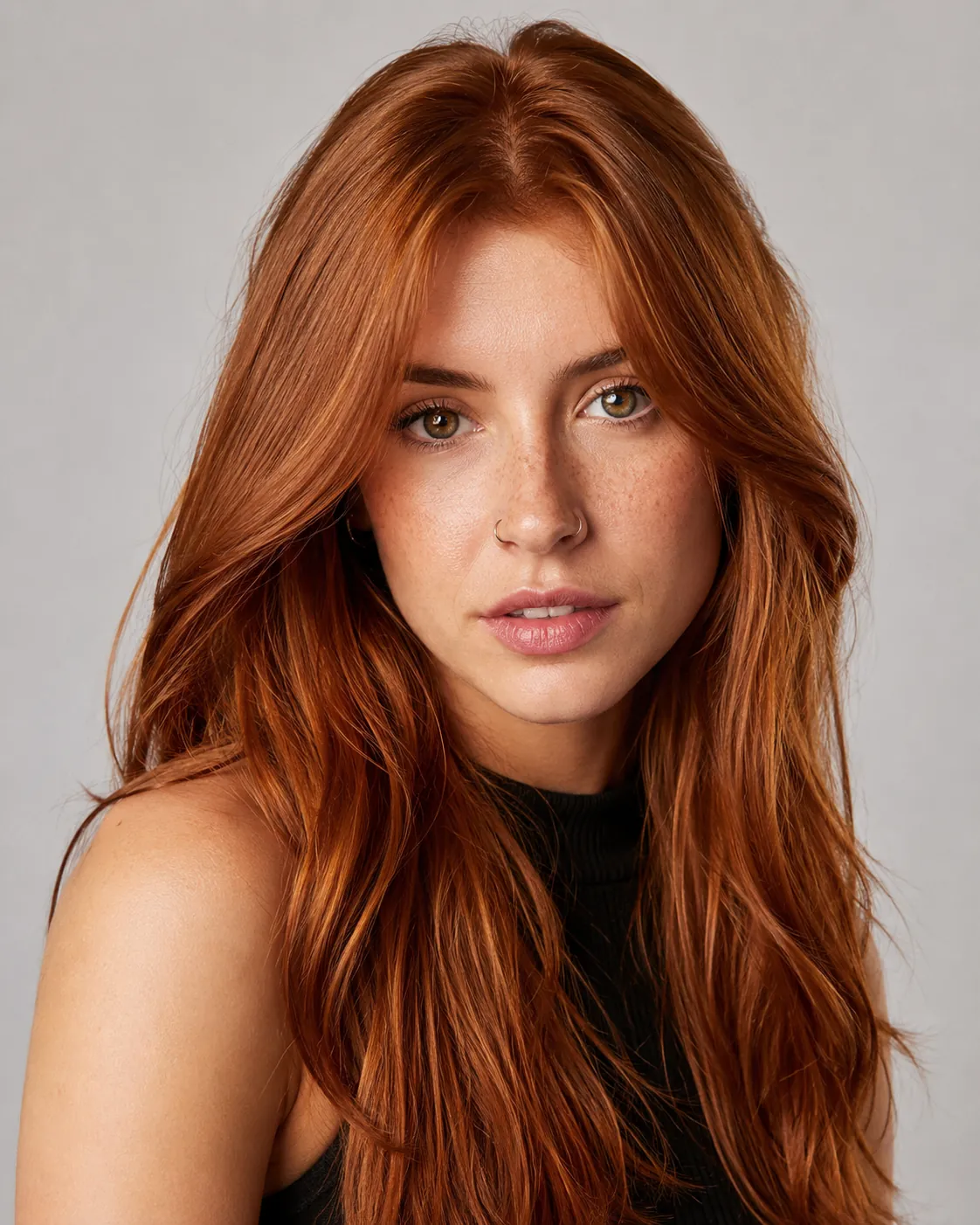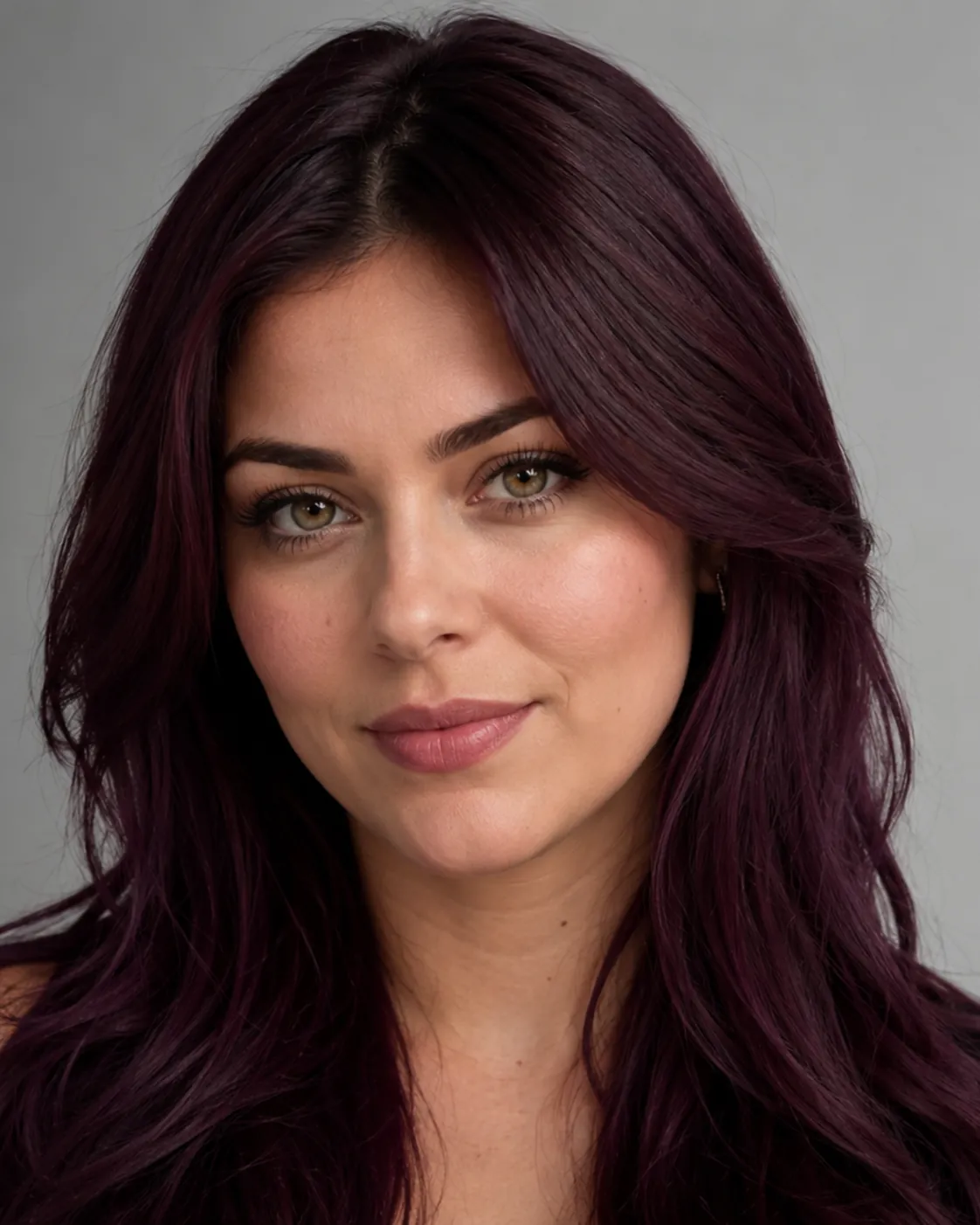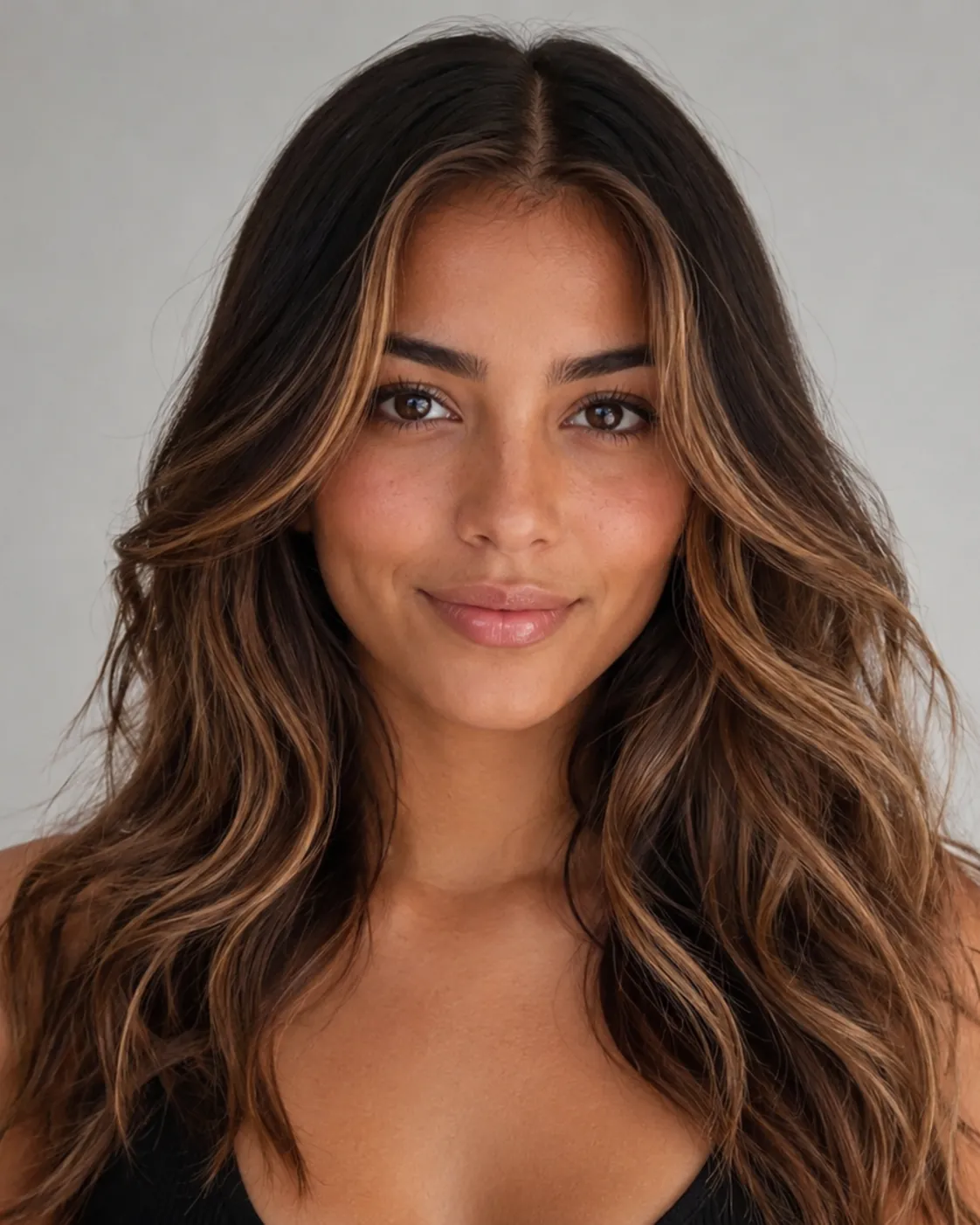
See red on your own photo first

Red Hair Filter

Upload one photo and preview cherry red, ruby, crimson, deep wine, or bright copper-red on your own face — no bleach, no dye, no guessing.

Red is the boldest, most pigment-heavy color to commit to, so seeing it first matters most here. AIChangeHair recolors only your hair to red while keeping your face, skin tone, lighting, and background exactly as they are.

Hold a warm bright copper-red next to a cool deep wine red on the same portrait, and decide which red is yours before any dye touches your hair.✨ A brand-new report every time — a different hairstyle and color on every single generation.Edit hair · Try styles · Generate hair report
Upload a clear portraitTap to upload
1Task
2Input method
60 styles
3Quality
AI red hair preview

Try red on your own photo, from copper to wine

This red hair filter is a free way to see yourself with red hair before you dye it. Red shifts further across the warm-to-cool range than almost any color, so upload one portrait and the AI recolors your hair red while keeping your face, skin tone, and background unchanged — letting you judge cherry red, ruby, or crimson on you rather than on a stock model.

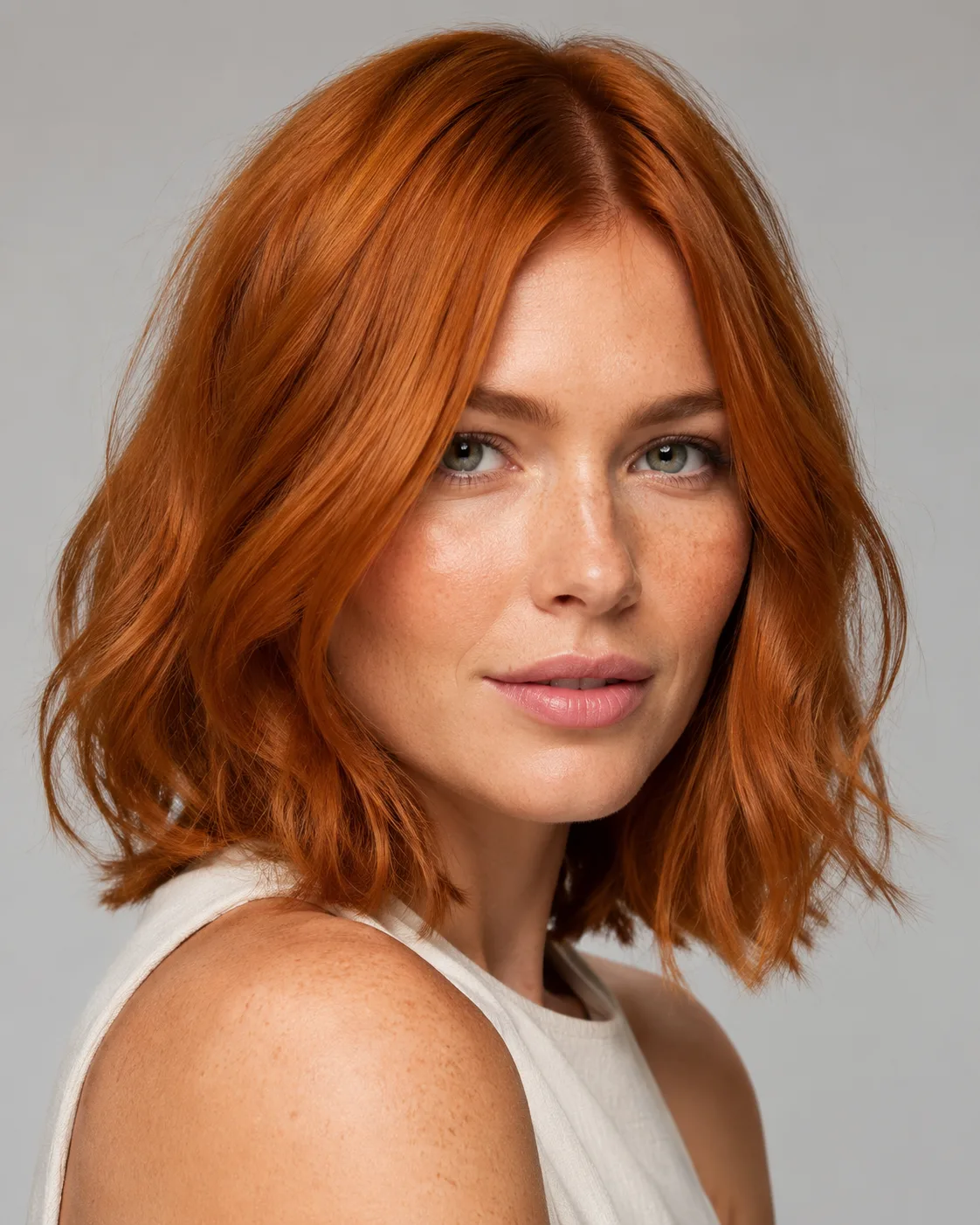
Red hair filter preview with bright copper-red hair on a fair-skinned woman
Bright Copper-Red
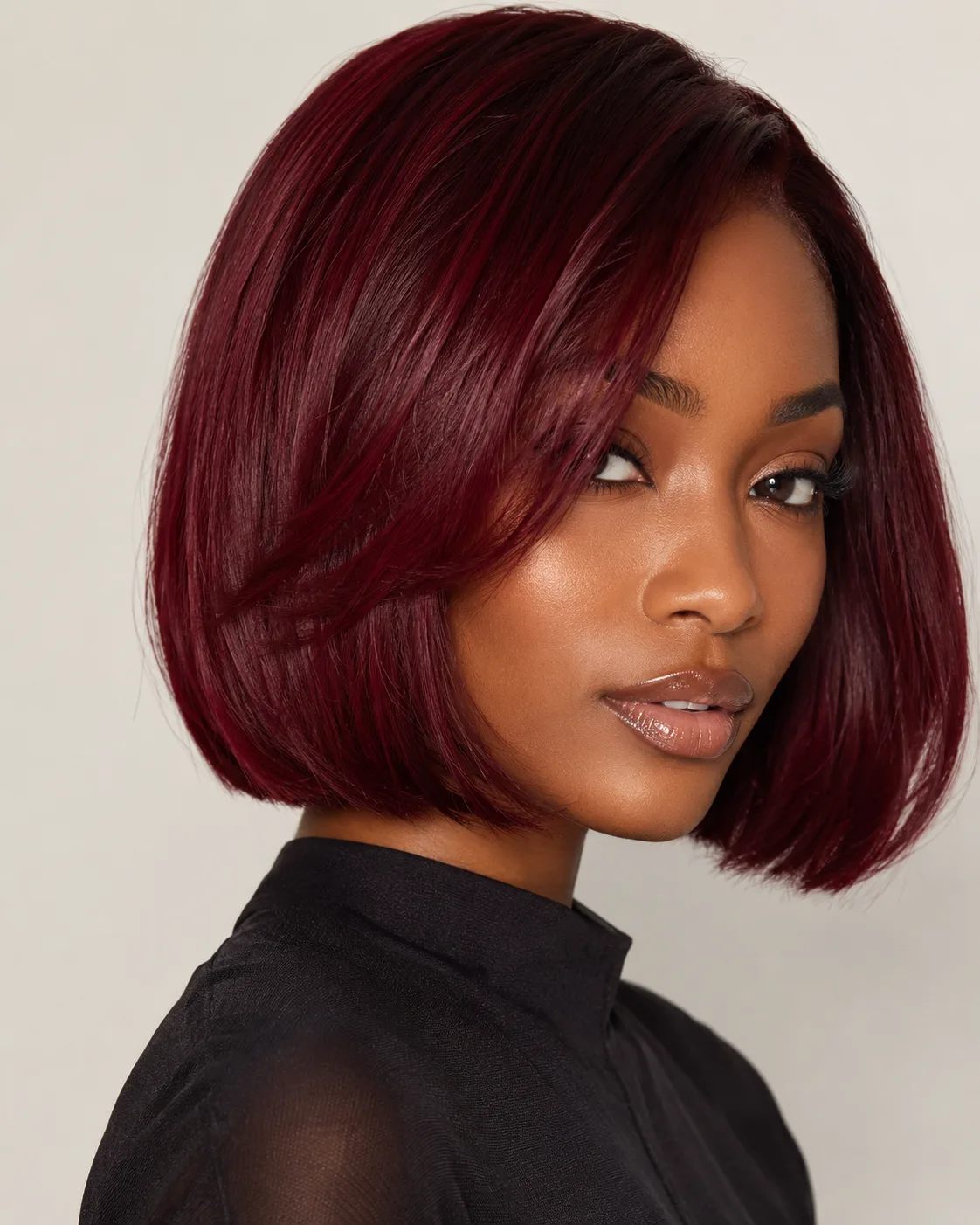
Red hair filter preview with deep wine red hair on a Black woman
Deep Wine Red
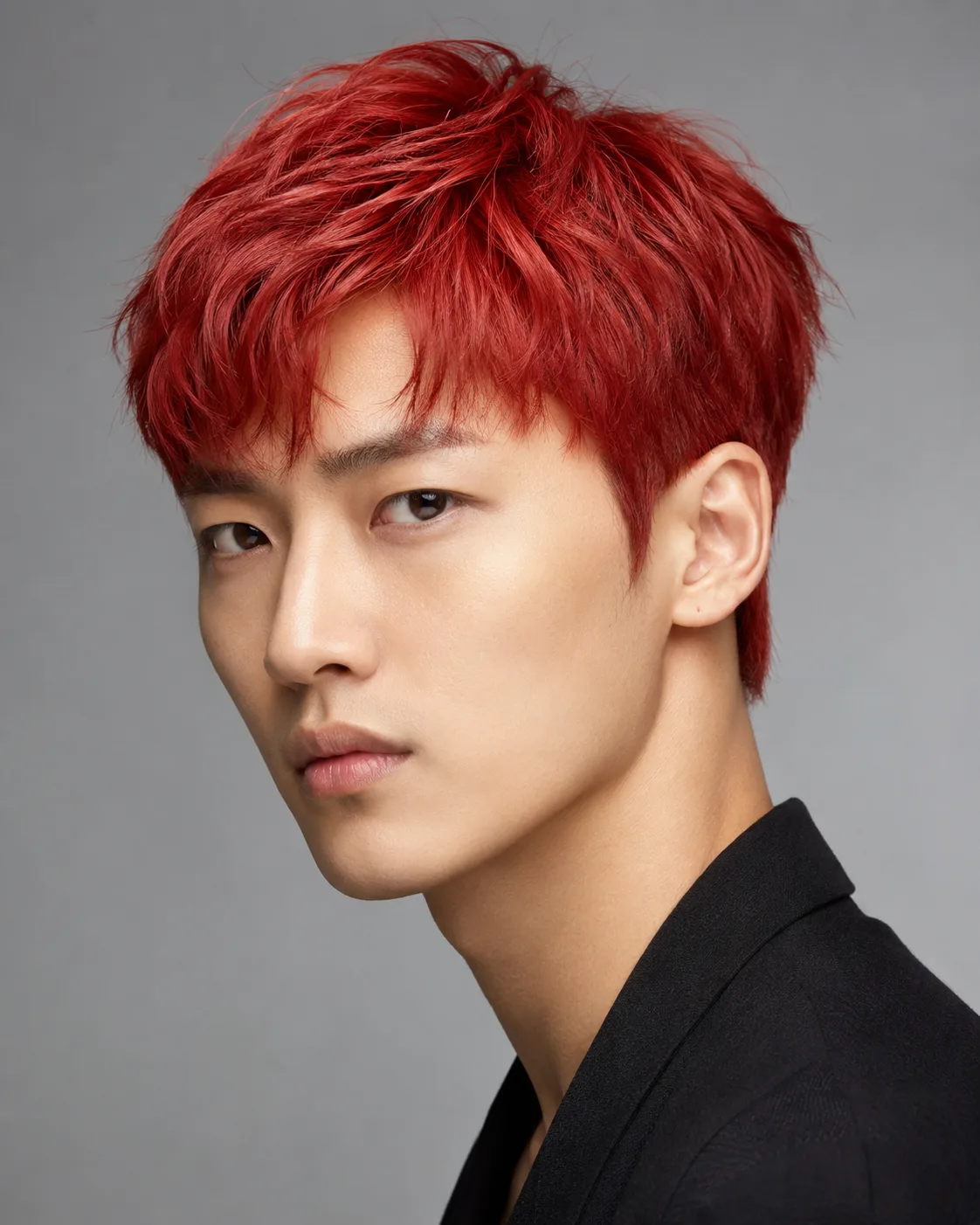
Red hair filter preview with vivid cherry red hair on an East Asian man
Cherry Red
One photo, every shade of red

Preview fiery bright copper-red, juicy cherry red, jewel-toned ruby, dramatic crimson, or moody deep wine red, and keep your haircut exactly as it is while only the color and tone change.

Warm or cool red

Preview warm bright copper-red and cherry red on one side, or cool ruby, crimson, and deep wine red on the other, to see which red flatters your skin's undertone.

Keep your haircut

The filter changes only the color, so your current length, layers, and texture stay exactly as they are in red — handy since red commitment usually means a long grow-out.

Your real skin tone

Red reacts strongly to undertone, so it is rendered against your true skin and lighting instead of a generic studio model, showing how it would actually read on you.

Custom shade

Type a specific request like a soft strawberry copper, a blue-based cherry red, or an inky black-cherry wine and the editor matches that exact tone.

Custom promptDescribe your hair change
Make my hair a glossy copper bob with soft curtain bangs, natural volume, and a photo-real salon finish.
One input is enoughGenerate from description
Custom red shade

Describe the exact red you want

Write one idea and generate from description. A short prompt like bright copper-red, blue-based crimson, jewel ruby, black-cherry wine, or soft strawberry copper is enough. AIChangeHair keeps the request focused on the hair color while preserving your face, clothing, lighting, and background — useful because reds drift between orange-copper and blue-violet depending on the exact mix.


Bob hairstyle preview
Bob
Pixie Cut hairstyle preview
Pixie Cut
Soft Waves hairstyle preview
Soft Waves
Red on any hairstyle

Add red to a bob, waves, or a pixie

Keep your current cut, or combine the red color with a hairstyle preset — a blunt bob, soft waves, or a pixie — to preview a full red restyle from the same portrait. A crimson bob or copper-red curls can read very differently from your current cut, so switch back to a single color any time to keep the haircut you already have.

How to Try Red Hair on Your Photo

01

Upload Your Portrait

Upload a clear, well-lit portrait with your hair fully visible. Even, neutral light shows the truest red — warm lamps can push any shade toward orange — so skip hats and heavy shadows.

02

Pick a Red Shade

Land on the red preset, then describe a specific tone like cherry red, ruby, crimson, deep wine red, or bright copper-red. Keep a single color to preview red on your current haircut.

03

Generate and Compare

Get the red preview in about a minute, compare it side by side with your original, then download it or try the next red shade from your gallery.

Try AIChangeHair Now
Pricing

Start free. Upgrade when you need more.

Free daily credits to start. Go Monthly, or save 53% with the Yearly plan - high quality, custom prompt edits, 180 hairstyle presets, AI hair reports, and high-volume use.

Starter

$0/ forever

Try hair color, hairstyle, prompts, and reports with no commitment.

  • 20 free credits on signup + 10 every day you claim
  • = 1 1K edit per daily claim
  • 1K edits cost 10 credits · 2K cost 16 · 4K cost 24
  • Custom text prompts, color palette, 180 hairstyle presets, and AI hair reports

Monthly

$14.99/ month

For regular hair color, hairstyle, and profile-refresh workflows.

  • 800 credits every month
  • = 80 1K edits, 50 2K, 33 4K, or 50 AI hair reports
  • All three resolutions — 1K, 2K, and 4K — available
  • All color palettes, 180 hairstyle presets, custom prompts, and AI hair reports
  • Cancel anytime
Best value · 53% off first year

Yearly

$6.99/ month

$83.88 your first year · renews $179.88/yr

Best value — the lowest price per credit, billed once a year.

  • Everything in Monthly, for 53% less per month
  • 14,400 credits up front — 50% more than a year of monthly
  • = 1,440 1K edits a year (about 120 every month)
  • Just $6.99/mo, billed $83.88 your first year
  • All color palettes, 180 hairstyle presets, custom prompts, and reports

$83.88 for the first year (about $6.99/mo). Renews at $179.88/year — still 50% more credits than monthly. Cancel anytime.

One-time credit packs

Buy credits without a subscription

Top up whenever you need to. Credits are added instantly and never expire, with no recurring charge.

Starter pack

$9.90one-time

300 credits

≈ 12–30 edits

Popular

Value pack

$19.90one-time

650 credits

≈ 27–65 edits

Bulk pack

$39.90one-time

1,400 credits

≈ 58–140 edits

Prices in USD. Cancel monthly and yearly plans anytime. Questions? Talk to us.

Red Hair Filter: Common Questions

1. What red shades can I preview with the red hair filter?

The full red range: warm bright copper-red and juicy cherry red, jewel-toned ruby, dramatic crimson, and deep wine red. You can also type any in-between shade — strawberry copper, black-cherry, or a blue-based true red — and the red hair filter matches that exact tone on your own photo.

2. Will red hair look natural on me, or like a flat filter?

The AI renders red as a real dye result with natural highlights, shadows, and strand detail rather than painting a flat block of color over your hair. Roots, ends, and the way light catches each strand are preserved, so a coppery-red or deep wine reads like salon work on you.

3. Does the red hair filter work on dark hair and on light hair?

Yes, and it shows the honest difference. On dark hair, deep wine, crimson, and ruby sit naturally while a bright copper-red is previewed as the bleached-then-dyed result it would really require. On light or blonde hair, every red — including cherry and copper — shows up vivid, so you see exactly what your starting color allows.

4. Does it keep my face, or change how I look?

It changes only your hair color. Your face, skin tone, freckles, expression, lighting, and background stay exactly as they were in your photo — only the hair is recolored red, so you are judging the shade on the real you.

5. Is the red hair filter free to use?

Yes. You get 20 credits at sign-up with no credit card, plus 10 more every day you check in, and a standard color change costs 10 credits — enough to preview a new red shade for free every day. Failed generations are refunded automatically.

6. What kind of photo works best for previewing red?

A sharp, front-facing or three-quarter portrait in even, neutral light where your hair is fully visible. Avoid heavy filters and strongly colored lighting, since warm or tinted light shifts how red reads — a true crimson can look orange under a warm lamp.