
Bangs Try On Filter: Avoid a Mirrored Salon Reference
Use a bangs try on filter without confusing left and right. Check the saved photo and download, then add a clear direction note for your stylist.
Before taking a bangs try on filter result to a salon, verify whether the saved portrait is mirrored and write the intended direction using your own left and right. A fringe on the left of a screen is not automatically on your left. Use the AI hairstyle changer for a preview, then check the downloaded file before giving your stylist directional instructions.
Last updated: October 15, 2026 · about 6 min read
Why can a good bangs preview become a confusing reference?
An asymmetric fringe carries information about two sides: where the part begins and where the longer pieces sweep. A mirrored photo can reverse their screen positions. If you and your stylist interpret “left” differently, the same image can describe opposite requests.
The mistake can happen before you use a filter. The live selfie view and the saved photograph may have different orientations. A later crop, image edit, or screenshot can add another version to the folder. By the appointment, it may be unclear which version you meant.
This guide concerns that handoff. If you are still choosing a side-swept shape, the side bangs filter guide covers part direction, eye clearance, and styling practicality. Here, settle the orientation of the reference you intend to bring.
Whose left are you describing?
“Your left” means the left side of your own body. “Image left” means the viewer's left edge of the picture. They are different coordinate systems, so avoid using the bare word “left” in a salon note.
| Reference orientation | Where your own left appears in a straight-on view | Safe wording |
|---|---|---|
| Verified unmirrored portrait | On the viewer's right | “My own left side, shown on the right of this photo” |
| Verified horizontally mirrored portrait | On the viewer's left | “This image is mirrored; I mean my own left side” |
| Orientation unknown | Cannot be established from screen position alone | “Direction unconfirmed; please check with me in person” |
| Head turned or tightly cropped | The simple mapping may be hard to read | Use a straight-on verified reference and point to the intended side |
The mapping assumes you are facing the camera. It does not tell you whether an unfamiliar picture is mirrored. A fringe falling toward the viewer's right is not evidence of its real-world side until orientation has been established.
Also distinguish a part on your own left from a sweep toward your own left. Those requests can describe different arrangements. Name the part and sweep separately so your stylist does not have to infer which one you meant.
How do you check the saved input photo?
Open the file you will actually upload, rather than relying on the camera preview. On supported iPhones, Apple's selfie guide explains that Mirror Front Camera saves the view as shown in the front-camera frame instead of reversing it. Check your own setting and saved file; an app may have a separate camera workflow.
Settings are a clue, not a history of an older image. A photo may have been taken before you changed the setting or edited afterward. If you cannot establish its orientation, take a fresh reference whose orientation you can verify.
A known feature can help if you know its actual side independently: a single ear piercing or another stable detail visible in the original. Do not assume which side it belongs to just because it appears on one edge of the screen. A symmetrical face provides no dependable directional clue by itself.
You can also use a separate orientation check photo with readable text in the scene. Reversed text suggests horizontal mirroring, provided the text was not already reversed or altered. Keep that check separate from the clean portrait used for the hair preview. It is unnecessary to upload documents or personal information to establish direction.
How do you create and check the preview in three steps?
- Start with a verified original. Save a clear front-facing portrait whose orientation you know. Keep a copy outside the editing workflow. Upload only yourself or someone who agreed to the upload.
- Request the fringe and inspect the result. In AIChangeHair, sign in, upload the portrait, and use the editor's Describe option or choose a hairstyle preset. State the intended part and sweep in plain language. Inspect the actual output rather than assuming it followed every instruction.
- Download and reopen it. Use Download on the completed result, then open the saved file in your phone's photo or file app. Compare it with the verified input. Check orientation again after any crop or annotation used for the appointment.
As of October 15, 2026, AIChangeHair supports portrait upload, described hair changes, hairstyle presets, and completed-result downloads. This workflow does not depend on an editor mirror control. Check the requirements displayed in your session before starting a preview.
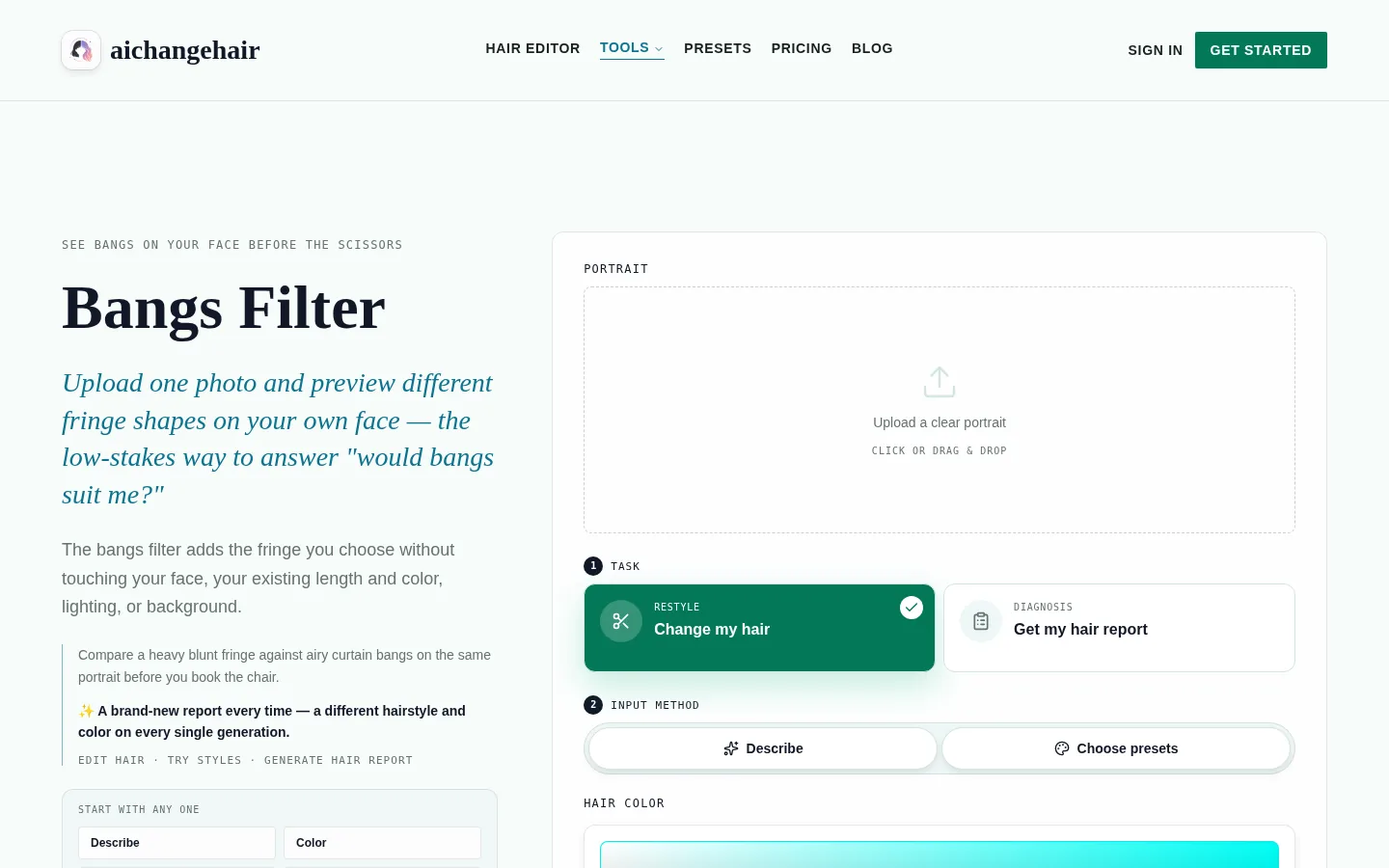
For a fringe starting point, the bangs filter opens the relevant editor page. If you use the broader hairstyle editor, keep the same verified original for the reference you plan to save. The cover shows the AIChangeHair interface before a portrait is uploaded; it is not a finished fringe result.
What should you compare after downloading?
Compare a known detail that was visible in the input and should remain unchanged. If its position swaps in the output, stop and investigate. A generated image can alter details instead of simply mirroring the entire picture, so one changed earring is a reason for caution rather than proof of a clean flip.
Check the part and sweep separately. Is the part where you requested it? Do the longer pieces move toward the intended side? Does the reference still show the same face and relevant hairline? Discard a result if facial changes make the hairstyle comparison unreliable.
Do not correct an uncertain output by flipping it and assuming everything is now right. That also reverses other asymmetric details. When orientation cannot be established, use a verified photo before adding directional instructions. A stylist can confirm the intended side with you in person.
Write “my own left” or “my own right,” then identify the part and sweep. Keep the unedited original alongside the reference so a screen position never becomes the whole instruction.
What should the salon note say?
A short note should resolve direction without prescribing an unmeasured cut. For example, after confirming orientation:
This is an unmirrored reference. I want the part on my own left, which appears on the right of this photo, with the fringe sweeping toward my own right. Please confirm those sides with me before cutting. Keep the length practical for my natural growth pattern.
Change the note to match your own verified preference. Do not copy the example if you want the reverse direction. If you have not confirmed orientation, replace the directional sentence with “Please confirm the intended part and sweep with me in person.”
Avoid notes such as “the left side in the picture” without explaining whether that means image left or your own left. If you add arrows, label what each arrow means and keep it outside the face and hair. Reopen the annotated file to make sure the labels are readable.
Bring the original portrait, one chosen preview, and the note. A folder of nearly identical versions makes it easier to open the wrong one. Mark the chosen reference clearly in your own photo app and keep any experimental flips separate.
What does an orientation check leave unresolved?
It establishes a communication reference, not whether the cut will behave as pictured. Cowlicks, texture, density, and the way you normally part your hair still need a stylist's assessment. Ask how the intended sweep would sit without the styling shown in the preview.
The salon preview guide explains how to discuss generated references as preferences rather than exact instructions. Confirm which details you like and which need adapting. A correct left/right note cannot turn an AI image into a measurement of fringe length.
Editorial disclosure: AIChangeHair's editorial team operates the preview tool. Generated suggestions can change facial or accessory details, and the tool does not guarantee a salon result. Read the privacy policy before uploading someone else's portrait, and obtain their permission.
Frequently asked questions
Is the left side of a selfie my actual left side?
It depends on whether the saved photo is mirrored. In a verified unmirrored straight-on portrait, your own left appears on the viewer's right. In a horizontally mirrored version, it appears on the viewer's left. Do not infer orientation from screen position alone.
Does a bangs filter tell me whether my photo is mirrored?
Do not assume it does. Verify the input file's orientation independently, then compare the completed output and downloaded file with that original. If a generated result changes identifying details, use a verified reference before giving directional instructions.
Should I flip a bangs preview before taking it to the salon?
Only use a flipped version when you can establish its orientation and label it clearly. If you are uncertain, take a fresh verified portrait and ask your stylist to confirm the intended part and sweep with you before cutting.
What is the clearest way to describe side bangs to a stylist?
Say “my own left” or “my own right,” identify where the part begins and where the fringe sweeps, and show one verified reference beside the original. Ask the stylist to confirm the direction in person and adapt the cut to your growth pattern.
Prepare one clear reference
Use the bangs editor with a verified portrait. Save the result, reopen the download, and add a direction note before your appointment.