
How to Change Your Hair Color in a Photo (Try Any Shade Free)
Use an AI hair color changer to try any hair color on your photo before you dye. Free preview in seconds, any shade, not locked to a dye brand.
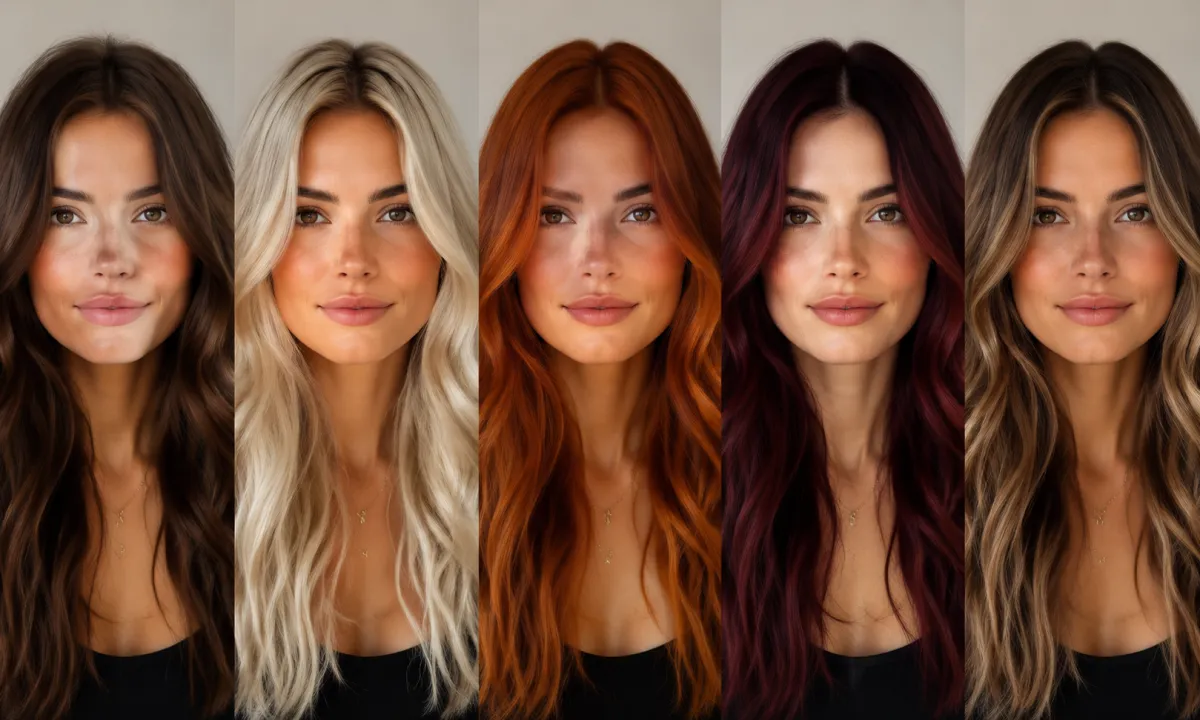
To change your hair color in a photo, upload one clear selfie to an AI hairstyle changer, pick a shade, and it recolors your hair while keeping your real face, skin tone, and lighting. An AI hair color changer renders a photo-real preview in seconds — any color, free, with nothing to wash out and no box of dye to commit to.
The catch with most "try a color" tools is that they're run by a dye brand, so you only see the shades on their shade card. This guide shows you how to preview any color on your own photo, the shades people test most, and how it compares to doing it by hand in Photoshop or with a Snapchat filter.
Last updated: June 16, 2026 · ~6 min read
Try a hair color on your photo in 3 steps
You don't need an account, a download, or any editing skill. From selfie to first preview takes well under a minute.
- Upload a front-facing photo. Even light, hair off the face, no heavy filter. The clearer the AI can see your natural color and hairline, the cleaner the recolor.
- Choose a shade — or type one. Tap a preset like platinum, copper, or burgundy, or describe it in plain words, e.g. "ash brown with subtle balayage."
- Compare and save. The tool returns the new color on your hair. Download it, line up two or three shades side by side, and bring the winner to your colorist.
Why preview first: a single salon color service in the US commonly runs $70–$200, and a shade you regret can mean weeks of grow-out or a costly correction. A preview costs you a photo and about 30 seconds.
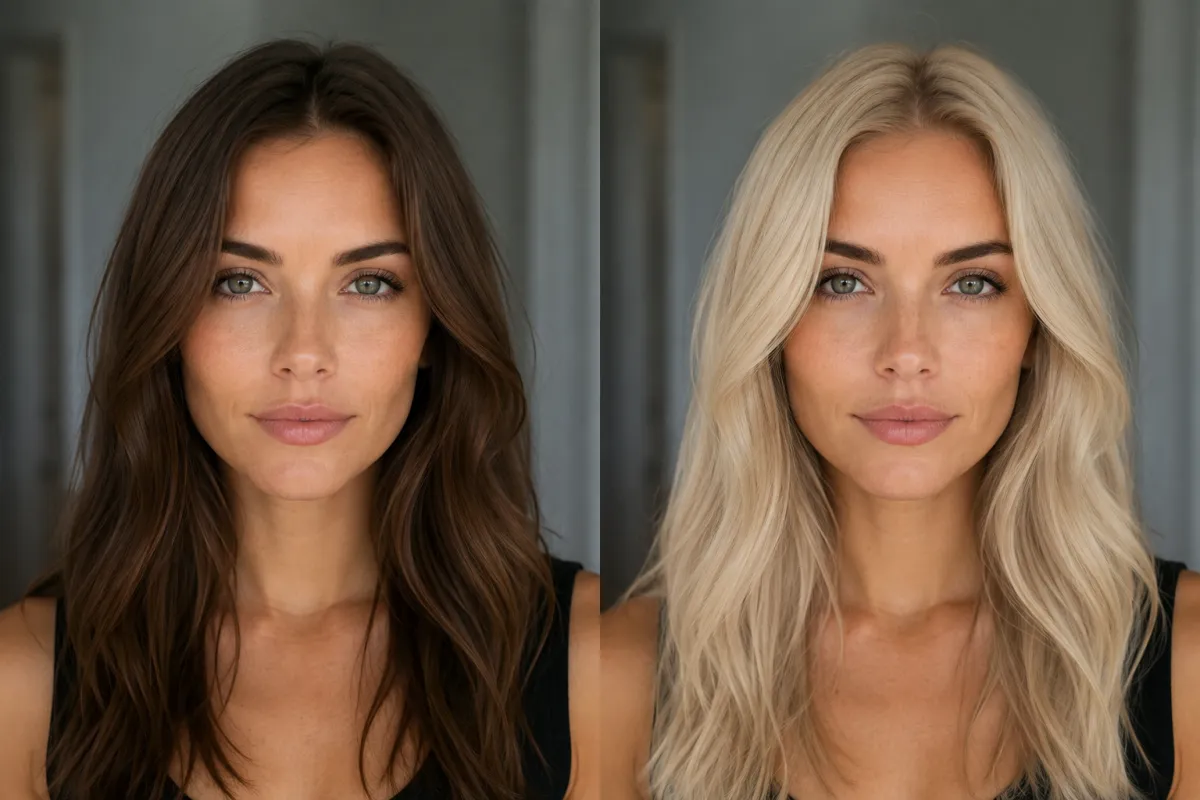
Same photo, two colors: natural brown on the left, a previewed platinum blonde on the right — the face and skin tone stay the same.
Popular shades to test before you commit
A good preview isn't limited to "blonde or brunette." Here are the shades people search for most, and what each one tends to ask of your real hair.
| Shade | Best for previewing | What it usually takes in real life |
|---|---|---|
| Platinum blonde | The biggest "would this even suit me?" jump | Heavy lift; high upkeep and toning |
| Copper / ginger | Warm, high-impact change | Often one to two sessions |
| Burgundy / cherry | A bold cool-to-warm red | Fades fastest; needs color-safe care |
| Balayage / babylights | Lived-in, low-maintenance dimension | Hand-painted; grows out softly |
| Ash brown / mushroom | Cooling down a warm base | Toner-dependent |
| Pastel (rose, lilac) | A temporary, playful look | Usually needs a pre-lighten |
Seeing the shade on your own face answers the real question — does this color flatter my skin tone? — instead of guessing from a swatch on someone else's hair.
"Try before you dye": the scenarios it actually solves
People reach for a color preview for very practical reasons, not just curiosity:
- Big-jump nerves. Going from dark brown to platinum is the change most people stall on. A preview lets you live with the idea before you book.
- Skin-tone matching. Cool ash vs. warm copper reads completely differently against your complexion — easier to judge on your face than in your imagination.
- Selling it to your colorist. A clear reference photo of you in the target shade communicates the goal far better than "something like this picture I found."
- Maintenance reality-check. Seeing a vivid red on yourself is a good nudge to ask how fast it fades before you commit to the upkeep.
- Special occasions. Test a temporary pastel for a weekend or event without touching a single strand.
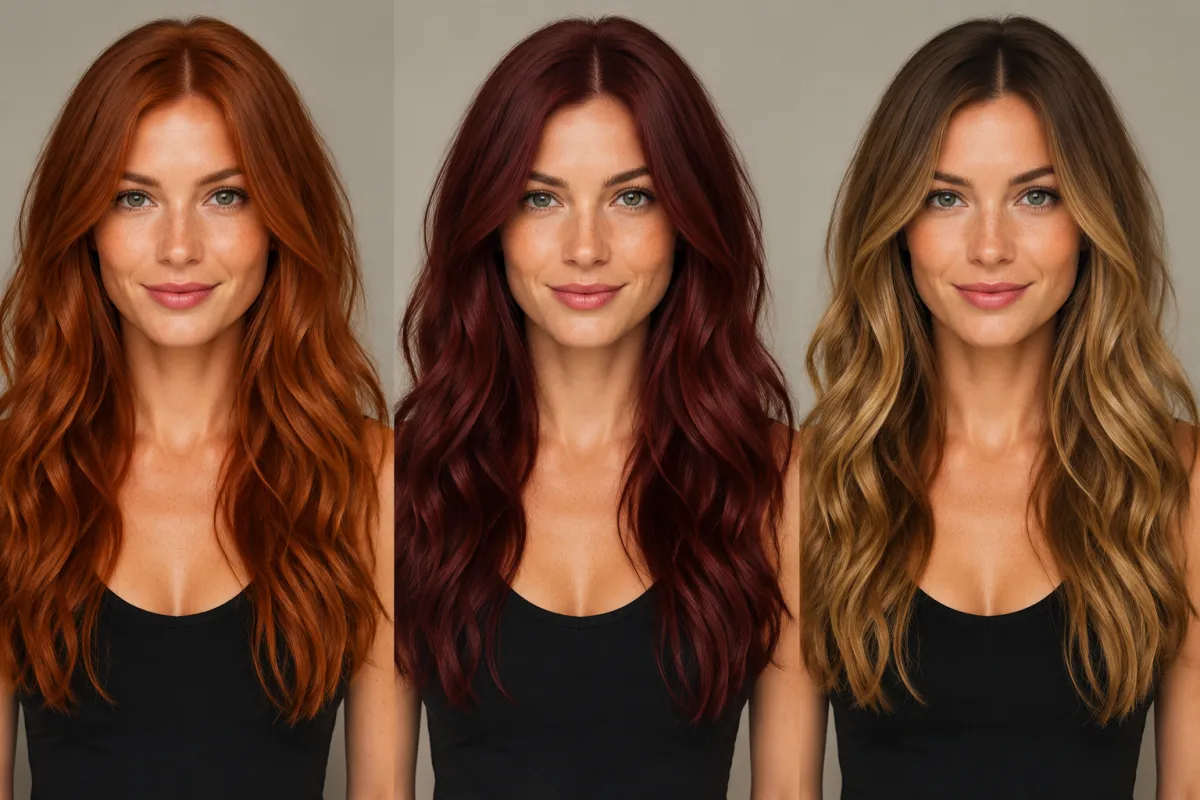
One face, three previewed shades — copper, burgundy, and balayage — laid out so you can compare at a glance.
AI hair color changer vs. Photoshop vs. Snapchat
There are three common ways to recolor hair in a photo. Here's the honest trade-off:
| AI hair color changer | Photoshop (manual) | Snapchat / social filter | |
|---|---|---|---|
| Skill needed | None — upload and pick | Layers, masking, blend modes | None |
| Time per shade | Seconds | 10–30 min per look | Seconds |
| Realism | ✅ Photo-real, keeps texture | ✅ High, if you're skilled | ⚠️ Stylized, often cartoonish |
| Try many colors fast | ✅ A few taps | ❌ Re-mask each time | ⚠️ Limited preset shades |
| Locked to a brand's shades | ❌ Any color | ❌ Any color | ✅ Filter's presets only |
| Cost | Free | Subscription + your time | Free |
The Photoshop route gives total control, but masking flyaway hairs and matching a believable blend is genuinely fiddly — which is exactly why "how to change hair color in Photoshop" is such a busy search. Snapchat is instant but skews playful, so it's poor preparation for a real salon appointment. An AI hair color changer aims to land in the middle: photo-real like a careful Photoshop edit, fast like a filter.
The key difference from dye-brand try-ons: tools from Madison Reed, Clairol, and similar brands are useful, but they show you their product range. A standalone AI hair color changer isn't tied to any brand, so you can test any shade — including hand-painted balayage and pastels a single box won't give you.
Frequently asked questions
How do I change my hair color in a photo?
Upload a clear, front-facing photo to an AI hair color changer, pick or describe a shade, and it recolors your hair while preserving your face, skin tone, and lighting. You get a photo-real preview in seconds, then you can compare a few shades side by side and download your favorite — no editing skill or download required.
Can I try different hair colors virtually before dyeing my hair?
Yes — that's the whole point of a virtual try-on. Test platinum, copper, burgundy, balayage, and more from the same selfie, then judge each against your real skin tone before you book a salon visit. It's a free, reversible way to avoid an expensive color you might regret, and a great reference to show your colorist.
What are the best apps for changing hair color?
There are plenty, from FaceApp and YouCam to dye-brand try-ons like Madison Reed and Clairol. The brand tools are handy but limited to that brand's shades, while a general AI hairstyle changer lets you try any color on your photo. For a broader look at picking a tool, see our hairstyle try-on guide.
How do I change hair color in Snapchat — and is there a more realistic way?
In Snapchat, open the camera, browse the Lenses, and search for a hair-color lens to apply a preset shade. It's quick and fun, but the result is stylized and tied to the filter's presets — not ideal before a real dye job. For a photo-real version that keeps your true texture and lets you try any color, upload your photo to an AI hairstyle changer instead.
How do I change hair color in Photoshop?
Select your hair (Select and Mask works well for strands), add a Hue/Saturation or Color Balance adjustment layer clipped to that selection, then refine the blend with a soft brush and lower opacity. It gives precise control but takes real skill and time per shade. If you just want a fast, believable preview, an AI hair color changer does the masking and blending for you automatically.
Is the AI hair color changer free?
Yes — you can change your hair color in a photo free in your browser, with no download. Start from the home page, upload a photo, and preview shades in seconds. It's a quick way to test colors before you spend anything at a salon.
Related guides
Keep exploring before you book a color appointment:
- Try the free AI hairstyle changer → — upload a selfie and recolor your hair in any shade on the home page.
- Hairstyle Try-On: see any haircut on your face
- Buzz Cut Filter: see yourself with a buzz cut
- What hairstyle suits my face?
Ready to test your next color?
Stop guessing from a swatch. Upload a photo and try any hair color free → — then take your favorite preview straight to your colorist.