
Krea AI Hairstyle Changer: Edit Your Original Photo
Use Krea AI hairstyle changer searches to find the right portrait-editing workflow, keep your original as a reference, and check the exported hair edit.
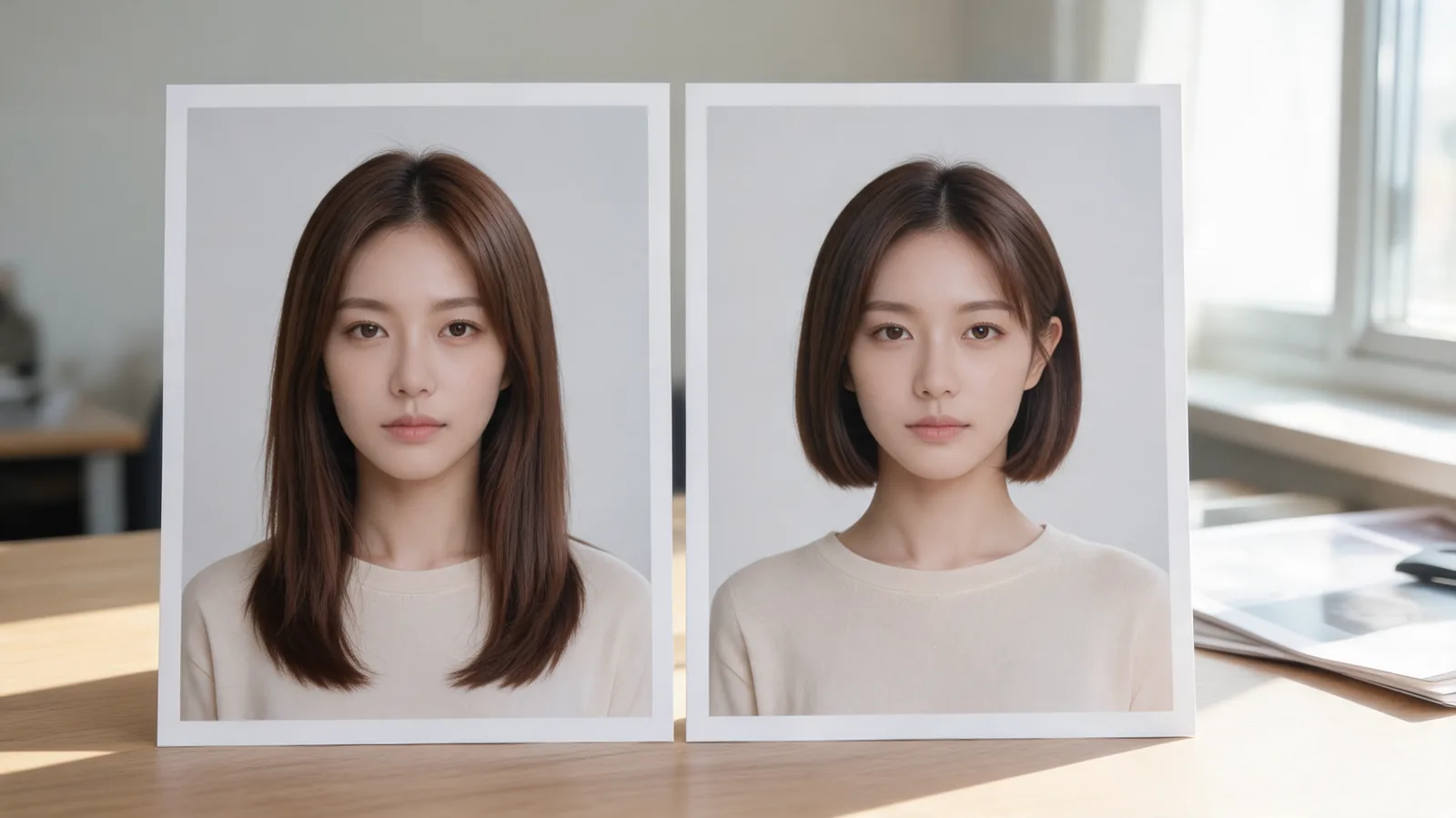
For a Krea AI hairstyle changer workflow, start with Krea Edit and upload your original portrait; use image generation when you only want inspiration. Select the hair area, request one change, and compare the downloaded result with the original. A dedicated AI hairstyle changer offers another route through hair presets and custom instructions.
Last updated: October 4, 2026 · about 8 min read
Which Krea workflow fits a hairstyle change?
Choose between a new picture and an edit of your own portrait. A convincing bob on an invented person can inspire a haircut, but it cannot show how that bob looks on you.
Krea's AI image editor overview distinguishes starting from an uploaded image from creating a new image with a prompt. Its examples include a hair-color edit, but an example is not a guarantee for every portrait or hairstyle. Keep your request tied to the photo you supplied.
| Your question | Useful starting point | What to check before continuing |
|---|---|---|
| What might a textured bob look like? | Image generation for inspiration | Whether you are looking at an invented person |
| How would a bob look in this portrait? | Upload the portrait to Edit | Whether the face, pose, and setting remain recognizable |
| Can I change only the fringe? | A regional hair selection | Whether the selection spills into the eyes or brows |
| Would a darker shade suit this haircut? | A separate color edit | Whether the haircut and lighting stay constant |
Do not choose a workflow merely because it accepts a reference image. A reference can guide a newly generated picture without making it the same photograph. The practical test is whether you can still compare the original and result as one person in one scene.
Prepare a portrait that leaves room for the new hair
Choose a clear picture with your full head visible and some space around it. An extremely tight crop makes a larger hairstyle difficult to judge. If the top of the head is outside the frame, an editor has to invent more of the outline.
Even light helps you see changes around the temples, ears, and hairline. Avoid a beauty filter, heavy blur, sunglasses covering the brows, or hair hidden by a hat. You do not need a studio session: a steady photo against a plain wall is enough to make differences easier to spot.
Match the photo to the question. A front view helps with fringe length and symmetry. A three-quarter view shows how a bob sits near the jaw, while leaving the far side harder to inspect. An editor must invent details on that hidden side.
Save an untouched copy outside the editing session. That file is your reference after each attempt, including after a download. If you compare only with the previous result, small changes to the face can accumulate without being obvious.
Edit the hair in three steps
Krea's Edit documentation describes Change Region, selection tools, a prompt field, and previous-result thumbnails. The controls available in your account may differ by model or interface update; use the current labels in the editor.
- Open your original in Edit. Confirm that the canvas contains the correct portrait. Begin from that image for each substantially different haircut, rather than building a long chain of edits.
- Select the area the hair needs to occupy. Include the existing hair and enough nearby space for the requested outline. Keep eyes, brows, ears, and clothing outside the selection wherever possible. Inspect an automatic selection before accepting it.
- Describe one hair change and compare the result. Specify length, shape, and texture. Keep the color fixed for the first attempt. Check the face and scene before deciding whether the hairstyle itself is useful.
A shorter cut also needs the old hair's area replaced with a plausible background or exposed skin. If you select only the small outline of the new cut, longer strands outside it may remain. A longer cut needs room beyond the old hair silhouette. Adjust the selection to the intended change, not just the existing hair.
A narrow selection is useful only if it includes everything that must change. Protecting the face does not mean leaving old hair behind at the neck or shoulders.
What should you write in a hair-editing prompt?
Use a concrete request that someone could visualize. “Make my hair better” leaves length, shape, color, and styling open. “Change only the hair to a chin-length brown bob with a soft side part” gives you a result you can assess.
An example starting prompt is:
Change only the scalp hair to a chin-length bob with a soft side part and straight ends. Keep the current brown color. Preserve the face, eyebrows, ears, expression, clothing, camera angle, lighting, and background.
That final sentence expresses your intention. It does not lock pixels or guarantee identity preservation. If the face changes, reject the result instead of treating the wording as proof that it stayed the same.
For a fringe test, start with the bangs filter if you prefer a hair-focused workflow. Specify whether the fringe is above the brows, at brow level, or longer at the sides. Those visible differences are easier to compare than asking for “cute bangs.”
For a length question, the bob haircut previews can help you organize chin-length and longer silhouettes. Keep texture similar between attempts. Comparing a sleek bob with a voluminous curly bob changes more than length.
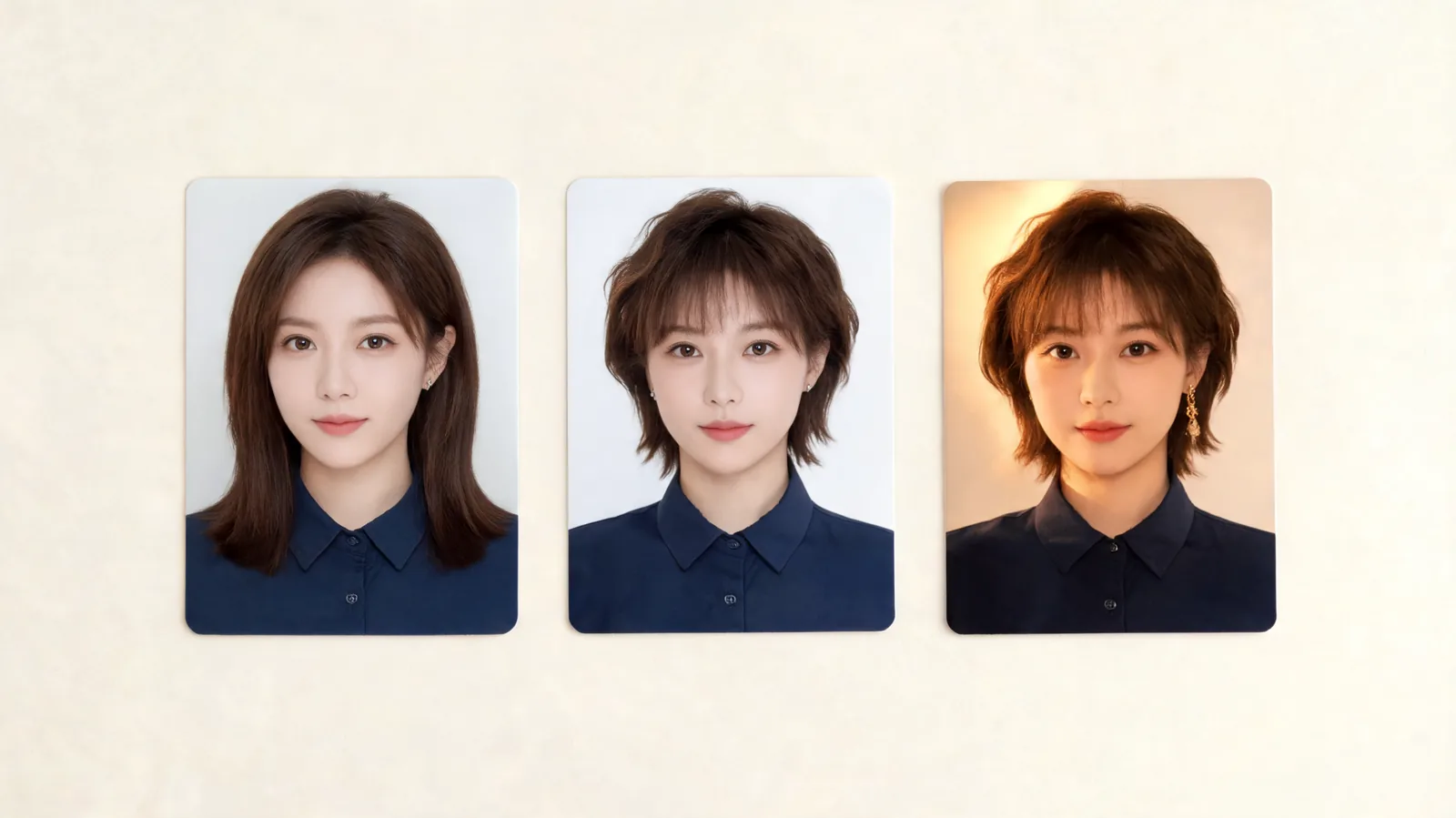
Illustrative portraits, not Krea outputs: compare the face, accessories, and light as carefully as the hair.
How do you tell whether the original portrait survived?
Look away from the hair first. It is easy to accept a pleasing haircut while overlooking a different jaw or smoother skin. Compare the eyes, nose, mouth, ears, and visible accessories at the same display size.
Use stable details as anchors: the direction of the gaze, an earring, the shirt neckline, a background edge. A change in one of these does not automatically ruin a creative image, but it makes the image weaker as a controlled haircut comparison.
| Area | A useful result | A reason to retry |
|---|---|---|
| Face | Same recognizable features and expression | Different eyes, jaw width, or smile |
| Hair boundary | Coherent strands around ears and neck | Halos, duplicated strands, or leftover long hair |
| Scene | Same clothing, background, and light direction | A new outfit or brighter face |
| Hair decision | Length and outline are readable | Heavy blur hides the ends or hairline |
Zoom in to inspect edges, then zoom back out. A tiny artifact at high magnification may matter less than a changed silhouette at normal viewing size. Conversely, a convincing overall image can still contain an ear partly replaced by hair. Keep both views in the review.
Check the exported image before keeping it
Download the candidate you intend to use and open it outside the editor. Confirm that it is the right version, that the top of the hair is not cropped, and that the image is large enough for your intended use. A small preview on the canvas can hide defects that become apparent in the saved file.
Keep the original and candidate at equal scale. Avoid judging one on a bright phone display and the other on a dim laptop. If you crop for a profile picture, retain a wider copy so you can still inspect the hair outline later.
Do this check before applying enhancement or another creative transformation. Sharper texture can make an image more attractive without making the haircut comparison more accurate. If you do enhance it, compare the final saved version with the untouched original again.
When your next question is color, make it a separate pass. The AI hair color changer lets you explore a shade direction without needing to change the hairstyle at the same time. A screen preview still cannot predict a dye process or the behavior of your real hair.
What should you check before paying or uploading?
Krea advertises a free starting tier, but access and usage are bounded. Check its current pricing, the model selected in your account, and the options shown before you generate. Do not assume a headline about free access includes every editing model or unlimited retries.
Use a photo you have permission to edit. Before uploading a personal portrait, read the service's privacy information and decide whether you are comfortable with that use. A neutral head-and-shoulders picture usually supplies the hair context without including private details from your home or another person's face.
Editorial disclosure: This is a workflow guide from AIChangeHair's editorial team, not a hands-on Krea performance test. The illustrations show comparison principles and are not product screenshots or measured results. Neither tool can promise how a haircut will fall on your real texture, density, or styling routine.
Frequently asked questions
Can Krea change the hairstyle in my own photo?
Krea Edit accepts uploaded images and offers regional editing with a text prompt. You can request a hair change, but that does not guarantee an unchanged face or a physically achievable haircut. Compare the result with your original.
Should I use Krea image generation or Krea Edit?
Use image generation for hairstyle inspiration without requiring your exact portrait. Use Edit when your goal is to change hair in an existing photo. An uploaded reference in a generation workflow is not proof that the original photograph will be preserved.
Why did my face change with the hairstyle?
The selected region may include facial features, or the model may reinterpret details outside your intended change. Return to the original, narrow the hair selection, and make one specific request. Reject a result that changes your face even if the haircut looks attractive.
Is Krea free for hairstyle editing?
Krea advertises a free starting tier with daily usage limits. Check the current plan and the editing model available in your account before generating. Do not assume that every editing control, model, or export option is included in free access.
Related guides
- Try the AI hairstyle changer →
- Bangs filter
- Bob haircut previews
- AI hair color changer
- What an AI hair preview cannot tell you
Keep the original beside your best result
Use the AI hairstyle changer if you want to try a preset or describe a hair change. Keep one original, compare one question at a time, and save only results that still look like your portrait.