
YouCam Makeup AI Hairstyle App: What It Can and Can’t Preview
Evaluate the YouCam Makeup AI hairstyle app with a practical selfie test, its stated hair-preview options, and clear limits before a haircut or color change.
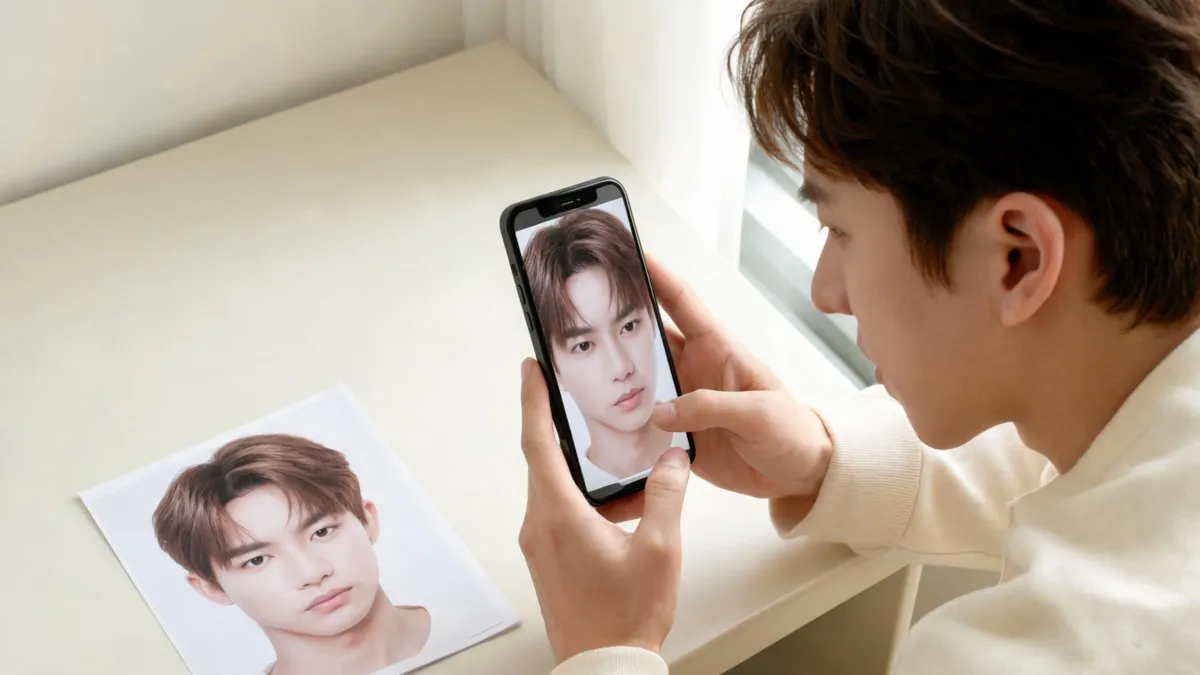
The YouCam Makeup AI hairstyle app can be useful for trying preset hairstyles, a reference-photo style, and hair-color directions on a selfie. Its current App Store listing describes those options, but a preview cannot tell you exactly how a cut will sit after texture, density, growth pattern, styling, and a stylist’s technique enter the picture. Use it to narrow a direction, then test the same question with an AI hairstyle changer or take the references to a consultation.
Last updated: September 10, 2026 · about 7 min read
What the app says it can preview
This is not a scorecard of every beauty-editing feature or subscription tier. The relevant question is simpler: can the app help you make a better haircut or color decision from your own photo?
At the time of this review, the YouCam Makeup App Store listing describes three hair-related options: preset AI hairstyles, Custom Hair Try On with a reference photo, and a hair color changer. It also says Custom Hair Try On can retain the original hair color. Those are useful categories to test, especially if you already have a saved cut reference.
They are not the same thing as a salon simulation. A generated fringe may not show whether your cowlick will split it. A color layer does not know your prior dye history or porosity. An app can give a visual brief; it cannot replace a patch test, a consultation, or a stylist’s assessment of your hair.
| If you need to decide | A fair use of the preview | What it cannot settle |
|---|---|---|
| Cut direction | Compare short, long, wavy, bang, or reference-photo silhouettes on your face | Exact length, weight, growth pattern, or how it behaves after washing |
| Hair color | Compare warm, cool, light, or dark directions under one photo’s lighting | A dye formula, chemical outcome, or whether your hair can safely reach that shade |
| Appointment brief | Save one or two clear examples and describe what you like | The barber or stylist’s final recommendation |
A convincing screen result is still a draft. Keep the original photo beside it and ask whether only the hair changed.
A four-step test for the YouCam Makeup AI hairstyle app
The cleanest evaluation is repeatable. Do not compare a flattering live-camera moment with a difficult old selfie, then conclude one feature is better. Use one source image and one small question per round.
- Start with a plain selfie. Face a window, remove beauty filters, keep both sides of the hairline visible, and use a neutral expression. Avoid hats, hands in the hair, mirrored selfies, and heavy backlight.
- Choose one target. For a haircut, use either one preset or one reference-photo direction. For color, request one family at a time. Do not change cut, shade, makeup, and face shape in the same test.
- Run a control comparison. Put the original and the result side by side. Check the temples, part, ears, roots, and ends at full size. If facial features, skin texture, head size, or the room changed, discard the result.
- Write the useful part down. A note such as “I like the shorter length around the ears, but not the heavy fringe” is more actionable than a polished image alone. That note is what a professional can respond to.

A reliable app comparison changes one hair decision at a time and keeps the source selfie visible.
What to look for before you save a result
Hair edges are the quickest reality check. Look at where hair meets the forehead, ears, neck, and shoulders. A usable preview preserves the original face and makes an understandable change in those areas. A result that melts into the background, replaces the person’s face, or leaves a flat helmet shape is not a reason to book a drastic cut.
For reference-photo mode, choose a photo that shows the cut clearly from the front. Ask a narrower question than “make me look good”: “show a chin-length bob with my existing color” is easier to evaluate than a broad makeover request. If your main question is shade rather than length, separate it with an AI hair color changer workflow so the silhouette does not make a color look more flattering than it is.
There is also a practical privacy boundary. Read the service’s current terms and privacy information before uploading, use only an image you are comfortable sharing, and do not upload someone else’s face without permission. App interfaces and availability can change, so verify the choices in the version you have rather than relying on a screenshot in this article.
When another preview is the better next step
The app is a reasonable first look when you have an ordinary selfie and want to explore a broad direction. It is less useful when the decision hinges on a very specific haircut detail. For example, people deciding between two fringe shapes should use a focused bangs filter and inspect the hairline; people considering a big length change should compare a few stable photos, not accept one rendered result.
AIChangeHair is useful as a second opinion because you can repeat the same source-photo test without treating one beauty app’s edit as the answer. For practical input-photo standards, see what photos work best for an AI haircut preview. For the bigger limitation behind any generated image, read what AI hair previews cannot tell you.
Limits worth keeping in view
No consumer preview can show the exact result of a cut before it is performed. Hair texture, shrinkage, density, current layers, cowlicks, styling tools, and a professional’s technique make a difference. Likewise, no color image establishes a formula or a safe lightening plan. Avoid using a preview as a reason to cut your own hair, dye over damage, or insist that a stylist reproduce pixels exactly.
The honest use case is lower stakes and more useful: arrive at a salon with one or two clear directions, an original selfie, and words for what you want to keep. That gives the person doing the work room to assess what is realistic.
Frequently asked questions
Can YouCam Makeup show me a different hairstyle?
Its current App Store listing says it offers preset AI hairstyles and a Custom Hair Try On option that uses a reference photo. Treat either result as a visual direction to review, not a promise of a salon result.
Can I keep my hair color when I try a hairstyle in YouCam Makeup?
The current listing says Custom Hair Try On can keep the natural hair color. Check the controls in your installed version, then compare the result against the original selfie before you save it.
Why does an AI hairstyle preview change my face?
Low light, filters, a covered hairline, motion blur, and difficult background edges can make a generator alter more than the hair. Retake a plain, front-facing photo and reject any result that changes your face, pose, or proportions.
Related guides
- Try the free AI hairstyle changer →
- AI hair color changer
- Bangs filter
- AI haircut preview at a salon
Make the preview earn its place
Use a hairstyle app to compare one visible choice, keep the source photo beside every output, and carry the useful notes into your next appointment with AIChangeHair.