
Brown Hair Filter: Try Brunette Shades on Your Photo
Use a brown hair filter to preview brunette shades before dyeing. Compare warm brown, cool brunette, espresso, chestnut, and chocolate hair on your own photo.
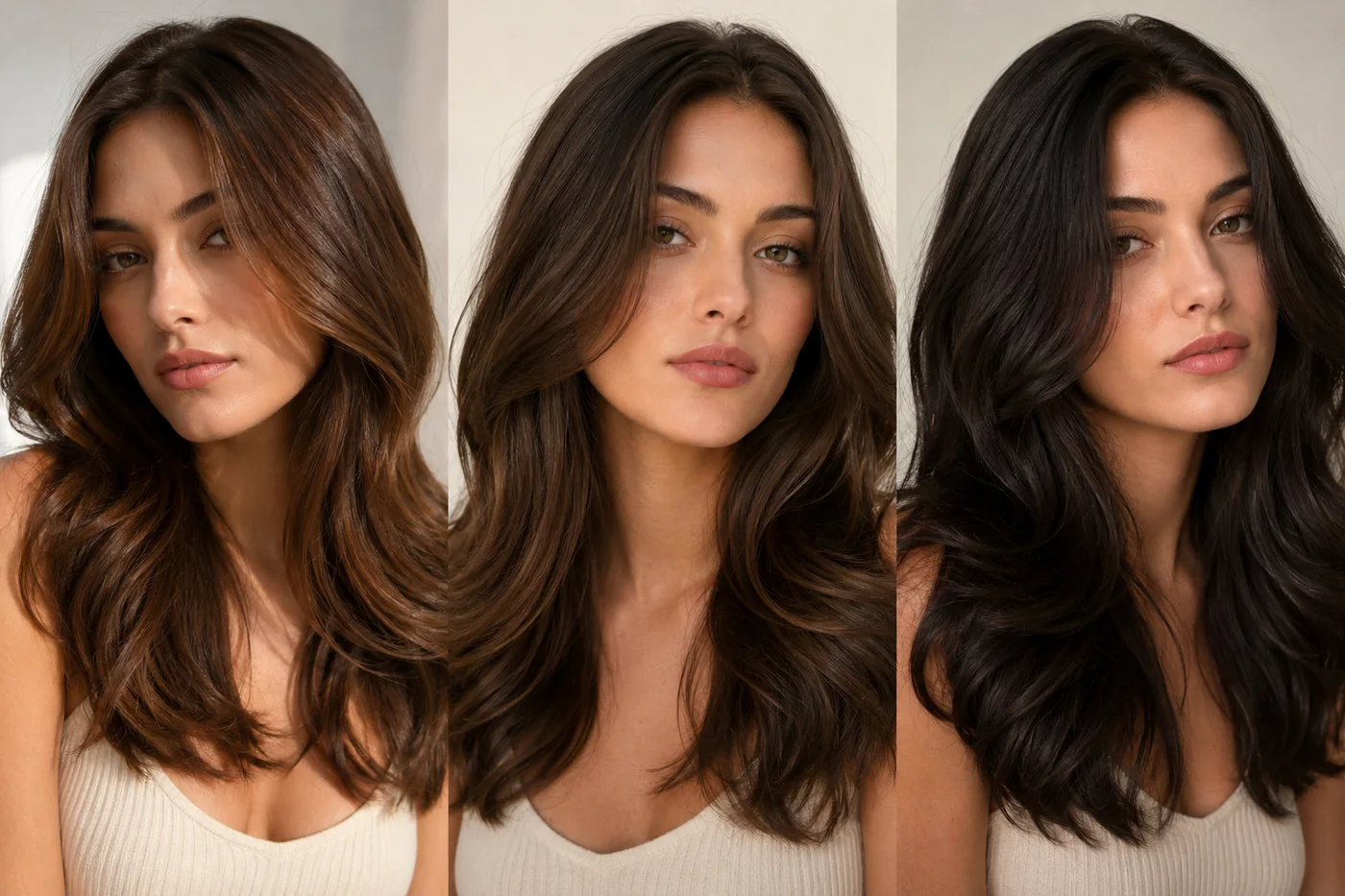
A brown hair filter helps you preview brunette shades before you book a salon appointment, buy box dye, or commit to a darker look. Brown hair sounds simple, but the difference between warm chestnut, neutral brunette, cool espresso, and soft chocolate can change how your skin, eyes, and wardrobe read in photos.
With an AI hair color changer, you can test several brown shades on your own portrait first. The goal is not to replace a stylist. It is to narrow your direction so the real conversation is easier.
Concept visual: brunette shades can change warmth, contrast, and face framing even when they all count as brown.
Quick Answer: Brown Hair Is a Shade Family, Not One Color
Use a brown hair filter to compare at least three directions: warm brown, neutral brunette, and cool dark brown. Warm browns can brighten golden or peachy undertones. Neutral browns are the safest first test. Cool espresso or ash brown can look polished, but may feel harsh if your photo lighting is already flat.
If you are unsure, start one level lighter than your first instinct. Digital previews often look more dramatic than salon results because a still photo freezes the full contrast on your face.
Pick the Brown Shade by Undertone
Undertone is not a rulebook, but it gives you a useful starting point. If gold jewelry, cream clothing, or warm makeup tends to suit you, try chestnut, caramel brown, or warm chocolate first. If silver jewelry, black clothing, or cool pink makeup looks better, test espresso, ash brown, or cool brunette.
The guide on choosing hair color for your skin tone goes deeper, but the short version is this: the best brown shade should make your face look clearer, not heavier. If the preview makes your under-eye area look darker or your skin look dull, try a softer or warmer shade.
Brunette Shade Comparison
| Shade | Best for | Watch out for |
|---|---|---|
| Soft chocolate brown | A natural brunette change that still feels gentle. | Can look too flat if the photo is underexposed. |
| Chestnut brown | Warmth, glow, and a subtle red-gold tone. | May pull orange in bright light. |
| Neutral brunette | A safe middle option before going darker. | Can feel plain if the haircut has no shape. |
| Espresso brown | High contrast, polished looks, and dark brows. | Can look severe on very soft coloring. |
| Ash brown | Cool undertones and a muted modern finish. | Can make skin look gray if the tone is too cool. |
Use a Good Photo Before You Judge the Color
A hair color preview is only as useful as the portrait you upload. Use a clear, front-facing photo with natural light. Avoid heavy filters, colored lighting, hats, wet hair, and strong shadows. If your photo is warm and yellow, every brunette shade may look warmer than it would in real life. If your photo is dark, espresso may look nearly black.
Before you decide, try the same brown shade on two photos: one in daylight and one in typical indoor light. If the shade still looks good in both, it is a stronger candidate.
Face Framing Changes the Result
Hair color does not work alone. The same brunette shade can look different on a blunt bob, long layers, curtain bangs, or a slicked-back style. If your current haircut hides your face, a dark brown preview may look heavier than the real salon result would after shaping. If your hair has face-framing layers, warm brown may catch more light around the cheeks.
When the color looks close but not quite right, test the shade with a slightly different style direction. An AI hairstyle changer can help you compare whether the issue is the color itself or the way the hair frames your face.
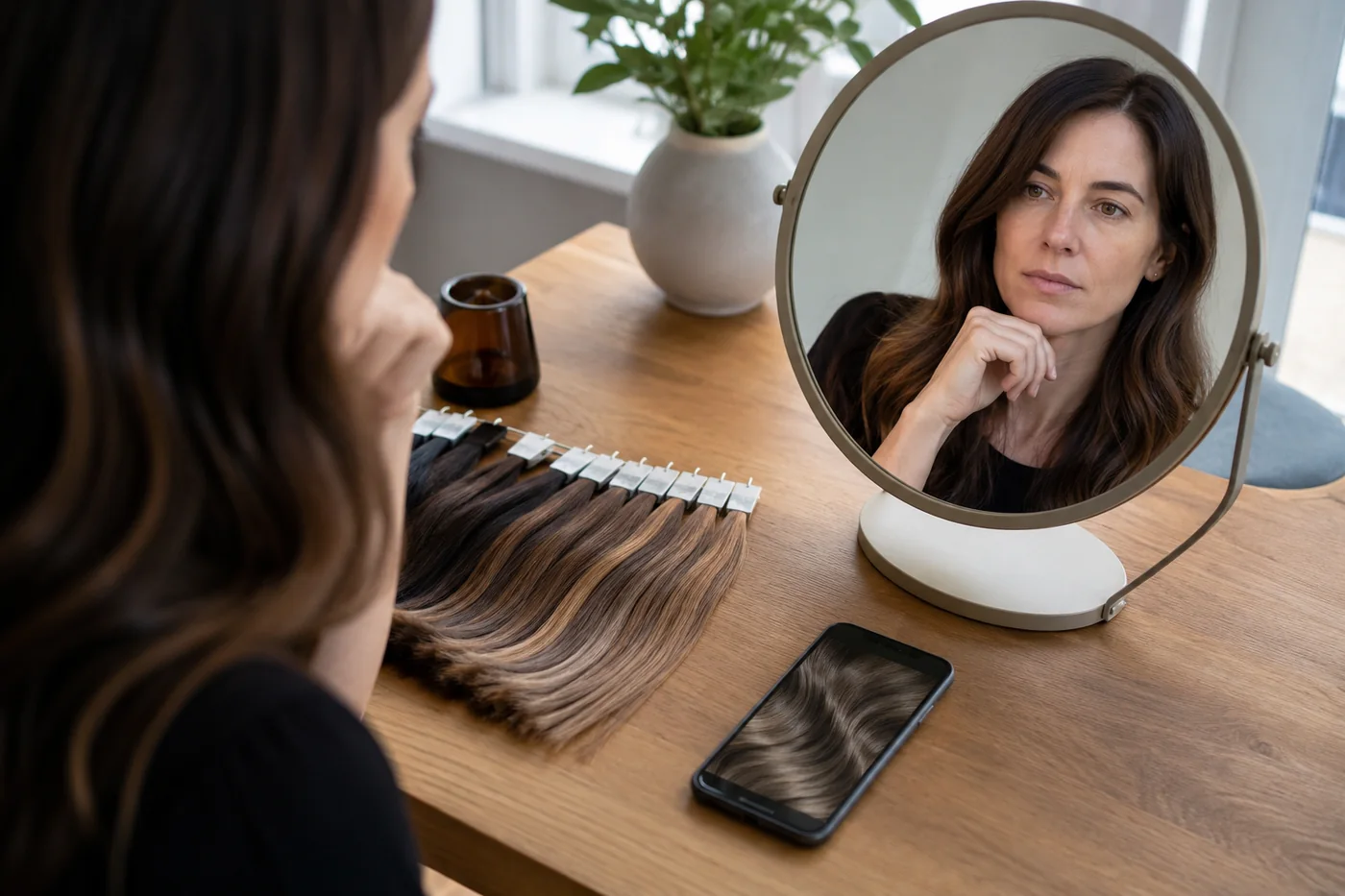
Concept visual: compare brunette swatches against a clear portrait before choosing a final direction.
What a Brown Hair Filter Cannot Tell You
A filter can show the visual direction, but it cannot promise how dye will lift, fade, or react with your existing hair. If your hair is dyed black, lightened, red, or heavily processed, a stylist may need a different plan. Brown hair also changes under sunlight, flash photos, and salon lighting.
Use the preview as a decision tool, not a guarantee. Bring your favorite preview to a stylist and ask what formula or maintenance schedule would get closest. If you want to test the edit process first, start with the basic guide on how to change hair color in a photo.
Related Shades to Try Next
If brown feels too safe, try copper, auburn, or dark blonde next. The copper vs red hair guide can help you compare warm options. If brown feels too dark, use a blonde hair filter to test a softer direction. The best shade is the one that makes your face look more like you, not like a costume.
Save the Preview With Notes
When one shade looks promising, save the preview and write down why. Note whether you liked the warmth, the depth, the contrast, or how it worked with your brows and wardrobe. If you bring the image to a stylist, those notes are more useful than saying "I want brown hair." Brunette has too many variations for one label to be enough.
If you are using the preview for at-home color, the notes can also stop impulse decisions. A filter may make a dramatic espresso brown look exciting for one photo. Your notes may remind you that a softer chocolate shade looked better in normal light.
For the final decision, compare your favorite preview with two everyday outfits and one photo where you normally like your hair. If the brown shade only works with one carefully styled look, it may be too narrow. If it works with your normal clothes and lighting, it is a stronger candidate.
Bottom Line
A brown hair filter is useful because brunette is a range, not a single color. Test warm, neutral, and cool shades on a clear portrait. Check the result in different lighting. Then use the preview to guide a real salon conversation or a safer at-home dye choice.