
Picsart Hair Color Changer: Keep the Edit on Your Hair
Use the Picsart hair color changer to compare shades. Check hair edges, skin tone and haircut changes before saving a preview for your stylist.
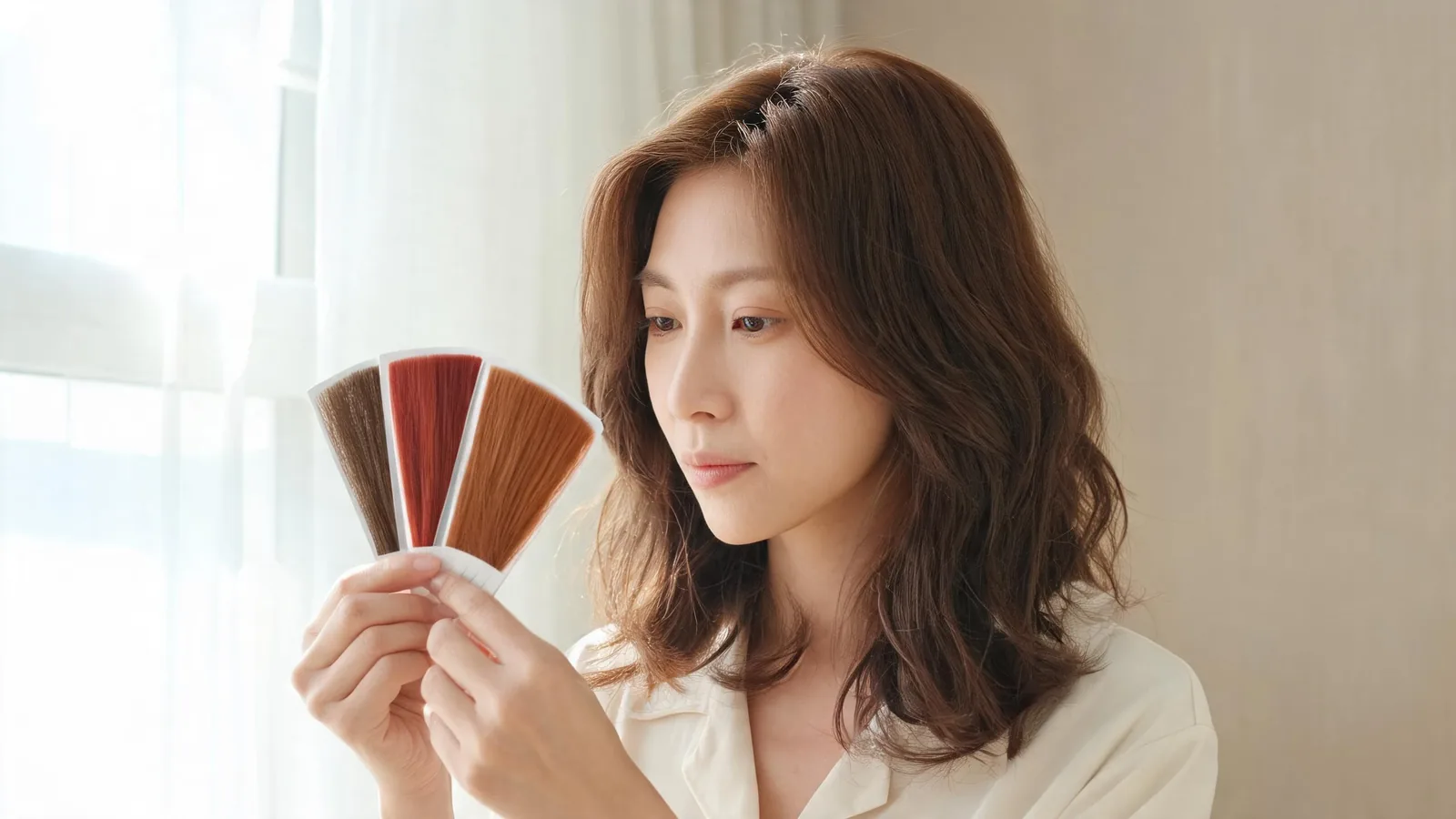
The Picsart hair color changer lets you upload a portrait and try a different shade. Keep the original photo, change only the hair color, and inspect the hairline, skin and haircut before saving. For another controlled preview, the AI hairstyle changer accepts descriptions of the hair edit you want. Neither image predicts a salon result.
Last updated: October 7, 2026 · about 8 min read
How do you use the Picsart hair color changer?
Start with Picsart's dedicated Hair Color Changer, rather than applying a color effect to the whole picture. Its published workflow is to upload a selfie or portrait, select a hair color and download the result. The page also describes saturation adjustment. These instructions follow that documented workflow; they are not a hands-on comparison of generated results.
- Upload a clear portrait and keep an untouched copy. Choose an image with the full hairstyle visible, even light and a background that separates from the hair. Save the source somewhere you can reopen it without any edits.
- Select one shade and review the change. Begin with a color close enough to your current shade that you can judge the difference. If your session offers saturation adjustment, use it to compare a quieter version with a stronger one. Leave unrelated portrait effects off.
- Compare before downloading. Look at the hair edges, then the forehead, ears, cheeks and clothing. Save a result only if it still provides a useful comparison. Keep it alongside the original, so a colorist can see both your starting point and the direction you like.
Buttons, available options and access requirements may differ between the app and website. If your session presents an upgrade or export restriction, read it before committing to an edit. This guide does not promise that every hair-color option or download is free.
Is hair recoloring the same as Retouch Hairstyles?
No. A color comparison asks what a different shade looks like on your existing cut. A hairstyle transformation can also change the outline, fringe, texture or volume. If both change together, it becomes harder to tell which part of the result you prefer.
Picsart describes Retouch Hairstyles as a mobile-only tool for changing both style and color. Instructions for that tool may differ from the dedicated web color workflow. An older app tutorial may also show different controls from those in your current session.
For a color decision, record your boundary before editing: “Keep my length, part and texture; change the shade only.” If you also want a new haircut, save that as a separate experiment. A copper bob and your current brown waves answer two different questions.
What photo makes the shade easier to judge?
Use ordinary, even daylight when possible. A colored lamp, a strong sunset cast or a beauty filter can make the starting color hard to read. The goal is a stable reference, not a perfect portrait. Avoid changing the lighting between shade versions.
Leave the sides and ends in frame. If long hair disappears below the crop, you cannot check whether the edit kept its length. If the front section crosses your cheek, look carefully at that overlap after recoloring. Hair and skin meet there, so a small error can affect how the whole preview reads.
Make a second reference photo if you need it for a consultation: one facing forward and one showing the side. Compare color alternatives within each view. Do not treat a warmer side photo as proof that a shade looks better than it does in a cooler front photo.
Keep the same source photo for nearby shades. A different pose, complexion or exposure can become the reason you prefer an image, even when you meant to compare only the hair.
How can you tell whether the edit stayed on the hair?
Check the result at two scales. At normal size, ask whether the overall shade is readable and your face still looks familiar. Then enlarge the hair boundary to inspect small changes. A clean edge alone is not enough if the edit has also altered your skin or haircut.
| Area to check | A useful result | A reason to retry |
|---|---|---|
| Forehead and temples | Skin stays consistent with the original | A colored halo spreads beyond the hairline |
| Ears and cheek overlap | Hair strands remain separate from skin | The ear or cheek takes on the selected shade |
| Flyaways and ends | Fine strands remain believable | A solid painted strip replaces the boundary |
| Part and roots | The part remains in the same place | A new part or scalp shape appears |
| Length and texture | Your original cut is still recognizable | New bangs, curls or shorter ends appear |
| Background and clothes | Their colors remain stable | The entire scene becomes warmer or cooler |
These are review criteria, not claims that a particular editor always produces those errors. If something looks wrong, compare that exact area with the untouched source. A highlight near the forehead may already have been present; a new orange patch on the skin is a different issue.
Do not evaluate skin tone from memory. Open the original beside the preview at a similar size. If your complexion changes, pause the shade comparison: you no longer have a fair basis for deciding how the hair color looks beside your face.
What should you do when recoloring looks unnatural?
Identify the smallest problem before starting again. If the color is too intense but the cut and face are stable, try a subtler shade or less saturation where that control is available. If the boundary is wrong, another hue alone may not solve the problem; choose a source with clearer separation around the hair.
If the haircut changes, return to the original and choose a color-focused workflow. If you have also applied portrait effects, remove them before checking the complexion. Save a clean source rather than repeatedly editing a previously generated result, which makes it harder to identify where a change began.
For very dark hair, a pale preview can be useful as an aesthetic reference, but it does not show the work needed to reach that shade. An attractive blonde image cannot assess previous color, hair condition or a lightening plan. The blonde hair color changer can help you explore the visual direction; a colorist must assess the real process.
How do you make a matched AIChangeHair comparison?
The AI hair color changer provides an own-photo color workflow. For a fair comparison, use the same untouched portrait you used in Picsart and request the same shade family. Do not switch photos, add a haircut or change the makeup between the two versions.
Here is suggested wording for a copper example, not a report of tested results:
Change only my hair color to a muted medium copper. Keep the current haircut, length, part, waves and volume. Keep my face, skin tone, expression, clothing, lighting and background unchanged.
Judge both outputs using the table above. First reject any version that changes the face or cut enough to distort the comparison. Then ask which surviving image communicates your preferred color more clearly. Preservation instructions help express your intention; they do not guarantee that every detail remains unchanged.
If copper is the direction you want to explore, the copper hair color changer offers a focused starting point. Describe whether you mean a softer brownish copper or a more vivid orange direction. A plain description is more useful than assuming that the same shade name means an identical result in two editors.
This guide is published by AIChangeHair. The alternative workflow is included to explain a controlled comparison, not to claim that one product produced better results in a test.
What does the Picsart demonstration show?
Picsart's short demonstration shows a hair-color change on a portrait.
Use it as a brief illustration of the task. Follow the controls available in your own session, and perform the original-versus-edit checks before saving.
What should you take to a color appointment?
Bring the untouched photo and one or two useful previews. Explain what you like in words: less red, a deeper brown, a softer copper, or more contrast around the face. If the image looks appealing because its lighting changed, choose a cleaner reference instead.
Ask the colorist what can be achieved from your current starting point, what upkeep it involves and whether the reference needs adapting. A preview is a conversation aid. It cannot provide a dye formula or guarantee an exact match between a screen and real hair.
Frequently asked questions
How do I change my hair color in Picsart?
Open Picsart's Hair Color Changer, upload a clear portrait, select a shade and compare the recolored image with the original before downloading. Available controls and access can differ between the website and app.
Is the Picsart hair color changer free?
Check the access and export conditions shown in your current Picsart session. A public tool page does not establish that every shade, generation or download is free, and this guide does not promise free access.
Why did my skin change color in the hair edit?
A changed complexion may come from the edit affecting more than the hair or from another portrait adjustment. Compare with the untouched original, remove unrelated edits and retry with clearer separation between hair, skin and background.
Can a hair color preview tell me which dye to buy?
No. A preview helps communicate a color direction, but it cannot determine a dye formula, required lightening, processing time or the result on your current hair. Discuss those decisions with a colorist.
Related guides
- Try the AI hairstyle changer →
- Compare hair shades with the AI hair color changer
- Preview blonde hair color
- Explore copper hair color
- Test shades before dyeing
Compare one shade at a time
Keep your original photo, describe one change in the AI hairstyle changer, and save only previews that help explain the color you want.