
Restore an AI Hairstyle Preview After Reloading
Restore an AI hairstyle preview after a reload or app switch. Check the same page, browser, and account before submitting another edit.
To restore an AI hairstyle preview in AIChangeHair, return to the same editor page in the same browser within six hours of starting the request. The AI hairstyle changer can show a completed edit or report again, or resume checking an unfinished request. Check that result before starting another generation.
Last updated: October 12, 2026 · about 7 min read
Switching to a message, losing your connection, or returning to a phone tab that has reloaded can make a preview appear lost. That alone does not tell you whether the request failed. The useful first step is to recover the existing request and see its status, rather than upload the same photo and ask for the same result again.
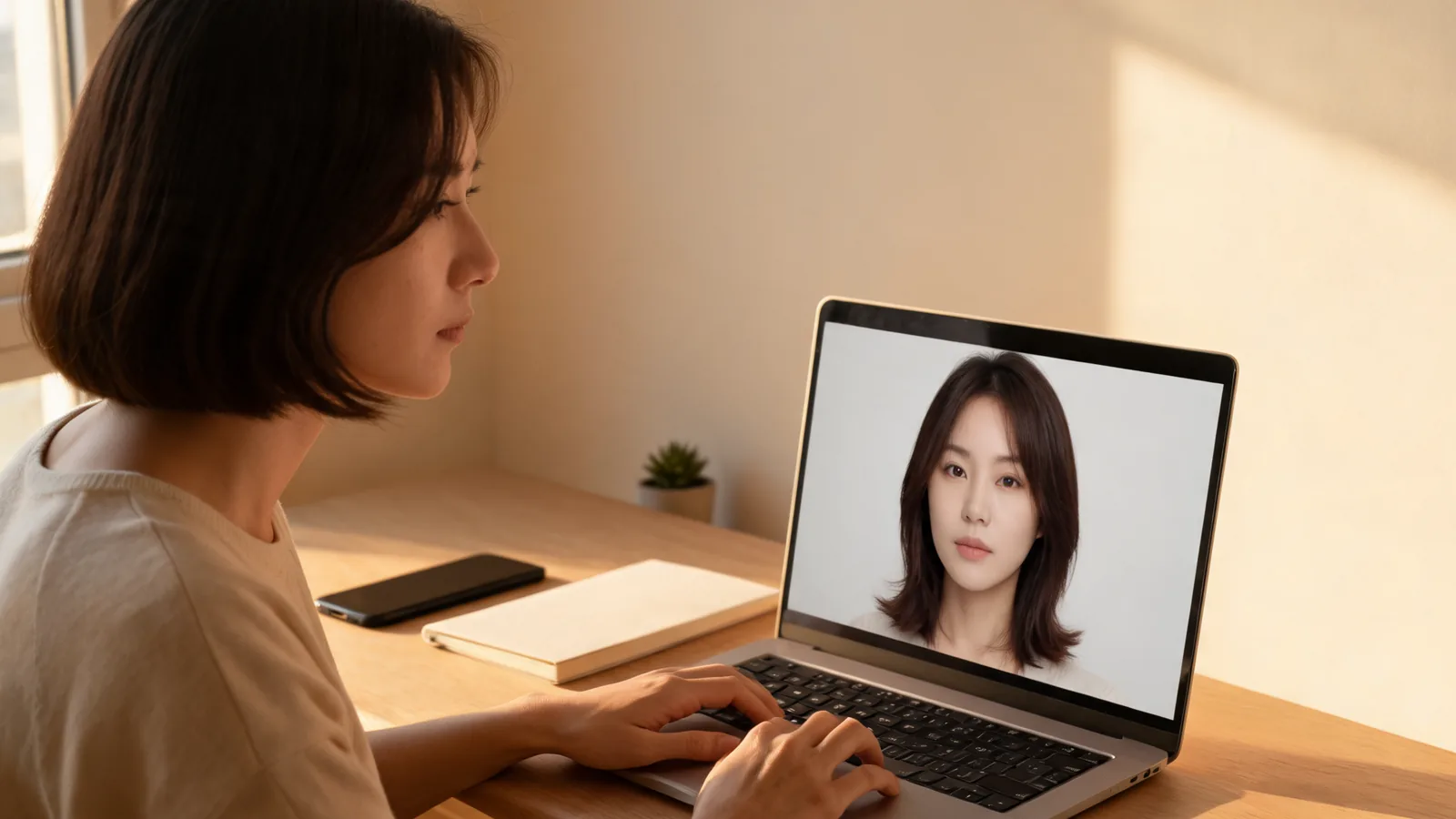
This guide covers the latest request remembered by the editor. It is a short return window, not permanent storage or a way to transfer a session between devices. Download an image you want to keep. The cover illustration shows a hairstyle-planning scene, not a screenshot of a recovered result.
How do I recover a preview in three steps?
- Open the page where you started. If you used the homepage studio, return to the homepage. If you used a particular haircut or color page, return to that page instead. Use the same browser and browser profile.
- Restore your connection and account access. Let the editor load with an internet connection. If you signed out, sign back into the account that submitted the request. Opening a different account cannot retrieve another person's result.
- Read the result area before generating again. A completed request can display its image again. A pending request resumes progress checking. If you see a failure, an empty editor, or an account issue, use the checks below before deciding what to do next.
For example, imagine that you started a bob preview on your phone, answered a message, then returned to a reloaded browser tab. Go back to that original editor page and allow it to check the request. Do not interpret the missing upload thumbnail as proof that the finished preview has disappeared; recovering a request and restoring every previous form choice are different tasks.
Returning to an existing request does not submit it again. Choosing Generate for another edit or New look for another report starts a new request, with the cost shown by the studio.
Is it still running, restored, or actually failed?
The screen's state matters more than how long you were away. A background tab may update less often, and an offline page cannot show a fresh result until it reconnects. AIChangeHair checks a pending request when you return to the tab or regain connectivity.
| What you see | What it means | What to do next |
|---|---|---|
| A completed portrait or report | The existing request returned a result | Review it and use Download if you want to keep it |
| Progress for an unfinished request | The editor is checking the same request | Stay on the page and let it finish checking |
| A time counter that includes your time away | The resumed request keeps its original timing | Do not assume a reload started the work over |
| An explicit failure message | The request or its status check encountered a reported problem | Read the message and check account access before retrying |
| A blank editor | No usable remembered request was restored | Check the page, browser, account, and return window |
An interruption in connectivity is different from a confirmed failed generation. A message about checking the request should not be treated as a request to start over. Equally, a remembered request cannot force a genuinely failed generation to become successful. If the studio reports failure, follow the specific message instead of repeatedly reloading.
What exactly does the six-hour window cover?
The editor remembers the latest accepted edit or report for each page for up to six hours from the request's start. Completing the image does not start a new six-hour window. Returning after that window may leave the editor without a request to restore even if a saved result is still available elsewhere.
It also remembers one latest request per page, not a complete archive of every hairstyle you explored there. A later accepted request can become the one restored on your next visit. If the first result is the one you want for a salon appointment, save it before experimenting again.
Page identity matters. A request made with the bangs filter belongs to that editor page; returning to the homepage is not the same recovery step. Likewise, a preview created on the AI hair color changer should first be checked on that color editor. Keep the original page open or bookmark it while you compare styles.
The return window also depends on browser storage being available. MDN's browser-storage documentation explains that local storage is associated with a site and that private-browsing storage is cleared when the last private tab closes. Clearing site data or using another browser profile can remove the information needed for automatic restoration.
Why won't my preview come back?
Work through these checks in order. They are more useful than changing the photo or prompt, because the issue is recovering an existing request.
Check the original page. A shared editor appears on several pages, but their latest requests are remembered separately. Use browser history to find where you submitted the image. A different language page can also be a different page for this purpose.
Check the browser and profile. A link opened inside a messaging app may use an in-app browser rather than the browser where you started. Open the original browser directly. A laptop does not inherit the remembered request from your phone just because both open the same website.
Check the account. The browser's short memory is not permission to access a result. Signing out or changing accounts can prevent the status check from opening it. Return to the correct account, then look in your saved history if the editor no longer restores the request.
Check storage and elapsed time. Private browsing, cleared site data, blocked storage, or an expired six-hour window can leave nothing for the editor to recall. Keeping the browser open cannot guarantee recovery when storage is unavailable.
Check whether you started another request or cleared the result. A later accepted run can replace the remembered one. The New control for an edit clears the current editor result so you can begin again. Download the image you want before using it.
If these checks do not recover the result, contact AIChangeHair support with the approximate time, the page you used, and the message shown. Avoid sending passwords or unnecessary personal photos. A clear description of the interruption is more useful than saying only that the preview disappeared.
How do Download and My Gallery differ from restoration?
Restoration puts the latest available result back into the editor. Download saves a copy you can open independently of that return window. My Gallery is the account's history, rather than the page's short memory.
Completed hair edits show a Saved in My Gallery link. Use it to look for the saved edit, especially when you are returning to older work or want to review more than the latest request. Reports also have a Download control, but do not assume that the edit-specific gallery link appears beneath a report.
After using Download, open the saved file in your device's downloads or photos location to confirm that you have the actual image. A copied result link and a downloaded file are different things; keep the file when you need a dependable appointment reference. Save the original portrait separately so you can compare them later.
What should I check in a recovered result?
Recovery does not improve or alter the generated image. Review the restored preview just as you would review it when it first appeared: does the hair answer your question, and do your face, lighting, and pose remain recognizable?
For a fringe preview, focus on the length around the eyebrows and cheeks. For a shade preview, compare in the same lighting rather than treating an attractive color as a guaranteed salon formula. If you need a separate color experiment later, the blonde hair color changer gives that decision a dedicated starting point.
A report's front, side, and back views are generated suggestions, not recovered photographs of unseen parts of your head. Bring your original photo and real hair questions to a stylist. The AI hair preview limitations guide explains why density, growth direction, and styling effort still need a real-world conversation.
Frequently asked questions
Can I restore my preview after closing the tab?
You may be able to restore the latest accepted request by reopening the same editor page in the same browser within six hours of its start. It still needs available browser storage, an internet connection, and the appropriate account access.
Will reloading charge me for another hairstyle?
Restoring and checking an existing request does not submit another generation. Starting a new edit or choosing New look for a report is a separate request with the cost shown in the studio.
Can I recover the same preview on another device?
Automatic page restoration depends on information kept in the original browser. Another device does not share that memory. Sign into the correct account to check saved history, or use a copy you previously downloaded.
Does the editor keep my result forever?
No. The page remembers the latest request for up to six hours from its start. Download a result you want to keep and use My Gallery for saved edits rather than relying on the return window.
Related guides
- Open the AI hairstyle changer →
- AI hair color changer
- Bangs filter
- Best selfie for a hairstyle app
- AI hair preview stylist checklist
Save a useful reference
Use the AI hairstyle changer for your next hair decision, and download the result you want to discuss before your salon appointment.