
Bangs Filter App: Give Access to One Photo
Try a bangs filter app with one selected portrait. Understand photo pickers, limit library access, fix import problems, and revoke permissions afterward.
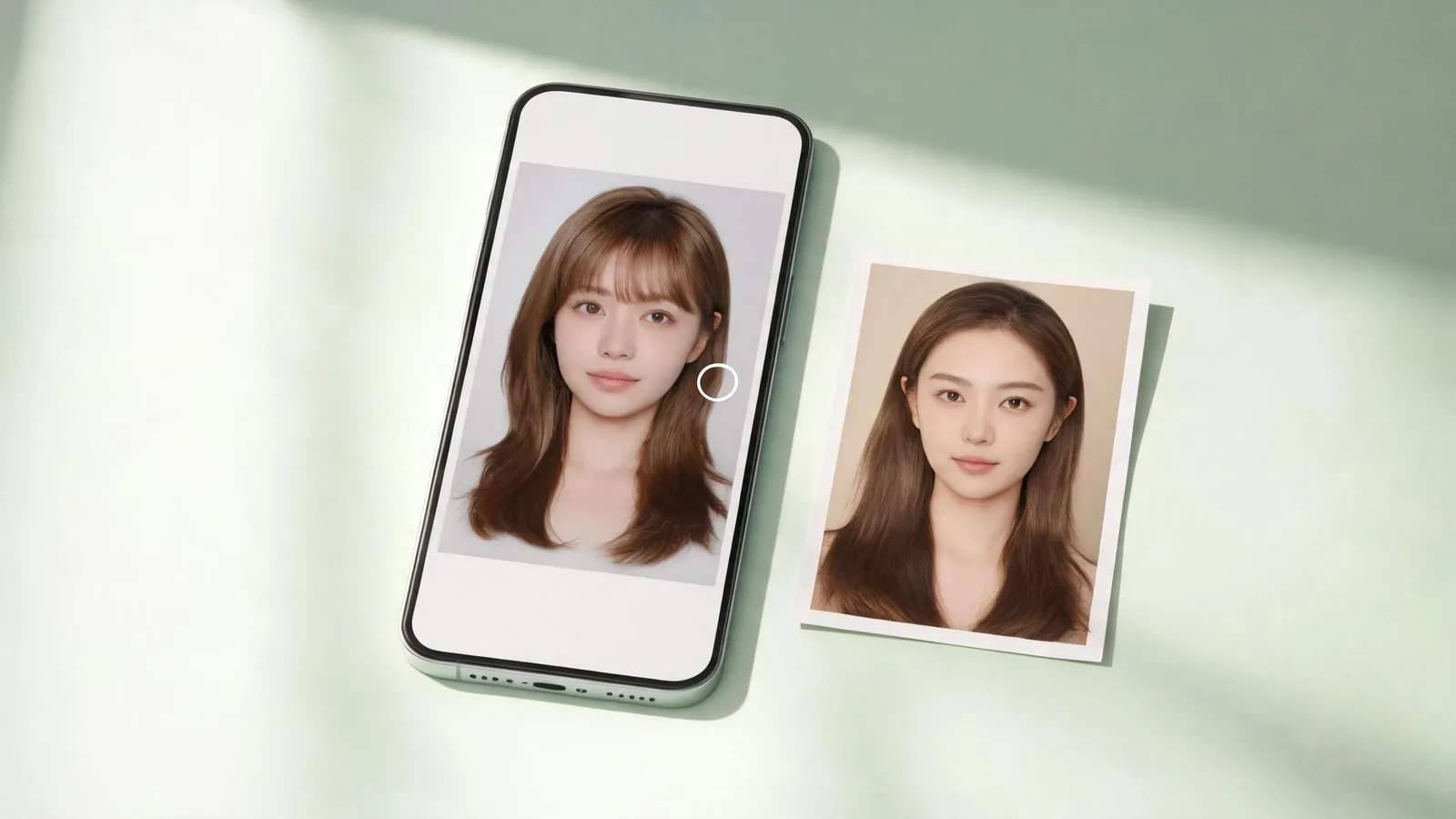
To give a bangs filter app one photo, use its system photo picker or choose selected-photo access if your device offers it. Select only the portrait you need, confirm the imported thumbnail, and review permissions afterward. The browser-based AI hairstyle changer is another option, but uploading a selected photo still shares it for online processing.
Last updated: October 10, 2026 · ~7 min read
Seeing your whole library in a selection window does not automatically mean the app can read every image. The useful question is whether you are choosing a file through the system or granting the app ongoing access to your photo library.
This guide covers importing and managing access, rather than picking a fringe shape. AIChangeHair publishes it and provides the browser editor described below. The hero is a conceptual illustration, not an app screenshot. Menu names vary by operating-system version, device, and language.
How do you try bangs with one selected photo in three steps?
- Prepare one portrait. Choose a front-facing photo with your forehead visible. Crop unrelated people or private background details out of a copy while leaving room around your hair.
- Choose the narrowest suitable import option. Open the photo selector and select that portrait. If a library permission prompt appears, use limited or selected-photo access where supported, instead of automatically allowing everything.
- Confirm, preview, and review access. Check the actual imported image before generating. Save the preview you want, then review any library permissions you granted. Handle uploaded copies separately through the service's data controls.
For example, if you prepared a cropped portrait but the editor shows your original group photo, stop and replace it before continuing. A correct permission choice cannot compensate for selecting the wrong file.
Is a photo picker the same as library permission?
No. A picker is a system-managed selection interface. Library permission lets an app use photo-library functions within the scope you authorize. An app may use either approach, or both for different tasks.
Apple's Photos picker documentation explains that an app can read the assets a user selects through the picker without requesting photo-library permission. Android's photo picker documentation similarly describes sharing selected images and videos rather than the entire library.
| What you encounter | What it means for this task | What to check |
|---|---|---|
| System selection window | You choose which image to pass to the app | Select one portrait and confirm it |
| Limited or selected-photo library access | The app has access to an authorized subset | Keep the selection to the portrait you need |
| Full-library access request | The app wants broader library access | Read its explanation before agreeing |
| Camera permission | The app wants to capture a new photo | It is separate from importing a saved portrait |
| Save or add-photo permission | The app wants to store an output | It does not necessarily need to read your whole library |
Read the system's explanatory text. A grid of personal pictures is not proof that all of them have been handed to the editor; they may be visible only inside the system picker.
How do you limit access on an iPhone?
If the app opens a system photo picker, select your prepared portrait and complete the selection. You may not receive a separate library-permission prompt. Do not hunt for a full-access switch merely because none appeared.
When an app does request library access, choose the limited or selected option if it is offered and suits the task. Apple's limited-library guidance distinguishes this authorized subset from the system picker. The app's implementation determines which approach it uses.
To review an existing permission, open Settings → Privacy & Security, then find Photos and the relevant app. Apple's information-access guide explains the general review path. Use the available controls to reduce or deny access, or edit the selected set. Labels and available options vary.
If the screen describes private or picker-based access and does not offer the controls you expected, return to the app's import button to choose another photo. That is different from managing a previously authorized library subset.
Do not enable camera access just to import a picture you already have. If you decide to take a new selfie inside the app, camera access becomes a separate decision.
How do you choose one photo on Android?
Open the app's import button and use the system photo picker when available. Select the portrait rather than an entire group of pictures. Some supported devices can also show cloud-backed media, so allow a remotely stored photo time to load.
If a permission prompt instead offers selected photos and videos, choose the narrower option and include the portrait you want. Do not assume every Android version or every bangs app presents identical choices. The system picker must be supported and used by the app; an older device or a different implementation can show another file-selection interface.
For existing permissions, Google's Android help gives the path Settings → Apps → the app → Permissions. Find the photo-related permission and change the available setting. Manufacturer wording may differ, and a picker-only import may not appear as a broad photo-library permission.
If the app insists on full access without explaining why, you can stop and choose another workflow. Do not treat granting more access as a required troubleshooting step for every failed import.
What if the selected portrait does not appear?
Separate selection problems from file and connection problems. Granting full-library access will not fix an unsupported file format or a photo that has not downloaded from cloud storage.
| Symptom | First check | Next action |
|---|---|---|
| Desired photo is absent in the app's own grid | It may be outside the authorized subset | Update the selected set or reopen the system picker |
| Picker closes but editor stays empty | Selection may not have loaded | Open the portrait locally, then select it again |
| Wrong portrait appears | An older original or thumbnail was chosen | Replace it with the prepared copy |
| File is rejected | Format or size may be unsupported | Make a properly converted supported-format copy |
| Website cannot open the selector reliably | An embedded browser may handle import differently | Reopen the page in your regular browser |
First confirm that the portrait opens in your phone's Photos or gallery app. If it is cloud-backed, wait until you can view it clearly. Then reopen the editor's selector and choose it again. Check the thumbnail inside the editor, rather than relying on the checkmark you saw earlier.
If you change a limited-access selection in Settings, reopen the app so it can refresh what it shows. When the same import keeps failing, read the actual error before changing another permission. Avoid repeated uploads until you know whether the app already received the image.
Can you use a browser bangs filter instead?
Yes. The bangs filter provides a portrait workflow in your browser. Tap the upload area and select a photo through your device's file-selection interface. Inspect the imported portrait, then choose or describe the fringe you want to preview.
For AIChangeHair, use JPEG, PNG, or WebP under the displayed upload limit; the current limit is 8 MB. If an HEIC picture fails, create a supported-format copy with a conversion tool you trust. Changing a filename from .heic to .jpg does not convert its contents.
Sign in before generating and use available credits. An installed native app is not required for this workflow, but the selected image is uploaded for online processing. Browser file selection should not be described as an offline privacy guarantee.
Once the image is correctly imported, you can make a focused comparison with the curtain bangs filter. Keep the original and compare the fringe at the same scale. For shape, density, and styling decisions, see the separate AirBrush bangs filter guide; those decisions do not require a broader photo selection.
What does revoking permission actually do?
It changes the app's future access through that device permission. It does not reach into the service's servers and delete copies you previously uploaded. It also does not erase a preview you downloaded, an image copied elsewhere, or a photo you already shared.
Treat cleanup as separate tasks:
- Review and reduce any photo-library permission you granted.
- Use the provider's supported controls for uploaded photos and generated previews you want removed.
- Read what its policy says about retention, backups, and deletion; contact support if the relevant control is unclear.
- Check local downloads and shared copies separately if you want those removed too.
The AI hairstyle changer safety guide discusses provider questions beyond device access. Limited access reduces the set of photos available through that permission; it does not by itself answer how a selected upload is stored or used.
Revoking photo access and deleting an uploaded portrait are different actions. Complete both when both are your goal.
Frequently asked questions
Does a bangs filter app need access to all my photos?
A one-photo preview can use a system photo picker or selected-photo access where the app and device support it. A system picker can show your library while passing only the items you choose. Broader access is a separate permission; read the request before granting it.
Why can't my bangs app see the photo I selected?
The selected item may not have finished downloading, the app may be showing an older selection, or the file may be unsupported. Reopen the picker, choose the intended portrait, and check the editor's thumbnail. Do not immediately grant full-library access to solve an import problem.
Does revoking photo permission delete my uploaded selfie?
No. Device permissions control future access through that device permission, not copies already uploaded to a service or saved elsewhere. Use the service's deletion controls or contact its support team to address uploaded copies, and read its retention policy.
Can I try bangs in a browser instead of installing an app?
AIChangeHair offers a browser-based bangs preview with a selected portrait. You still upload an image for online processing, sign in before generating, and use available credits. A browser workflow does not mean the photo stays on your device or is processed offline.
Related guides
- Try the AI hairstyle changer →
- How would I look with bangs? — judge the fringe on your face.
- AirBrush bangs filter guide — prepare a controlled style comparison.
- AI hairstyle changer safety guide — assess upload and retention questions.
Start with one portrait
Prepare one clear photo, read the access request, and check the selected image before using the AI hairstyle changer for a fringe preview.