
How to Change Hair Color in Snapchat & Bitmoji
Change hair color in Snapchat with a Lens and recolor your Bitmoji, then get a photo-real hair color preview on your own selfie in seconds.
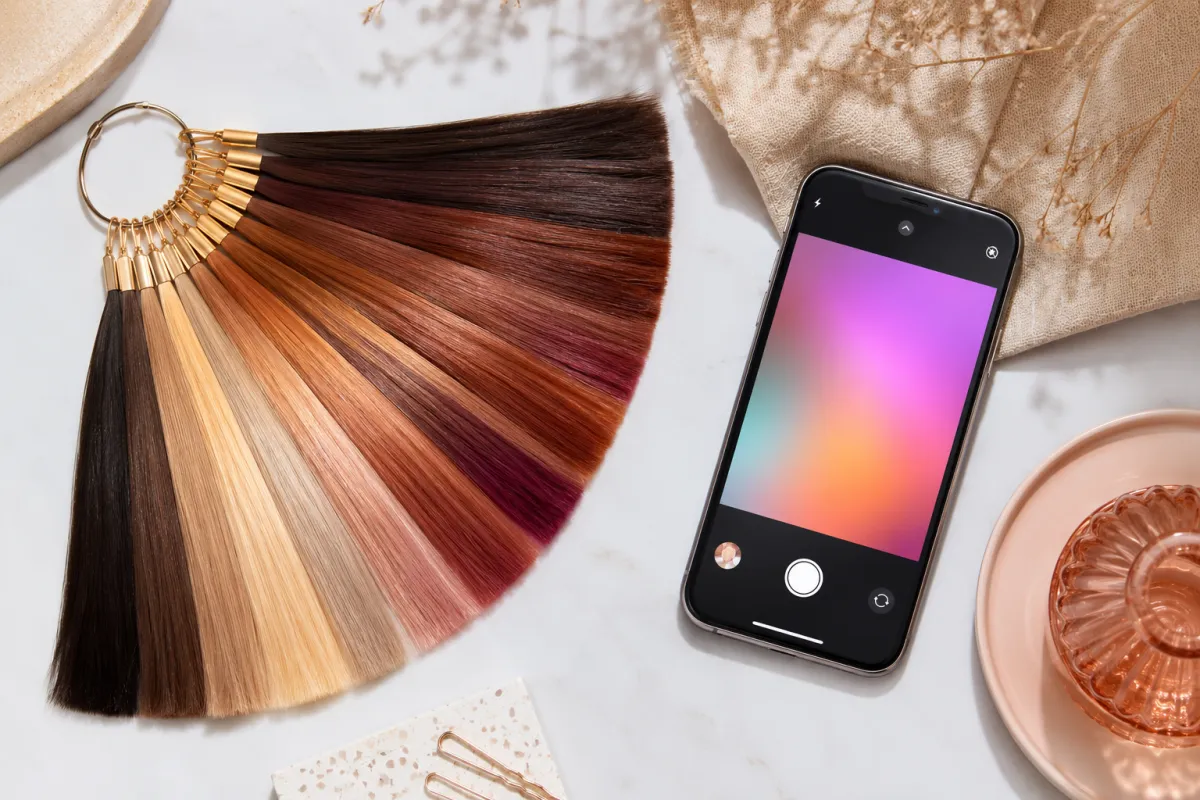
To change hair color in Snapchat, open the camera, tap the Lens carousel, and search for a hair-color Lens to apply a shade. To recolor your Bitmoji, open its avatar designer and pick a new hair color. Both work, but look stylized — for a photo-real result on your own face, use an AI hairstyle changer.
Snapchat and Bitmoji are great for a quick, playful look. The thing to know up front: a Snapchat Lens recolors a cartoon-ish overlay, and Bitmoji recolors an avatar — neither shows the new color on your real hair the way a salon mirror would. This guide gives you the real steps for both, then the realistic alternative.
Last updated: June 22, 2026 · ~6 min read
How to change hair color in Snapchat
Snapchat doesn't have a single built-in "hair color" slider. Instead, creators publish Lenses that recolor your hair live in the camera. Here's how to find and use one:
- Open the camera and tap the Lens button. Launch Snapchat, point the camera at your face, then tap the smiley/Lens icon to the right of the capture button to open the Lens carousel.
- Search for a hair-color Lens. Tap the magnifying glass in the carousel and search terms like "hair color," "blonde," "red hair," or "rainbow hair." Tap a result to try it on.
- Capture or record, then share. Once the color looks right, take a photo or video and send it to friends or post it to your Story. Swipe to switch between other color Lenses.
Heads up: Lenses are made by Snapchat and the community, so the available shades and how realistic they look vary a lot from one Lens to the next. Most are designed to be fun and eye-catching, not to mimic a precise dye job.
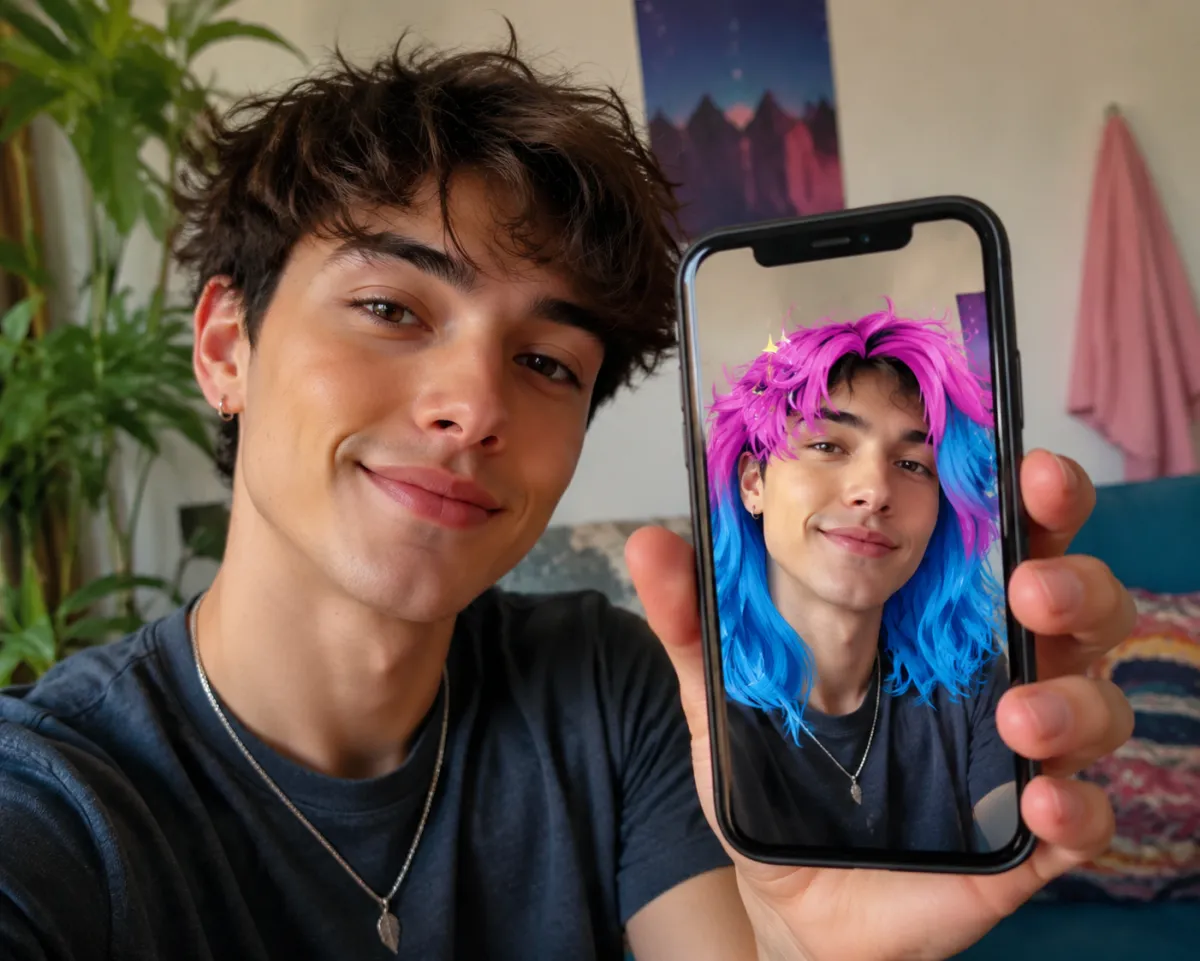
A Snapchat-style hair-color Lens applies a bright, stylized overlay — fun for a Story, but clearly a filter rather than your real hair.
How to change your Bitmoji hair color
Bitmoji is the cartoon avatar of you that shows up in Snapchat and other apps. Changing its hair color is permanent until you change it again, and it's easy:
- Open the Bitmoji avatar designer. In the Snapchat app, tap your profile (top-left), then open your Bitmoji to edit it. (Or use the standalone Bitmoji app and tap your avatar to edit.)
- Find Hair, then Hair Color. In the avatar designer, look for the Hair category and its Hair Color options — you'll see a row of color swatches.
- Pick a shade and save. Choose any color — natural browns and blondes or bold pinks and blues — preview it on the avatar, then save. Your new Bitmoji color now appears everywhere your Bitmoji is used.
The catch is the same as Snapchat's: you're recoloring a drawn avatar, not seeing the color on a photo of yourself.
Why these look cartoonish (the real limitation)
Snapchat Lenses and Bitmoji are built for speed and fun, and they're genuinely good at that. But there's a structural reason neither gives you a true preview:
- A Snapchat Lens paints an overlay. It tracks your head and lays graphics on top in real time. That overlay is tuned to look bold and obvious on a moving video, so it tends to flatten texture and skew stylized.
- Bitmoji isn't a photo at all. It's an illustrated character. A blonde Bitmoji tells you nothing about how blonde would read against your skin tone, lighting, or natural hair texture.
- Shades are limited to presets. You're choosing from a Lens creator's or Bitmoji's swatch set, not any custom color you can imagine — so nuanced looks like balayage, ash brown, or a soft pastel are usually off the table.
That's perfectly fine for a Story or an avatar. It's just not what you want when you're deciding whether to actually dye your hair.
Get a realistic hair color preview instead
If the real question is "would this color suit me?", you want the new shade rendered on your actual photo. An AI hair color changer recolors your real hair while keeping your face, skin tone, and lighting intact. From selfie to first preview takes well under a minute:
- Upload one clear, front-facing selfie. Even lighting, hair off the face, no heavy filter — the cleaner the AI can see your natural color, the more believable the recolor.
- Pick or describe any shade. Tap a preset like platinum, copper, or burgundy, or type one in plain words, e.g. "ash brown with subtle balayage." You're not limited to a filter's preset list.
- Compare and save. The tool returns the new color on your hair. Line up two or three shades side by side, download the winner, and take it to your colorist.
Why preview on your real photo: a salon color service is a real expense, and a shade you regret can mean weeks of grow-out. A realistic preview costs you a photo and about 30 seconds — far more useful than a Lens before a real appointment.
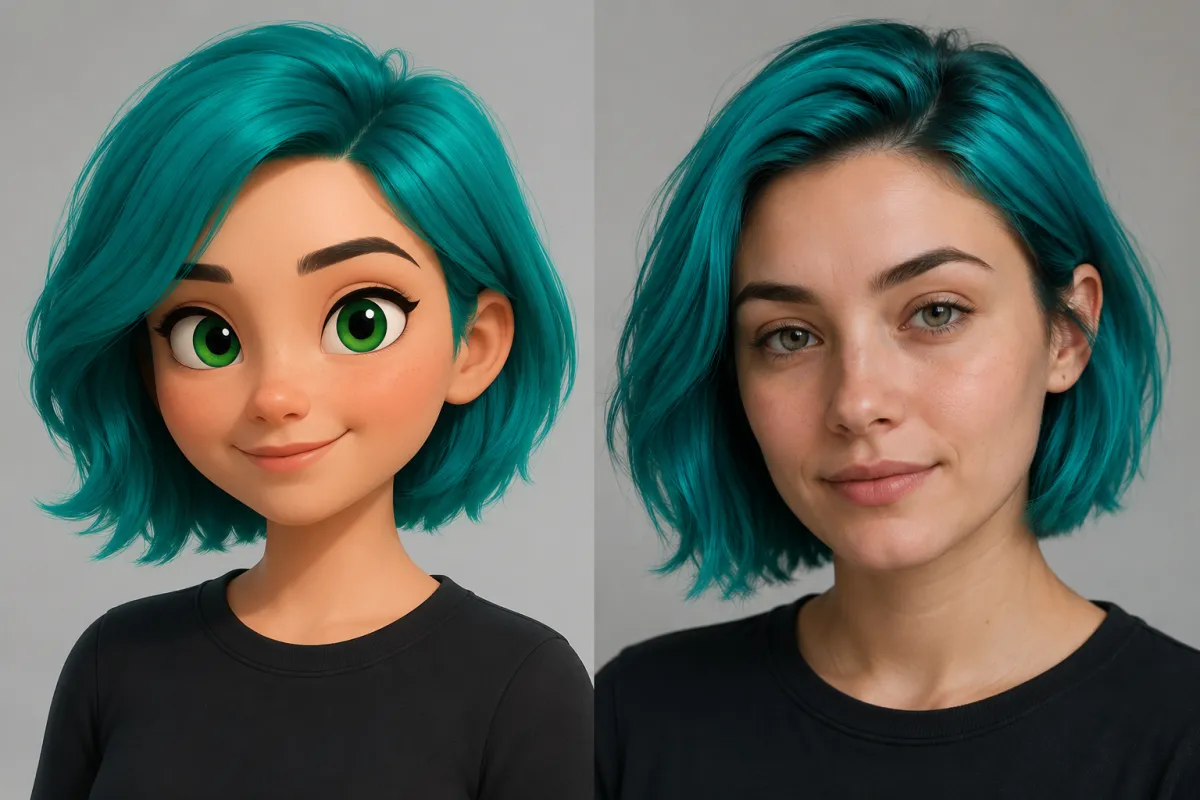
Left, a cartoon avatar's colored hair; right, a photo-real preview on an actual selfie — same shade, very different usefulness before you dye.
Snapchat vs Bitmoji vs realistic AI hair color changer
All three let you "change hair color," but they answer different questions. Here's the honest trade-off:
| Snapchat filter | Bitmoji avatar | Realistic AI hair color changer | |
|---|---|---|---|
| Realism | ⚠️ Stylized overlay | ❌ Cartoon, not a photo | ✅ Photo-real, keeps texture |
| Works on your real photo | ⚠️ Live overlay only | ❌ Avatar only | ✅ Your actual selfie |
| Colors available | Lens presets | Avatar swatches | ✅ Any shade, including custom |
| Shareable | ✅ Stories & Snaps | ✅ Everywhere Bitmoji shows | ✅ Download & share the image |
| Free | ✅ Yes | ✅ Yes | ✅ Free preview in browser |
The takeaway: use Snapchat for a fun Story and Bitmoji to keep your avatar current — but when you're seriously weighing a new color, preview it on your own photo so you can judge it against your real skin tone and texture.
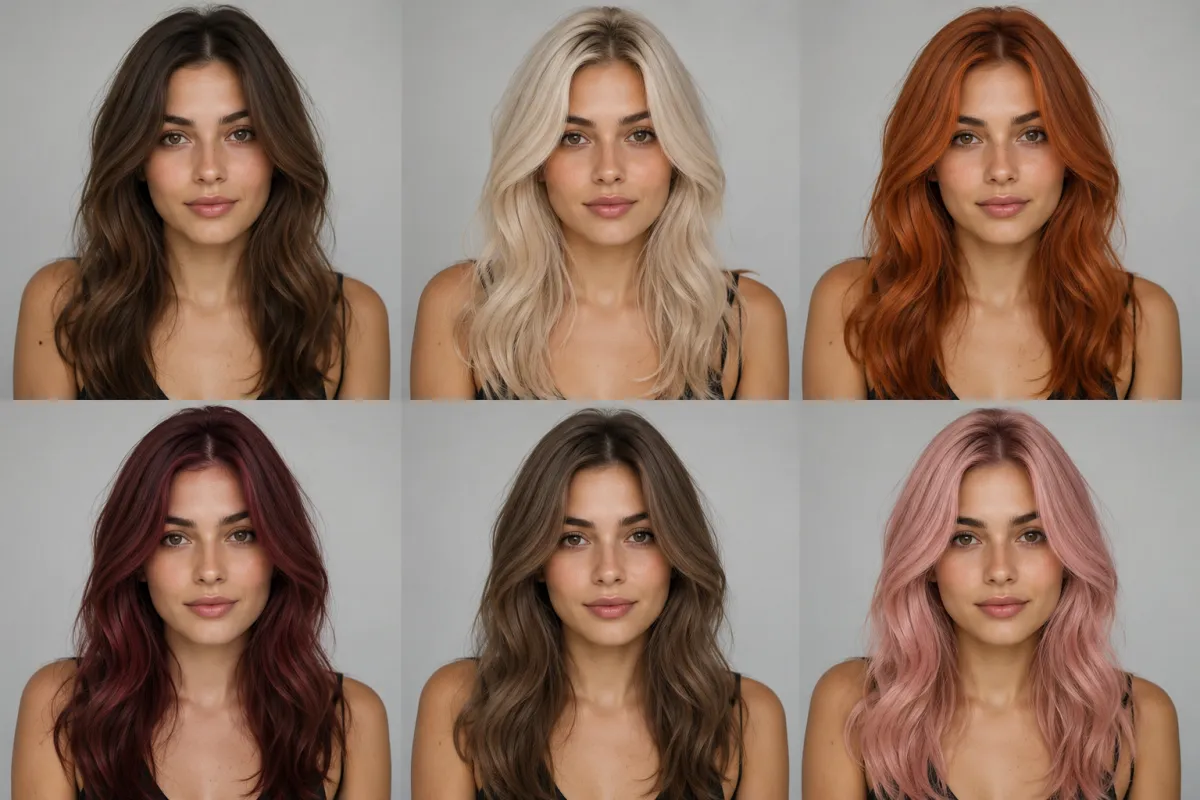
One face, a range of realistic shades — the kind of side-by-side comparison a cartoon avatar or a single Lens can't give you.
Frequently asked questions
How do I change my hair color on Snapchat?
Open the Snapchat camera, tap the Lens icon next to the capture button, then tap the magnifying glass and search for a hair-color Lens like "blonde," "red hair," or "rainbow hair." Tap a result to apply it live, then capture or record to share. Snapchat has no single built-in hair-color slider — the looks come from Lenses made by Snapchat and the community, so shades and realism vary.
Can I change my Bitmoji hair color?
Yes. Open your Bitmoji avatar designer (tap your profile in Snapchat, then edit your avatar, or use the Bitmoji app), find the Hair category and its Hair Color options, pick a swatch, and save. The new color then appears everywhere your Bitmoji is used. Remember you're recoloring a cartoon avatar, not a photo of yourself.
Why doesn't Snapchat show realistic hair color on my face?
A Snapchat Lens paints a graphic overlay on top of your tracked head in real time, tuned to look bold on a moving video. That makes it fast and fun but stylized — it flattens texture and uses preset shades, so it can't show how a color would actually read against your real hair, skin tone, and lighting.
How can I see a realistic hair color on my own photo?
Upload a clear, front-facing selfie to an AI hair color changer, then pick or describe any shade. It recolors your real hair while keeping your face, skin tone, and lighting, returning a photo-real preview in seconds. You can compare a few shades side by side and download your favorite — no app download or editing skill needed.
Is there a free way to try hair colors before dyeing?
Yes. You can preview any shade free in your browser with an AI hairstyle changer — upload a photo and test colors in seconds, no download required. It's a reversible, low-stakes way to avoid an expensive salon color you might regret, and a clear reference to show your colorist.
Do these filters change my real photo?
No. A Snapchat Lens only overlays color in the live camera or on the Snap you capture, and Bitmoji recolors a drawn avatar — neither edits your saved photos or your real hair. An AI hair color changer also leaves your original file untouched: it generates a new preview image you can download, so nothing happens to your actual hair until you decide to dye it.
Related guides
Keep exploring before you commit to a color:
- Try the free AI hairstyle changer → — upload a selfie and recolor your hair in any shade on the home page.
- How to change your hair color in a photo
- Hairstyle Try-On: see any haircut on your face
- Is an AI hairstyle changer safe?
Ready for a color you can actually judge?
Snapchat and Bitmoji are fun, but a cartoon can't tell you if a shade suits you. Upload a photo and preview any hair color free → — then take your favorite straight to your colorist.