
Fotor Hairstyle Changer: Test One Photo Before You Pay
Evaluate the Fotor hairstyle changer with one portrait and one haircut request. Check your face, hairline, download quality, and credit terms before paying.

Use the Fotor hairstyle changer with one clear portrait and one precise haircut request before paying. Compare the result against your original face, inspect the hairline, then open the actual download. If you also try an AI hairstyle changer, keep the photo and request identical so you can judge the hair rather than the photography.
Last updated: October 3, 2026 · about 9 min read
This guide is published by AIChangeHair. It offers a repeatable evaluation method, not a scored product ranking or a report of a paid hands-on comparison. The illustrations show what to look for; they are not outputs from Fotor or AIChangeHair. Public product information was checked on October 3, 2026, and account offers may change.
What does the Fotor hairstyle changer offer?
Fotor's hairstyle page describes uploading a portrait and trying haircuts or colors through presets and written requests. Its help center also distinguishes the hairstyle tool from a face-swap workflow. For a haircut decision, start with the hairstyle tool: you want to evaluate a change to your own hair, while preserving the rest of the portrait.
Do not treat a polished promotional example as a prediction for your picture. A useful result depends on whether the tool follows your request and leaves enough of the original intact for comparison. An attractive image of a different-looking person does not answer “Would this cut suit me?”
The same distinction applies to AIChangeHair. Its studio offers hairstyle presets, color controls, and custom hair prompts. Those are input options; they do not remove the need to inspect a generated result. There is no reason to declare either tool the winner before you have a usable comparison on your own portrait.
How do you prepare a fair same-photo test?
Pick a recent head-and-shoulders photo in even light. Include the top of your head and the ends of your hair. Avoid a hat, hair across your eyes, a very dark background behind dark hair, or a beauty filter that has already changed your face. A straightforward phone portrait is enough when the hair boundaries are clear.
Keep the original file somewhere separate. Upload it directly to each tool rather than downloading one tool's result and using that as the next tool's input. Otherwise the second result starts with an altered face, a different haircut, or extra compression. It is no longer the same test.
Choose a crop with space around your head. If a tool requires a different crop, note the difference rather than assuming both outputs had the same starting conditions. Do not judge sharpness at different display sizes: enlarge both to a similar face size first.
Choose one change you can describe without a reference person's face. For example, use a chin-length bob in your current color, rather than asking for a celebrity makeover, brighter skin, new makeup, and different lighting in one request.
Run the test in three steps
- Set a single target. Write down the length, outline, fringe, and color you want. Keep everything else unchanged. If you use presets, choose the closest equivalent in each tool and record any mismatch.
- Generate one version in each tool. Use the same original and the same request where text input is available. Check the displayed credit cost first. Keep the results alongside the original; do not retouch them before comparing.
- Inspect and export before deciding. Check identity, haircut placement, boundaries, and the downloaded file. Make at most one focused correction if the first result misses a detail. Decide whether the remaining uncertainty justifies another paid attempt.
A starting request could be: “Change only my hair to a chin-length blunt bob, without bangs. Keep my current brunette color, face, expression, clothes, background, and lighting unchanged.” This is an instruction, not a guarantee that either tool will obey every part.
For a fringe test, use the bangs filter and specify where the fringe should end. For a length test, a bob haircut preview gives you a focused starting point. Compare one change at a time; adding a new color can distract from the length decision.
Decide what counts as a useful result before generating: “I can still recognize my unchanged face, the requested length is clear, and the saved image is good enough to discuss with my stylist.”
What should you inspect before judging the haircut?
Start outside the hair. Compare the eyes, brows, nose, jaw, ears, and expression with the original. Look for skin smoothing, changed cheek width, a shifted chin, or an altered eye shape. These changes can make a preview more flattering while reducing its value as a haircut reference.
Next inspect where the hair meets your forehead and temples. A shorter style may legitimately reveal skin that was hidden, so a newly visible area is not automatically an error. The question is whether that area looks plausible and whether the result has invented a very different head shape. Treat uncertain regions as unresolved, particularly when the original concealed them.
Finally inspect the requested cut. Does “chin-length” actually end near the chin? Is “no bangs” respected? Has a straight cut become curled or heavily styled? A result can preserve identity yet still answer the wrong haircut question.
| Check | What a useful result lets you see | Reason to pause |
|---|---|---|
| Face | Familiar proportions and expression | Changed jaw, eyes, or skin distract from the cut |
| Hairline | A plausible transition at forehead and temples | A floating edge or an invented forehead contour |
| Length | Ends placed near the requested landmark | A bob becomes a shoulder-length lob |
| Texture | A direction you can discuss realistically | Unexpected curls or extra density alter the silhouette |
| Background | Original setting remains recognizable | Hair blends into newly invented objects |
| Export | Saved image retains the details you judged | Small or softened download hides the boundaries |
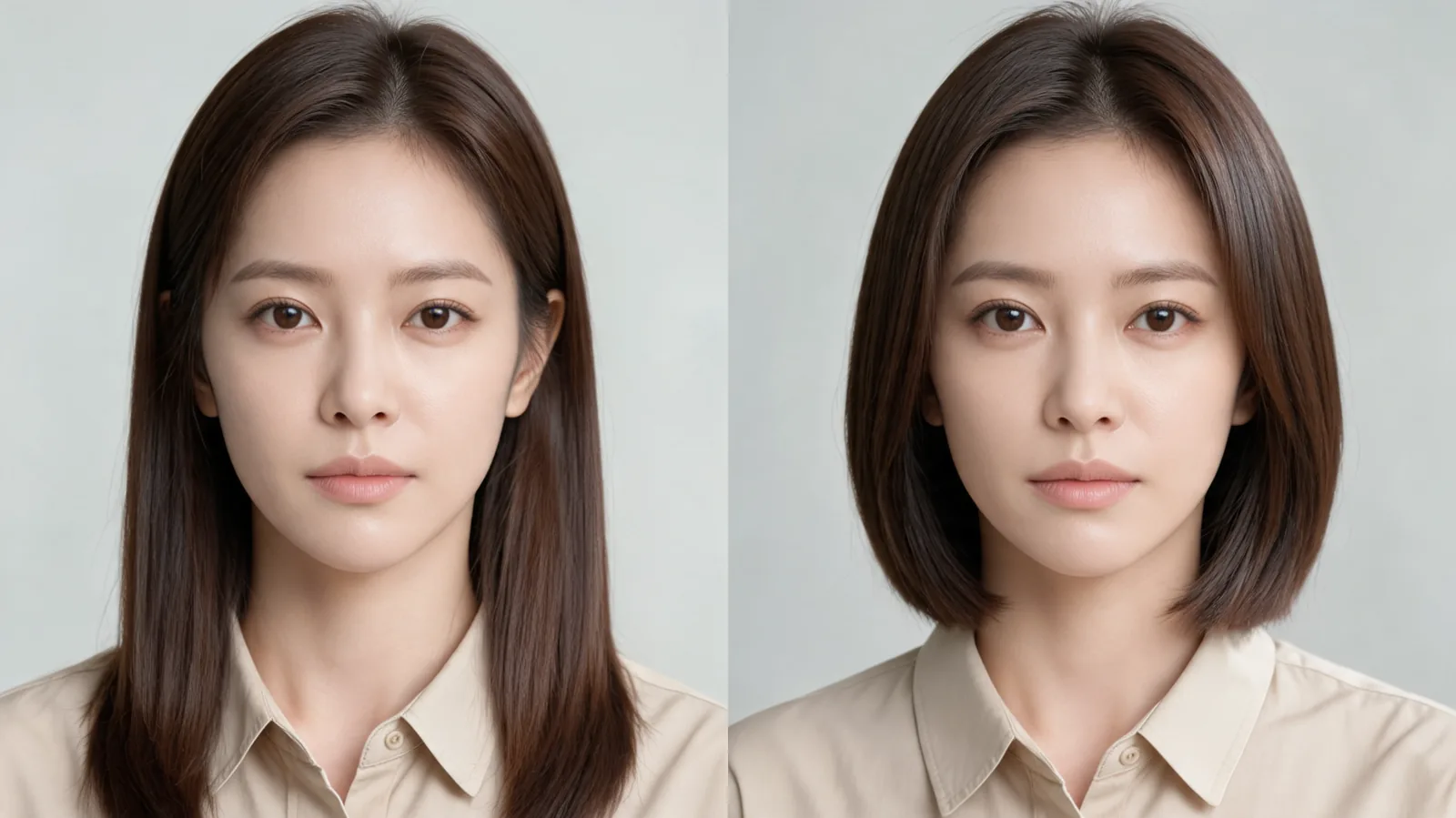
Illustration of a controlled length change: the face, clothing, and background stay consistent. These are not results from either product.
How do you check Fotor credits and download conditions?
The Fotor pricing page lists limited free credits. That tells you access is metered; it does not tell you how many hairstyle attempts your particular account can make. Before generating, read the amount shown for the selected request and compare it with your current balance.
Keep generation and export separate. Successfully creating a preview does not, by itself, establish the resolution, watermark conditions, or file format available when you save it. Open the download controls and inspect one saved file before subscribing for a larger set of tests. If an option requires an upgrade, decide whether you need that option for your actual purpose.
For a salon conversation on a phone, a readable image may be sufficient. For a larger print, the saved file needs more detail. Check the dimensions and look at the hair boundaries in the file itself rather than relying on the zoomed editor preview.
Read the offer presented to your Fotor account before purchase, including renewal, credit treatment, and cancellation. Check when the allowance arrives, whether unused credits expire, and which tools share the balance. Do not assume an annual billing label means every credit is immediately available or rolls over indefinitely. Save the terms you accepted if you decide to purchase.
Avoid assigning a cash cost to each preview until you know the actual plan price, credit allowance, and cost for the selected operation. A general editor can contain tools with different charges. Use the hairstyle request's own displayed charge for your calculation.
What does the Fotor walkthrough show?
This short Fotor demonstration shows hairstyle changes on uploaded portraits.
Use it to understand the basic preview idea. The controls or offers in your current account may differ, so follow the on-screen cost and download information you see today.
When should you retry, and when should you stop?
A retry helps when the error is specific: the ends are too long, the fringe is too dense, or the color changed despite your request. Restate that single correction and reuse the original photo. Starting from a generated result can preserve mistakes and make the comparison harder to interpret.
If the face changed substantially, try a clearer original before spending on variations. If the hair boundary disappeared into a dark background, better lighting may be more useful than a longer prompt. If the result repeatedly invents volume or changes identity, stop treating that portrait as reliable evidence.
Save a short note with each result: “Length correct; face stable; left ear edge unclear.” This is more useful than rating it “good” or “bad.” It tells you whether another attempt would answer a missing question or simply produce a different attractive picture.
Stop once the preview clarifies the decision you brought to the tool. You may only need to decide between a chin-length bob and keeping shoulder length. You do not need a gallery of every variation. A haircut preview also cannot measure growth direction, hair density, shrinkage, or how the style behaves after washing. Those questions belong in a conversation with a stylist.
Before that appointment, save the original and your preferred preview together. Describe the feature you like—length at the jaw, open forehead, or lighter ends—rather than asking for the whole generated image to be reproduced. That leaves room for a practical version suited to your real hair.
Frequently asked questions
Is Fotor hairstyle changer free?
Fotor advertises free access and its pricing page lists limited free credits. Check your signed-in balance, the cost shown for the hairstyle request, and download conditions before relying on a free preview. Free access does not establish unlimited generations or a particular export entitlement.
What photo should I use for a hairstyle changer test?
Use one recent, sharp portrait with even lighting, visible hair boundaries, and no beauty filter. Keep that same original file, crop, expression, and haircut request for every tool you compare.
How can I tell whether a hairstyle preview changed my face?
Place the result next to the original at the same scale. Compare the eyes, brows, nose, jaw, ears, skin texture, and expression before judging the hair. A changed face makes the haircut comparison unreliable.
Does a convincing preview mean a stylist can recreate the haircut?
No. A preview can clarify length and silhouette, but it cannot establish your hair density, growth patterns, shrinkage, or styling needs. Bring the original and selected preview to a stylist and explain which details you want to keep.
Related guides
- Try the AI hairstyle changer →
- Bangs filter
- Bob haircut preview
- Hairstyle try-on photo guide
- Compare AI hairstyle changer options
Try one controlled haircut preview
Choose one portrait and one haircut request, then use AIChangeHair to see whether that change answers your next haircut question.