
Hair Dye Simulator: Compare Your Shades
Use a hair dye simulator to compare nearby shades on the same selfie before a salon visit or box dye purchase, with limits that keep the preview useful.
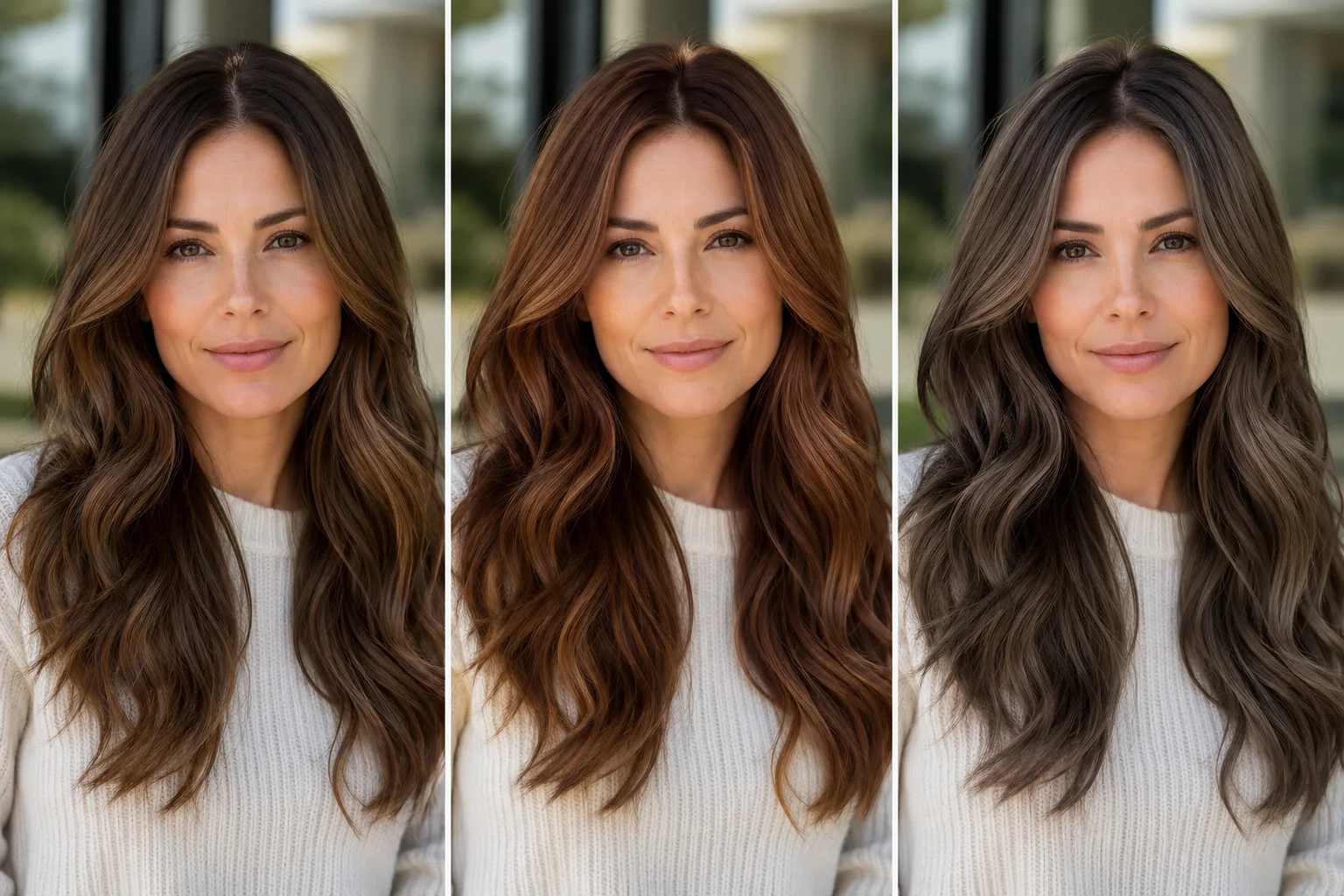
A hair dye simulator is most useful when you compare a few nearby colors on the same clear selfie. Keep the hair length, lighting, and face fixed, then use the AI hair color changer to decide which direction to discuss with a colorist or test at home.
Last updated: July 23, 2026 · about 6 min read
The best simulator result is not a promise of a salon formula. It is a way to answer a visual question before dye touches your hair: should the direction be warmer, cooler, lighter, darker, or closer to your natural base?
Compare neighboring shades, not a random rainbow
Pick a starting color that resembles your current hair, then make small, meaningful moves. Testing every shade at once makes it harder to tell what you actually like.
| If you are deciding… | Compare these first | Keep fixed |
|---|---|---|
| Whether to go warmer | Current brown, soft copper brown, warm chestnut | Same light and haircut |
| Whether to go cooler | Current brown, neutral brown, ash brown | Same part and background |
| Whether to go lighter | Current shade, one-level lift, soft highlight direction | Same face and skin tone |
| Whether to cover roots | Current roots, close blend, slightly lighter blend | Same hairline and length |
If your question is about undertone rather than dye technique, compare the advice in hair color for skin tone. For a specific color family, the warm undertone guide and cool undertone guide are useful follow-ups.
Use one reliable selfie
Choose a sharp, front-facing photo in daylight or even indoor light. Let the camera show your hairline, roots, and enough length to make the color readable. Strong filters, colored lighting, hats, and a large section of hair in deep shadow make a hair dye simulator less useful because you end up comparing the lighting instead of the shade.
Then write a narrow request:
Keep my face, haircut, length, texture, lighting, and background unchanged. Change only the hair color to a neutral medium brown with soft, natural dimension. Do not alter my skin tone or face shape.
This concept illustration shows the comparison method. A generated preview cannot determine the salon process or the final chemistry on your hair.
Judge the preview in three passes
First look at the overall contrast: does the shade make the face feel washed out, heavy, or balanced? Next inspect the roots and hairline. A believable preview should not paint color onto the forehead or turn every strand into a flat block. Finally, view the image small, as it may appear in ordinary photos. A color can look exciting at full size but disappear in a normal crop.
| Check | What it can tell you | What it cannot tell you |
|---|---|---|
| Face contrast | Whether warm/cool direction feels harmonious | Your exact undertone diagnosis |
| Root transition | Whether a close blend looks less abrupt | How your existing color will lift |
| Length and dimension | Whether you prefer flat or dimensional color | Processing time or placement method |
| Small-screen view | Whether the change still reads in a photo | How it will fade after washing |
For roots specifically, use a root touch-up hair color preview before choosing a box or booking an appointment. For placement questions, a highlights filter is a better comparison than a whole-head shade change.
Bring the comparison to a real conversation
Save the original selfie and the two previews that made you react most clearly. At a salon, explain the direction rather than asking for an exact pixel match: “I like the warmer dimension near the face, but I want the root to stay close to my natural color.” Mention prior bleach, box dye, toners, damage, and how much maintenance you can accept. Those facts affect what is realistic far more than a filter does.
Do not use a preview to decide on a dramatic bleach or correction alone. Porosity, existing pigment, hair health, and processing time are physical questions a photo cannot answer.
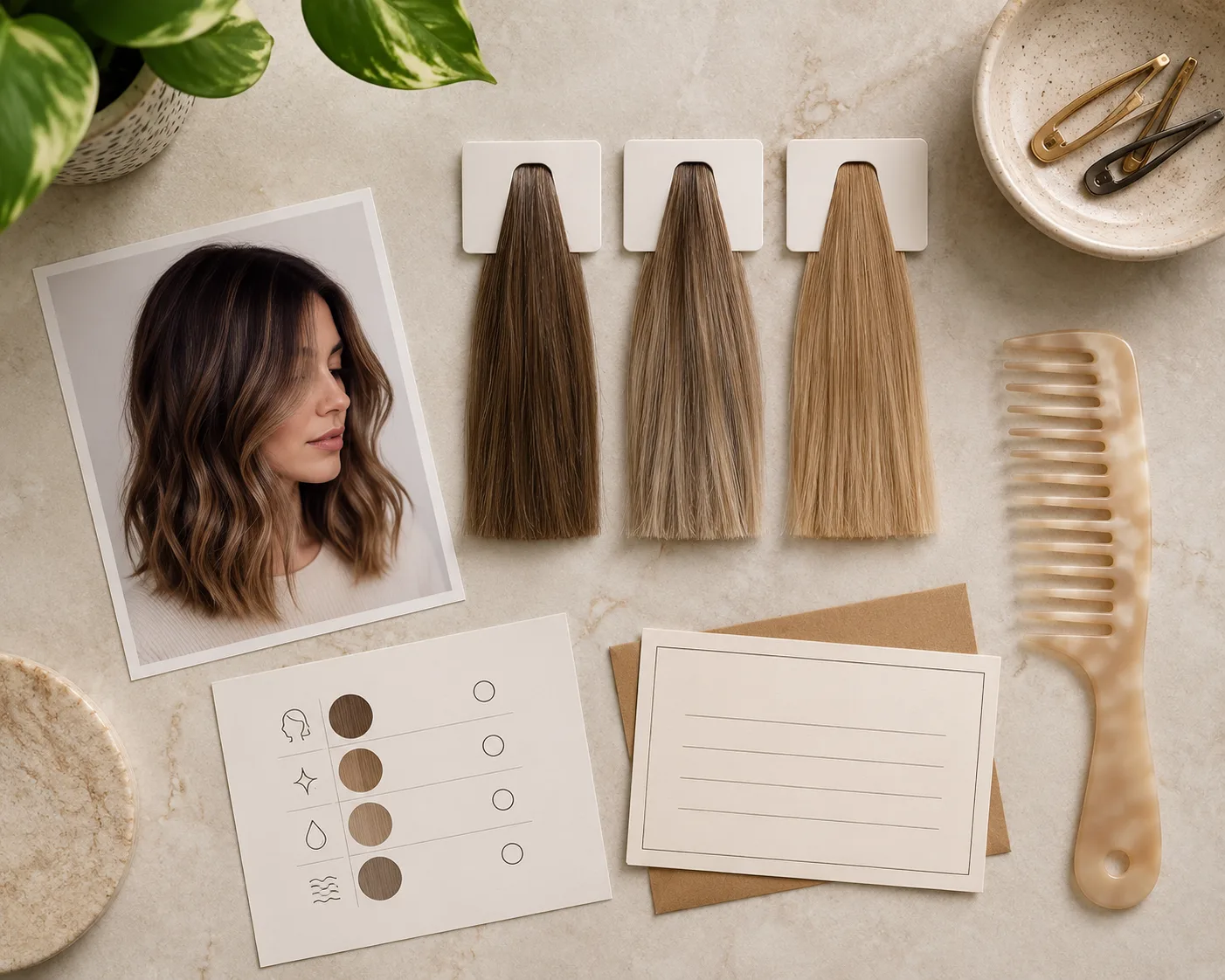
The second image handles the appointment task: take the original and a small set of controlled comparisons, not one unrealistic promise.
Frequently asked questions
Is a hair dye simulator accurate?
It can be accurate enough to compare a color direction on your own face, especially with a clear, evenly lit photo. It cannot predict bleach lift, dye chemistry, hair damage, maintenance, or the exact salon result.
How many colors should I compare?
Start with three: your current shade, one close alternative, and one bolder direction. If all three are different in lightness, warmth, and placement, make a second, more controlled set.
Can a simulator help before a salon appointment?
Yes. Bring the original photo plus two preferred previews, then describe the detail you like. A stylist can combine that visual direction with your hair history and condition.
Related guides
- Try the AI hair color changer →
- Hair color for skin tone
- Best hair colors for warm undertones
- Root touch-up hair color preview
- Highlights filter
Use the preview to narrow the question
Try a few close shades with the AI hair color changer, save the clear winner and the original image, then let a real hair history guide the final dye decision.