
TikTok Beard Filter: Find the Right Effect Before Recording
Find a TikTok beard filter that adds or removes facial hair, check tracking before recording, and use a still-photo preview when an effect is unavailable.

To find a TikTok beard filter, first decide whether you want to add a beard, add a mustache and goatee, or remove facial hair. Search for that effect, open its preview, and check your jaw and upper lip before recording. For a still-photo alternative, the AI hairstyle changer offers facial-hair previews.
Last updated: October 5, 2026 · ~8 min read
“Beard filter” is a loose label. A clip showing a clean-shaven face may use a removal effect, while another adds a full beard or just a chin patch. Some videos were created in another app and uploaded to TikTok. Start with the change you want, then check the effect itself rather than following a caption that happens to contain the right words.
Which beard effect do you actually need?
Choose the task before you search. If you are clean-shaven and curious about facial hair, look for an adding effect. If you already have a beard and want to see your face without it, look for removal. If you want a smaller chin style, a full-beard effect will not answer the same question.
| Your goal | Useful search wording | What to check in the preview |
|---|---|---|
| Add facial hair to a clean-shaven face | Beard filter or full beard | Cheek edges, jaw coverage, and mustache placement |
| Try hair around the mouth and chin | Mustache and goatee filter | Upper-lip alignment and whether the cheeks stay clear |
| Remove an existing beard | No beard or beardless | Chin texture and whether hair remains at the jaw |
| Make a playful transformation clip | The named effect shown on the video | Whether it also changes your face, skin, or background |
| Compare a look before grooming | A still-photo beard preview | Whether the original face remains recognizable |
For a grooming reference, check that the effect changes only facial hair. A narrower jaw or smoother skin may be a separate edit, not evidence that the beard style suits you.
If your aim is choosing a style rather than finding a TikTok effect, the beard-filter guide goes further into comparing facial-hair shapes. Here, the priority is getting the correct effect working before you spend time on a recording.
How do you find and test a TikTok beard filter?
Use these three steps. Button placement and effect availability can vary, so let the app's current preview decide whether the instructions apply to you.
- Search for the change you want. In TikTok, try “beard filter,” “mustache and goatee filter,” or “no beard.” If you find a video with an attached effect label, open that label. You can also open the Add post button and check the camera's Effects area; use effect search if your version offers it.
- Open the effect in your own camera view. Check its name and preview. Confirm that it adds or removes the intended hair, and notice any extra face-shaping or skin changes. A video title is not an effect label, and the first result is not automatically the right one.
- Make a short movement test before the full take. Face the camera, turn slightly left and right, speak a sentence, and relax your mouth. Watch the upper lip, chin, and jaw as you move, then review the recording rather than only the live preview.
TikTok's effects guidance distinguishes effects from filters and explains that some effects are available only before recording, while others are available afterward. A color filter in the editing screen is therefore not a substitute for a beard effect that needs to follow your face.
An old effect link does not establish availability in your account. If it has no usable camera action, find another effect or switch to a photo workflow.
Is “Mustache and goatee” still the right name?
In September 2023, Dexerto's beard-filter tutorial described an effect found by searching “Mustache and goatee filter.” That is a useful search phrase, but the article documents a past effect rather than proving that the same one remains available to every account today.
“No beard” also names a desired result rather than one permanent effect. Similar names can belong to different creators, and some clips use another app. Check what opens before installing anything else.
This short tutorial shows a no-beard effect workflow in TikTok.
Treat the demonstration as a route to try, then confirm what opens in your own app. If you want to add facial hair, return to an adding-effect search; a successful removal preview still answers a different question.
What should you inspect before recording?
Put the phone near eye level and use light that lets you see both cheeks. A bright window behind your head can leave the face too dark to assess. Face the window or another soft light instead, and keep the mouth and chin unobstructed.
Start with a neutral expression. Then say a normal sentence and smile gently. A mustache should remain near the upper lip as your mouth moves. Chin hair should move with the chin rather than hanging in place. Watch the edge near the ear when you turn; a convincing front view can still break as soon as the cheek rotates.
Keep a little space around the face. If your chin sits at the edge of the frame, you will not see whether the beard ends sensibly. Avoid starting with another beauty effect, a hand over your mouth, or sunglasses casting heavy shadows. Once the basic effect behaves well, add other creative choices one at a time.
Review the saved test, including the moments between poses. A beard that looks aligned in one paused frame can still slide or flicker during ordinary speech.
For a beard-removing effect, inspect the skin around the mouth and jaw. It must invent detail hidden by facial hair. A softened chin, blurred lip, or uneven patch of skin is an editing artifact, not a reliable prediction of your face after shaving.
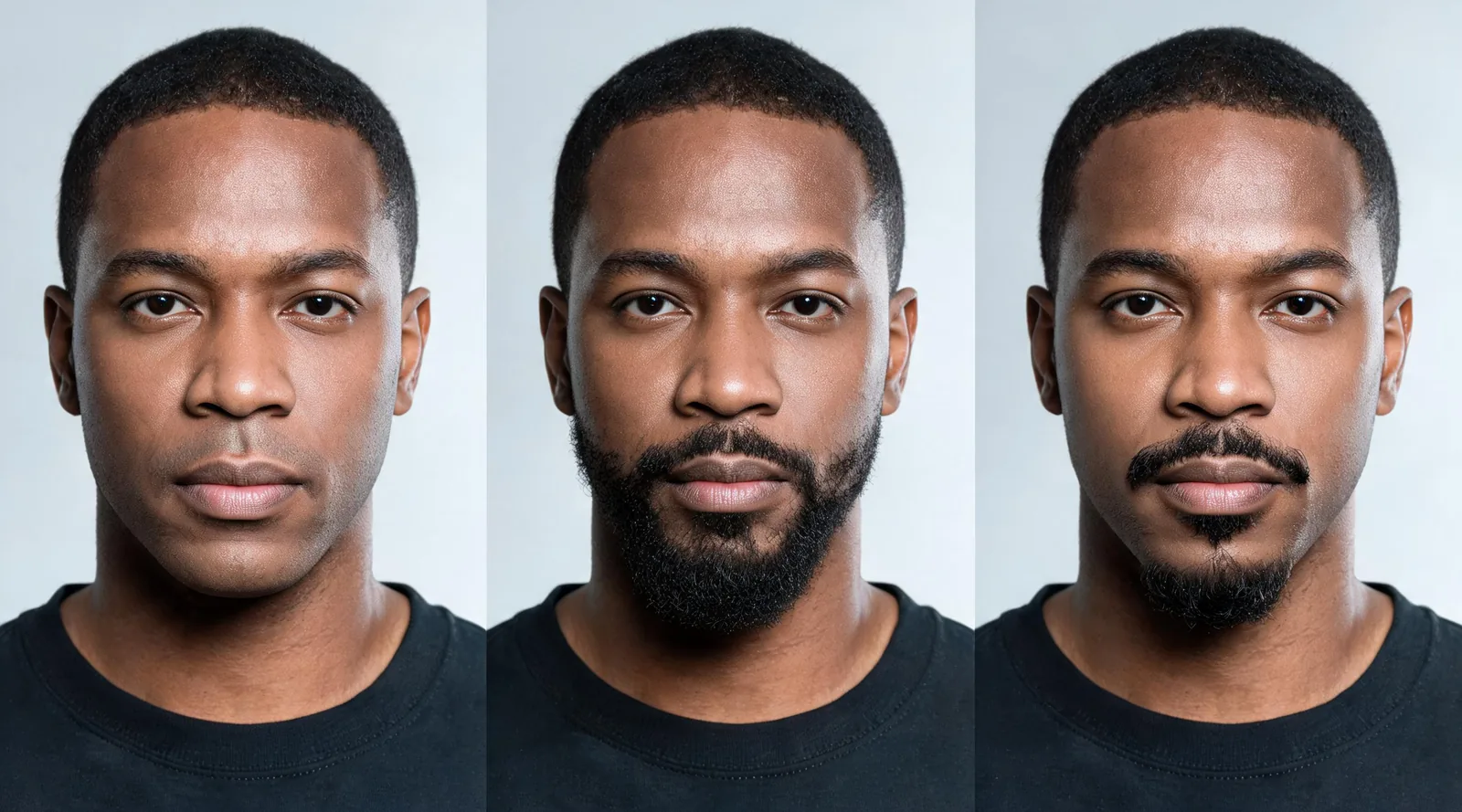
Illustrative facial-hair comparison, not a TikTok screenshot: clean-shaven, full-beard, and goatee looks answer different questions.
Why is the beard filter missing or not working?
Separate an unavailable effect from a tracking problem. If the effect page does not open or cannot be used, changing your lighting will not restore it. If it opens but the beard drifts, the camera conditions or the effect's limits are the more useful things to test.
| What happens | What to try next |
|---|---|
| The link opens a video but no usable effect | Check whether the clip has an attached effect label; it may have been edited elsewhere |
| The effect appears in the camera but not after upload | Try it before recording a new clip; the effect may require live capture |
| Facial hair slips when you speak | Improve even lighting and test with an unobstructed mouth |
| It works front-on but breaks during turns | Use smaller movements or choose another effect |
| Several ordinary app features fail too | Update and restart the app, then check your connection |
TikTok's first-steps troubleshooting page is the appropriate starting point for general app problems. An update is worth trying, but it is not a promise that a particular creator effect will return. Avoid repeated reinstalls as an effect-search strategy, especially if you have drafts you want to keep.
If only one effect fails, try another that performs the same task. Use the same light and movement test to compare them.
When is a still-photo preview the better option?
Use a photo when you want to pause, compare outlines, or discuss a grooming idea. A still image lets you inspect the jaw and upper lip without trying to hold a pose while a moving overlay settles. It will not prove that the style works in motion, but it can answer a more focused appearance question.
AIChangeHair's beard filter adds facial hair to an uploaded portrait. Its no-beard filter requests removal, while the goatee filter focuses on the chin style. These are photo-generation workflows, not TikTok camera effects, and sign-in is required to generate.
Choose a sharp, recent portrait with the face and jaw visible. Keep one original as your baseline, then request one edit at a time. For example, compare a short full beard with a goatee using the same source image. Check whether the eyes, nose, expression, and head shape stayed consistent before judging the facial-hair difference.
Generated hair does not predict growth density, patchiness, or how long a beard will take to grow. A removal image also invents skin that the original beard concealed. Bring the original alongside the preview if you discuss the look with a barber; the edited picture is a reference for the shape, not a promise of the exact outcome.
Keep scalp-hair changes separate. The TikTok hair-color guide covers comparing color directions before adding a beard experiment.
Editorial disclosure: AIChangeHair offers the still-photo tools linked here. We cannot guarantee the availability of an individual TikTok effect on your account or device. The article images are illustrations, and previews are visual references rather than predictions of real facial-hair growth or shaving results.
Frequently asked questions
How do I find a beard filter on TikTok?
Search TikTok for beard, mustache and goatee, or no beard according to the change you want. Open an effect attached to a video or look in the recording screen's Effects area, then test whether it is available and does the right job on your device.
Is the beard filter the same as the no-beard filter?
No. A beard-adding effect places facial hair on the face, while a no-beard effect removes or covers it. A mustache-and-goatee effect changes a smaller area. Check the preview rather than relying on a video's caption.
Why does the TikTok beard filter move away from my face?
Uneven light, a covered mouth, strong head turns, or the effect's own tracking limits can make the overlay slip. Try even light, remove obstructions, and make a short test recording. Choose a different effect if the jaw or upper lip still drifts.
Can I add a beard filter to a video I already recorded?
It depends on the effect. TikTok says some effects are only available before recording and others only afterward. If a face-tracking effect is missing from the editing screen, test it in the camera before recording a new clip.
What can I use if the TikTok beard effect is unavailable?
For a still image, use a photo-based beard, goatee, or no-beard preview with one clear portrait. AIChangeHair offers these photo workflows and requires sign-in to generate. They do not provide a live TikTok camera effect.
Related guides
- Try the AI hairstyle changer →
- Beard filter
- No-beard filter
- Goatee filter
- Beard-style preview guide
- TikTok hair-color guide
Test the effect before the full take
Check the effect during ordinary movement, or use AIChangeHair for a still-photo comparison.