
AI Hair Editor: When to Discard a Hairstyle Preview
Use this AI hair editor checklist to decide whether a hairstyle preview is clean enough to save, retry, or discard before using it as a reference.
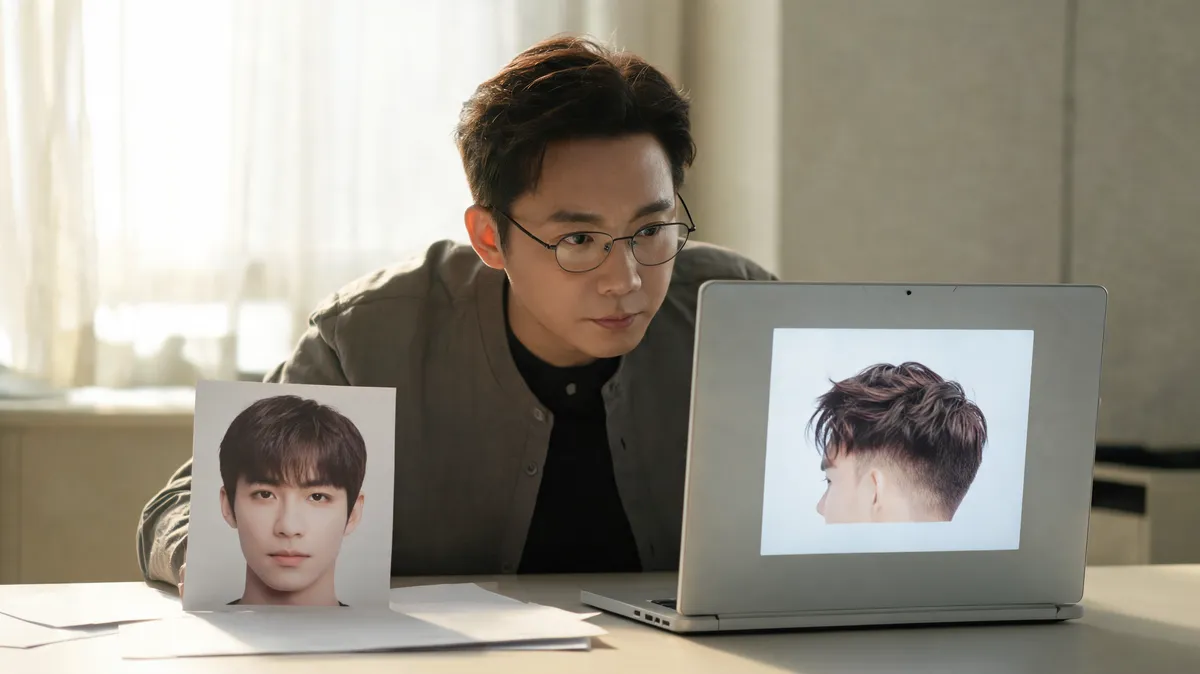
An AI hair editor preview is worth keeping only when you can still recognize yourself and clearly see the requested hair change. Discard it when the face, hairline, lighting, pose, or background drifted—or when the image is so polished that you cannot tell what hairstyle decision you are actually making. Use the AI hairstyle changer again from the original photo with one smaller, more specific request.
Last updated: September 28, 2026 · about 7 min read
This is the step after prompt writing. A prompt can be perfectly reasonable and still produce a misleading result. The practical question is not “does this look impressive?” It is “can I use this image to decide on a haircut, color, or face-framing detail without confusing it for a different person?”
Use a keep, retry, or discard decision
Review the original and the preview side by side at normal size. Look at the hair first, then the places where hair meets the rest of the portrait. The 2026 WACV study of everyday generative image editing found that current AI editors can introduce unintended changes and struggle with identity preservation. That is why a visual review is part of the workflow, not an optional polish step.
| Result | What you see | Next move |
|---|---|---|
| Keep | Your face, pose, light, and setting are stable; the requested hair change is clear | Save it with a one-line note about the hair detail you like |
| Retry | The hair direction is promising but an edge, crop, or single detail is unclear | Return to the original photo and ask for one narrower adjustment |
| Discard | Identity, scene, hairline, or multiple unrelated features changed | Do not edit the failed result again; start from the baseline |
A flattering image of a different-looking person is not a successful hairstyle preview. The less dramatic image may be the better decision tool.
Check these five zones before saving
The center of a hairstyle can look plausible while the edges tell a different story. Use this short review before you decide a preview is ready to keep.
- Identity: Compare eyes, brows, jaw, expression, and skin tone with the original. If you notice a different person before you notice a new style, discard it.
- Hairline and temples: Look for a plausible front edge, visible natural landmarks, and hair that does not spill strangely onto skin. A fringe can cover part of the forehead; it should not erase the underlying frame.
- Requested change: Can you name the difference you asked for—length, part, fringe, curl direction, or color placement? If not, the image is too ambiguous to guide a real choice.
- Boundaries: Check ears, sideburns, neck, shoulders, and clothing. These are common places for a new hair length or texture to lose its relationship to the portrait.
- Light and scene: If lighting, makeup, clothing, or background changed at the same time, you cannot fairly judge whether the hairstyle is doing the work.
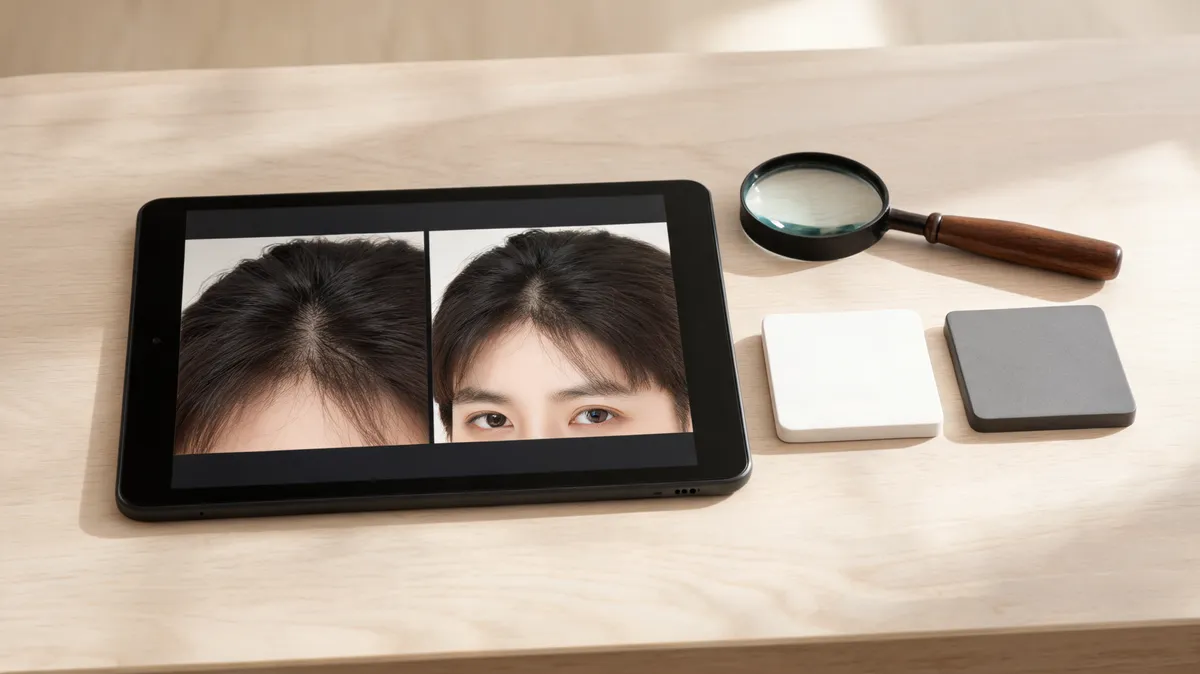
A quality-control view: inspect the transition between hair, skin, and the surrounding portrait before relying on the result.
Retry from the original, not from a bad render
Editing a failed preview can compound the problem. It carries the changed face, lighting, or edges into the next image, so each new result becomes less comparable to your actual baseline. Go back to the original photo instead.
Use a simple three-step reset:
- Choose a cleaner baseline. Use a recent, unfiltered image in even light with the forehead, hairline, and shoulders visible. The best selfie for an AI hairstyle app guide can help if your first image was dark, cropped, or heavily filtered.
- Reduce the request. Ask for one hair change and name what must stay fixed: face, expression, skin tone, pose, clothing, light, and background. If you were testing a full makeover, split it into a haircut comparison first and a color comparison later.
- Make one deliberate variation. After you get a stable result, change only one variable—for example, a center part versus a soft side part. That makes the choice legible.
For prompt examples before you generate, see AI hairstyle prompt examples. This checklist starts after the image exists: it helps you decide whether that output earned a place in your shortlist.
Separate harmless imperfections from misleading drift
No generated image needs to be pixel-perfect to be useful. A tiny flyaway or slightly simplified strand texture can be irrelevant if the preview still makes a clear, fair comparison. What matters is whether the flaw changes the decision.
| Detail to inspect | Often acceptable | Discard it when… |
|---|---|---|
| Strands and texture | Minor simplification at normal view size | The hair reads as pasted on, plastic, or unrelated to the requested texture |
| Hairline | A small edge softness | The hairline moves materially, becomes implausible, or hides the face frame |
| Face | A subtle rendering difference | Eyes, jaw, expression, skin tone, or proportions changed enough to alter identity |
| Requested style | A slightly imperfect curl or fringe edge | You cannot tell the length, part, color placement, or style you meant to test |
| Scene | A small background blur | Lighting, clothing, pose, or makeup became part of the “makeover” |
If you need to zoom in to invent a reason to keep an image, it probably is not a strong reference. If the hair direction is the first thing you notice and the rest of the portrait holds steady, it may be good enough to discuss.
Save a short reference, not a gallery of maybes
Save the original and one or two approved previews. Under each approved image, write the one detail you want to retain: “soft fringe starts below the brows,” “keep this collarbone length,” or “I like the cooler brown direction, not an exact color match.” This keeps the conversation focused when you use an AI haircut preview at a salon.
Do not treat the result as a cut plan, color formula, or guarantee. A photo editor cannot assess density, curl shrinkage, growth patterns, previous chemical services, styling skill, or how a cut moves after washing. A professional can adapt a visual preference to the hair in front of them.
Editorial disclosure: AIChangeHair is a visual-preview tool. This article describes a review process for generated images; it does not promise identity preservation or predict an in-person haircut or color result.
Frequently asked questions
When should I discard an AI hairstyle preview?
Discard it when the face, expression, skin tone, hairline, pose, lighting, or background changed enough that you cannot judge the hairstyle separately. Also discard a result when the requested cut or color is unclear, the edge zones look implausible, or the image would mislead a stylist about what you actually want.
Is a small hairline artifact enough to reject a preview?
Not always. A minor flyaway can be harmless if the person, requested hair change, and lighting remain stable. Reject it when the hairline shifts materially, crosses onto skin, hides the true frame of the face, or makes the new style impossible to interpret.
How many AI hairstyle previews should I save?
Usually one or two controlled options plus the original photo are enough. Saving many near-duplicates makes it harder to explain what you prefer. Keep the versions that isolate a specific length, part, fringe, or color direction and add a short note about the detail you want to discuss.
Related guides
- Try the free AI hairstyle changer →
- Write a focused AI hairstyle prompt
- Use the best selfie for a hairstyle app
- Take an AI haircut preview to a salon
- Understand what an AI hair preview cannot tell you
Keep only the comparisons that answer something
Use the AI hairstyle changer to test one visible decision at a time, then discard every preview that changes the person or scene. The smaller, cleaner shortlist is the one you can actually use.