
Can FaceApp Change Hair in a Video? What to Check
Before trying to change hair in a FaceApp video, verify the current in-app workflow, export limits, and whether a still-photo preview is enough.
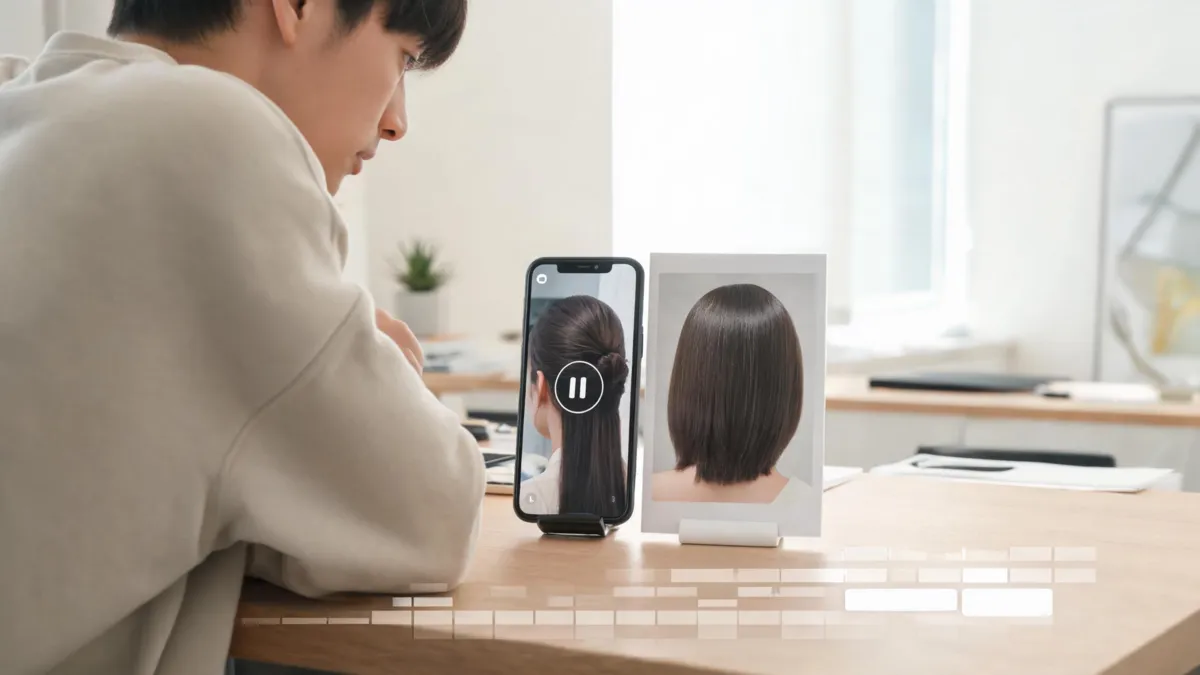
Do not assume that a FaceApp hair filter for a photo will also change hair in a video for free. FaceApp’s current public hair material describes portrait and photo editing, so first confirm the exact in-app video workflow, hair control, export limits, and price in the version you have. If your real goal is choosing a haircut, use a still-photo comparison with the AI hairstyle changer before you spend time trying to edit moving footage.
Last updated: September 4, 2026 · about 7 min read
The short answer: verify the current video workflow first
Searches for “FaceApp change hair in video free” often mix together photo tutorials, old app screenshots, generic video effects, and paid tools. That makes a confident yes-or-no claim risky. As checked for this guide, FaceApp’s official site presents it as a photo editor, and its current hair-filter guide describes face filters applied to photos with recognized faces. Its App Store listing likewise describes photo editing and hair color or hairstyle changes.
Those sources are useful for establishing that FaceApp offers photo hair edits. They do not give a documented, step-by-step promise that any particular hairstyle filter can be applied to a moving clip, frame by frame, in the version and plan you have. The honest answer is therefore: open the current app and check before uploading an important video or committing to a purchase.
| If you need | Start with | Why |
|---|---|---|
| A haircut decision | One still portrait and two controlled previews | You can judge the hair direction without motion noise |
| A social post with motion | A short test clip in the actual editor | It reveals tracking, flicker, export, and watermark behavior |
| A salon reference | Original photo plus one or two still previews | A stylist needs your preference, not an altered video |
| A reliable commercial edit | A tool with a documented video hair workflow and terms | Photo features do not establish video rights or consistency |
“Free” is not a feature description. Check the actual export screen for a watermark, resolution cap, credit requirement, or subscription prompt before relying on a test result.
Why still-photo hair edits and video hair edits are different
A still portrait gives an editor one fixed face angle, lighting setup, and hair outline. Video changes those inputs constantly. A person turns their head, raises a hand, passes through different light, moves behind hair, and creates motion blur. Hair itself shifts at the temples, fringe, ears, and neckline.
A believable video hair edit has to preserve the person’s identity and keep the hairline, color, edges, and style coherent from frame to frame. That is a much higher bar than producing one attractive frame. The first frame can look fine while the next makes the fringe jump, the color leak onto skin, or the outline break apart.
A single preview can choose a direction; only a short motion test can reveal whether a video workflow holds together.
This is why you should separate two questions that are often bundled together:
- Do I like this hair direction on me? Use a still comparison. Keep your face, expression, light, clothing, and background steady while you test one variable, such as length, fringe, or color.
- Can this particular editor render that direction through a clip? Use a short, non-sensitive test clip inside the actual current product. Look for tracking breaks rather than judging the first frame alone.
The first question is a good fit for the virtual haircut simulator. The second depends on a video editor’s current functionality and terms, not on a search snippet or a tutorial recorded for an older release.
A practical test before you upload a real video
If the app you are evaluating presents a video option, do not start with an event video or a clip of someone else. Make a ten- to fifteen-second test of yourself in ordinary light. Turn your head slowly, look down and up, move a hand near your hair, and include the kind of background you expect to use. Check the product’s permissions and privacy terms before uploading it.
Then test only one hair change. If you also add makeup, face reshaping, a new background, and a color shift, you will not know which change caused a failure.
| Check after export | What a pass looks like | Red flag |
|---|---|---|
| Hairline | Stays plausible as the head turns | Forehead jumps or skin becomes hair |
| Face identity | Facial features remain stable | Eyes, jaw, age, or skin changes with the hair |
| Hair edges | Strands and outline follow movement naturally | Hair cuts through ears, hands, or shoulders |
| Color | Tone holds under small light changes | Color pulses, leaks, or turns patchy |
| Export | Watermark, resolution, length, and cost fit your use | A surprise paywall or unusable watermark |
If any of those red flags matters, stop before paying for a longer export. A tool can still be fine for a playful clip, but it is not dependable evidence for a haircut decision. If your main concern is unexpected face changes in a still editor, the guide to why a hair filter changes your face has a focused troubleshooting workflow.
Use a still preview to make the real hair decision
Most people who search for a video hair edit are really trying to answer a lower-stakes question first: “Would I want bangs?”, “Would a darker color feel too heavy?”, or “Would I miss my current length?” A clean still comparison answers that more directly.
Use one recent portrait in even light. Test a conservative option, the look you are curious about, and one middle option. Preserve your expression, face, clothing, light, and background. Save the original beside the two useful results and annotate what you like—not “make this exact image,” but “I prefer the lighter fringe” or “I like less contrast around my face.” The AI hairstyle prompt examples show how a narrow request helps preserve the comparison.
That small set is more useful to a stylist than a heavily altered video. It lets a professional ask the questions an image cannot settle: how the style works with your density, natural part, texture, hair history, and morning routine. For color, the U.S. Food and Drug Administration’s hair-dye safety guidance is a useful reminder that a visual preview does not establish chemical safety or a predictable salon outcome.
Privacy, price, and permissions deserve their own check
Your decision should not rely only on whether the first render looks good. Before using any face or hair editor, confirm what you are uploading, where you are exporting, whether the clip has other people in it, and which current plan covers the feature. Read the provider’s current privacy terms rather than assuming that a photo policy also covers video.
Use a non-sensitive test clip first. Keep a copy of the original. Do not upload someone else’s face without permission, and do not treat a generated video as evidence of what a real chemical color service or haircut will do. If the test does not preserve your face and hair direction across motion, a still preview may be the more honest tool for the choice you are making.
Editorial disclosure: AIChangeHair creates visual hair previews from photos; it is not a video editor, does not assess hair condition, and does not guarantee a real-world haircut or color result. We do not sell or recommend a particular FaceApp plan. Product features, prices, and terms can change, so verify them in the current app before purchase or upload.
Frequently asked questions
Can FaceApp change hair in a video for free?
Check the current FaceApp app workflow and its export screen before relying on it. FaceApp’s published hair documentation focuses on photo editing, so do not assume a still-photo hair filter is also available frame by frame in video or that its export is free.
Why does a hair edit look different from frame to frame?
Video has changing head position, light, motion blur, partial occlusion, and hair movement. A hair effect needs to preserve the same identity, hairline, style, and edges across all of those frames; a good still image does not prove that it will.
Should I use a photo preview before a video edit?
Yes, when the real decision is the haircut or color direction. Use one clear photo to narrow two or three possibilities, then use a video editor only if you need motion footage and its current controls meet your export and privacy requirements.
What should I test before paying for a video hair tool?
Use a short non-sensitive clip and check the exact hair control, face preservation, motion consistency, watermark, resolution, export length, credits, privacy terms, and cancellation conditions before paying or uploading a longer personal video.
Related guides
- Try the free AI hairstyle changer →
- Virtual haircut simulator
- Why a hair filter changes your face
- AI hairstyle prompt examples
- AI haircut preview at the salon
Test the motion tool after you choose the style
Start with the AI hairstyle changer to decide what you want to try, then test any video editor on a short clip before you upload or pay for more.