
How to Change Hairstyle in Snapchat: What a Lens Can and Can’t Preview
Use a Snapchat hairstyle Lens for a quick visual experiment, then make a controlled photo comparison before deciding on a real haircut.
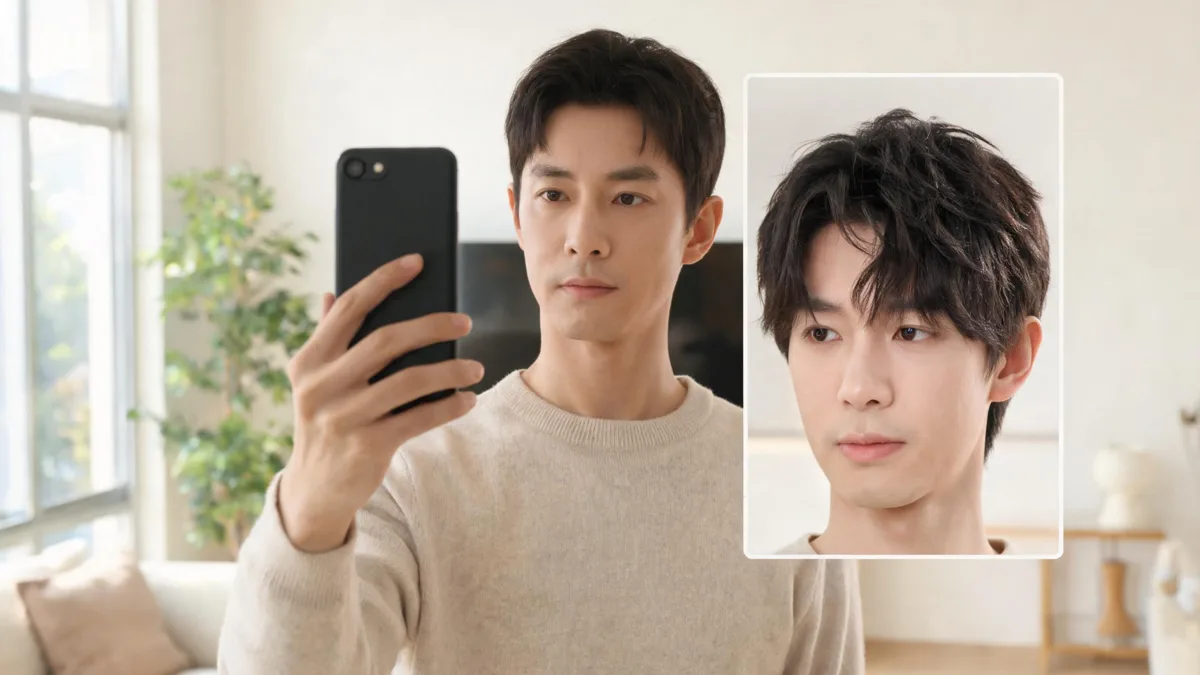
To change hairstyle in Snapchat, use a current Lens for a quick live experiment, or edit your Bitmoji if you only mean your avatar. Neither is a dependable haircut forecast. For a real decision, compare one clear portrait with one restrained hairstyle change in an AI hairstyle changer, keeping your face, pose, light, and background the same. The useful question is not whether an effect looks fun in motion; it is whether a specific hair shape still feels like you when the rest of the image stays stable.
Last updated: September 23, 2026 · about 7 min read
What “change hairstyle in Snapchat” can mean
The search can describe three different jobs. Snapchat’s own Lens guidance calls Lenses augmented-reality camera experiences and distinguishes them from Filters. A Lens can add a live transformation while you create a Snap. It is a good way to get a fast reaction to a look, not to measure an exact cut.
Bitmoji is different again. Snapchat’s avatar help says you edit an existing avatar from its customization menu in the mobile app. That changes a cartoon character. It does not alter your portrait, your real hair, or a hairstyle in a photo.
| If you mean… | Snapchat can help with | It cannot establish |
|---|---|---|
| A playful live look | A temporary current Lens while you record a Snap | The exact shape, density, or maintenance of a haircut |
| A new avatar | Bitmoji hair choices in the mobile app | How the style sits on your own face or hairline |
| A haircut decision | A quick source of ideas | A controlled comparison on your real portrait |
A Lens result can be a useful prompt: “I like more length around my face” or “I miss seeing my forehead.” It is not evidence that a particular cut will behave that way in your natural texture.
Use a Snapchat Lens as a first look
If you see a hairstyle Lens in the current carousel, keep the test simple.
- Start with an honest camera view. Face a window or use even indoor light. Remove sunglasses and move hair away from the eyes. A clear face gives a live effect its best chance to track consistently.
- Capture one still, not a stream of effects. Swipe the Camera-screen carousel, choose a current Lens, and save one frame. Snapchat notes that Lens availability can differ by device; do not assume a search result or an old tutorial guarantees the same Lens.
- Name the reaction, then test it separately. Write down the one visual idea you liked—shorter sides, a center part, softer fringe, more height. Make a separate still-photo test with the same original, such as a bangs filter or buzz cut filter, instead of asking an effect to answer every question at once.
That last step is where a social-camera experiment becomes useful. The virtual haircut simulator explains why the original image needs to stay visible: without a stable reference, a different expression, focal length, or beauty treatment can look like a hairstyle preference.
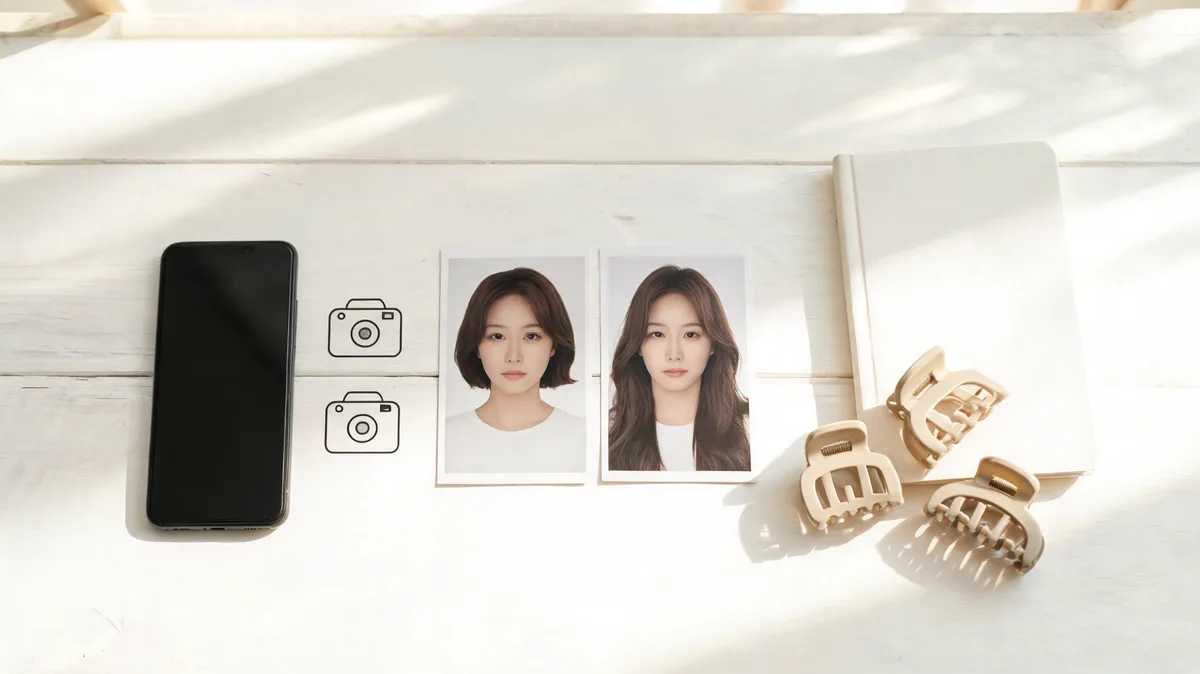
Editorial illustration: a small, controlled set is easier to judge than a camera roll of unrelated effects.
Lens, Bitmoji, or a still-photo preview?
Choose the format that matches the decision in front of you.
| Question | Current Snapchat Lens | Bitmoji editor | Still-photo hairstyle preview |
|---|---|---|---|
| “Is this effect fun in a Snap?” | Best first check | Not the point | Fine, but slower |
| “Do I like this avatar hairstyle?” | Not needed | Best fit | Not relevant |
| “Would I explore a bob, fringe, or shorter cut?” | Idea only | Not useful | Best controlled starting point |
| “Will this work with my growth pattern?” | Cannot tell | Cannot tell | Cannot tell; ask a stylist |
| “Can I compare two directions fairly?” | Hard while moving | Cartoon-only comparison | Strong when the source photo stays fixed |
The limitation is important. An app effect can change placement as you move, and an avatar deliberately simplifies your features. A photo preview can still drift, especially around roots, ears, glasses, and fine texture. Reject any result that changes your eyes, jaw, skin tone, clothing, or room. The best selfie for an AI hairstyle app has a practical source-photo checklist if the comparison looks unreliable.
Make a fair haircut comparison after Snapchat
Keep the trial to two nearby options. For example, if a Lens makes you curious about face framing, compare your current hair with light curtain bangs, then compare light curtain bangs with a slightly fuller fringe. If it makes you curious about a short shape, compare a short-hair preview with a close buzz rather than changing length, color, makeup, and background together.
Use this review checklist before you save anything:
- Hairline and part: Does the new shape begin where your visible hair could plausibly begin?
- Edges: Are the ears, temples, neck, and hair-to-background boundary clean at normal phone size?
- Identity: Does the person still look like you without face reshaping or beauty smoothing?
- One-variable rule: Is the hairstyle the main deliberate change?
- Practical note: Can you say what you like in ordinary language, such as “less volume at the crown” or “more open at the center”?
Save the untouched original and only one or two reliable directions. A stylist can use those notes to assess texture, density, cowlicks, shrinkage, upkeep, and grow-out—things neither Snapchat nor a generated image can inspect.
A note on privacy and expectations
Check the current privacy and sharing choices in any app before you upload or send a face photo. Use only a photo you have permission to use, keep an original copy, and avoid treating a digital result as a promise about a service’s catalog, price, or data handling. AIChangeHair is a photo-based visual preview tool; it does not operate Snapchat, control its Lenses, or guarantee a salon result.
No directly relevant verified YouTube walkthrough was embedded here. The reviewed query results focused on changing a Bitmoji avatar rather than using a current hairstyle Lens as a controlled haircut decision, and that distinction matters to this guide.
Frequently asked questions
Can I change my hairstyle in Snapchat?
You can use a current Snapchat Lens for a live, temporary effect or edit your Bitmoji avatar’s appearance in the mobile app. Neither option changes your real hair or predicts an exact haircut. A still-photo preview is more useful when you want to compare one plausible haircut on your own face.
How do I find a hairstyle Lens on Snapchat?
Open Snapchat’s Camera screen, swipe through the Lens carousel, and choose a current Lens. Lens availability can vary by device, region, subscription, and catalog rotation, so do not rely on an old Lens name or screenshot being available today.
Does changing my Bitmoji hairstyle change my real photo?
No. Editing a Bitmoji changes a cartoon avatar, not your saved portrait or your real hair. Snapchat says avatar customization is done in the mobile app; treat it as an avatar choice rather than a haircut preview.
What photo should I use to compare a haircut before booking?
Use a recent, front-facing or three-quarter portrait in even light with your usual part, hairline, ears, and front sections visible. Avoid hats, sunglasses, strong beauty filters, hands over the face, and heavy shadows. Keep the same original beside every preview.
Related guides
- Try the free AI hairstyle changer →
- Bangs filter: compare fringe with one clear photo
- Buzz cut filter: preview a shorter direction
- Virtual haircut simulator: compare one change at a time
- Best selfie for an AI hairstyle app
Make the decision clearer
Use a current Lens for the quick reaction, then compare one hairstyle direction on a stable portrait → before you book, cut, or color anything.